HP OFFICEJET 4500 Installation Guide
Summary
Introducing your new versatile all-in-one printer solution. This comprehensive setup guide provides step-by-step instructions for effortless installation, covering everything required to get started right away. Users will learn how to unpack and prepare the unit, configure language settings, accurately load paper, and perform necessary alignment procedures. The manual also guides you through software installation tailored for both Windows and Mac OS X, ensuring quick functionality for printing, scanning, and more. Finally, it details product registration to access efficient support services.
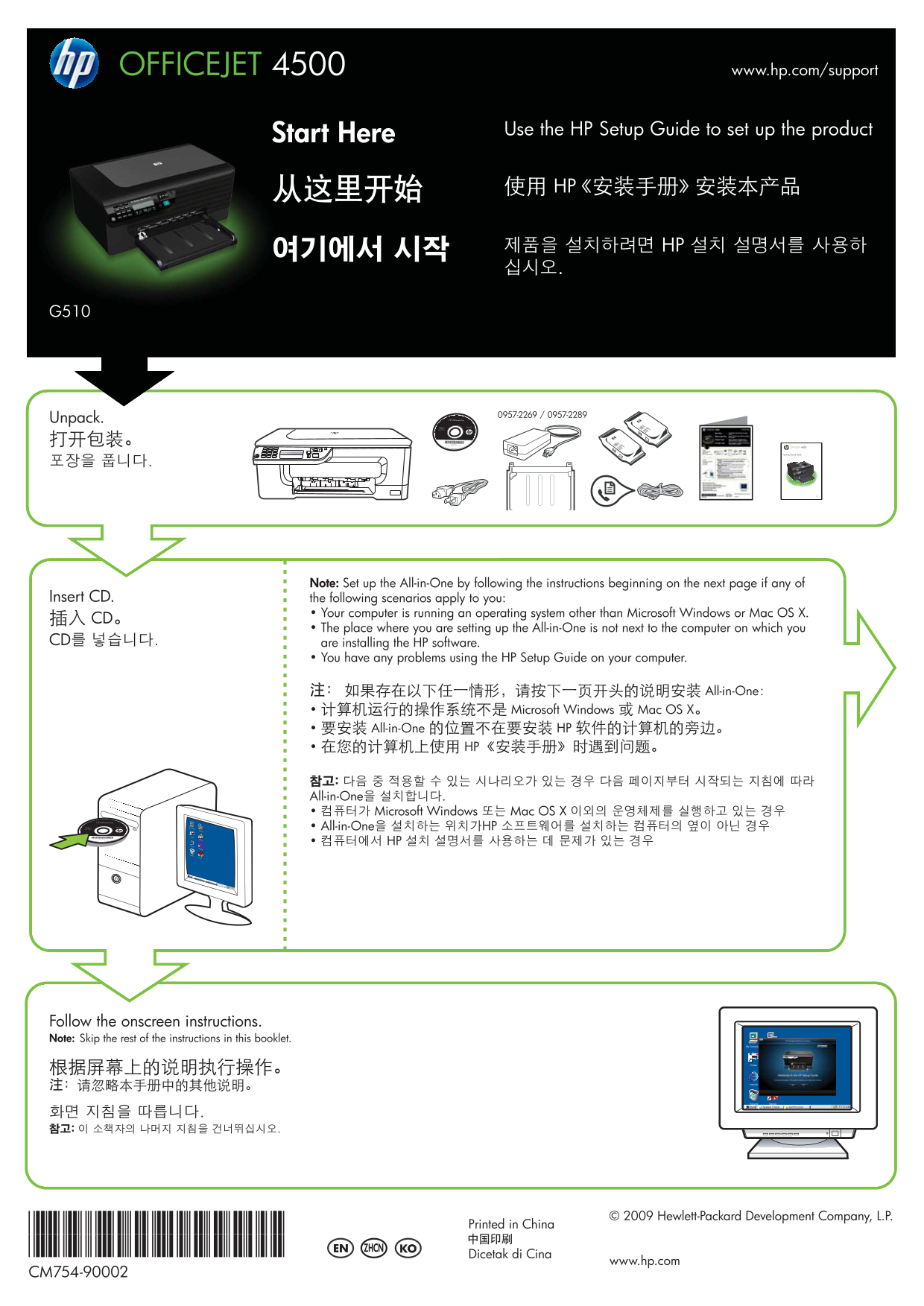
Page 1 Text Content
OFFICEJET 4500 www.hp.com/support
Use the HP Setup Guide to set up the product
Start Here
从这里开始 使用 HP《安装手册》安装本产品
제품을 설치하려면 HP 설치 설명서를 사용하
Unpack. 打开包装。
5 jkl 4 ghi 2 abc 3 def 6 mno OK OFFICEJET 4500
7 pqrs 8 tuv 9 wxyz Getting Started Guide
Note: Set up the All-in-One by following the instructions beginning on the next page if any of
Insert CD. the following scenarios apply to you:
• Your computer is running an operating system other than Microsoft Windows or Mac OS X.
插入 CD。
• The place where you are setting up the All-in-One is not next to the computer on which you
CD를 넣습니다. are installing the HP software.
• You have any problems using the HP Setup Guide on your computer.
注: 如果存在以下任一情形,请按下一页开头的说明安装 All-in-One: • 计算机运行的操作系统不是 Microsoft Windows 或 Mac OS X。 • 要安装 All-in-One 的位置不在要安装 HP 软件的计算机的旁边。 • 在您的计算机上使用 HP《安装手册》时遇到问题。
참고: 다음 중 적용할 수 있는 시나리오가 있는 경우 다음 페이지부터 시작되는 지침에 따라 All-in-One을 설치합니다. • 컴퓨터가 Microsoft Windows 또는 Mac OS X 이외의 운영체제를 실행하고 있는 경우 • All-in-One을 설치하는 위치가HP 소프트웨어를 설치하는 컴퓨터의 옆이 아닌 경우 • 컴퓨터에서 HP 설치 설명서를 사용하는 데 문제가 있는 경우
Follow the onscreen instructions. Note: Skip the rest of the instructions in this booklet.
© 2009 Hewlett-Packard Development Company, L.P.
*CM754-90002* Printed in China
*CM754-90002* EN KOZHCN
Dicetak di Cina
www.hp.com
CM754-90002
Page Summary Contents For HP OFFICEJET 4500 Installation Guide
Manual Details
| Brand | HP |
|---|---|
| Pages | 4 |
| File Size | 1.52 MB |
| Published | July 15, 2026 |
Enter the captcha to get the download link:

Frequently Asked Questions
How do I set up the language or location on the control panel?
Use the ◄ and ► buttons to scroll to your desired option, press OK, then press 1 to confirm.
What is required setup paper for alignment?
Unused, plain, white A4- or letter-size paper should be inserted print-side down in the main tray.
If I don't have a CD/DVD drive, how do I install software?
You can download the HP software from HP’s support website at www.hp.com/support.
What is the proper order for connecting and installing software (Windows vs Mac OS X)?
For Windows, install software first and do NOT connect the USB cable until prompted. For Mac OS X, connect the USB cable first, then install the software.