Honeywell POWER PRESENTER RF Instruction Manual
Summary
This compact wireless presentation system provides powerful, reliable control over any slideshow or digital presentation. Featuring a built-in laser pointer and stable radio frequency technology with a 150-foot range, it allows users to advance slides and mimic keyboard commands effortlessly. This guide details everything you need to know: from initial USB setup and linking the remote to the receiver, to customizing keystrokes for compatible software like PowerPoint. Ideal for professionals, educators, and anyone needing advanced slide control in formal settings.
Page 1 Text Content
POWER PRESENTER RF
Part # PPRF
Instruction Manual
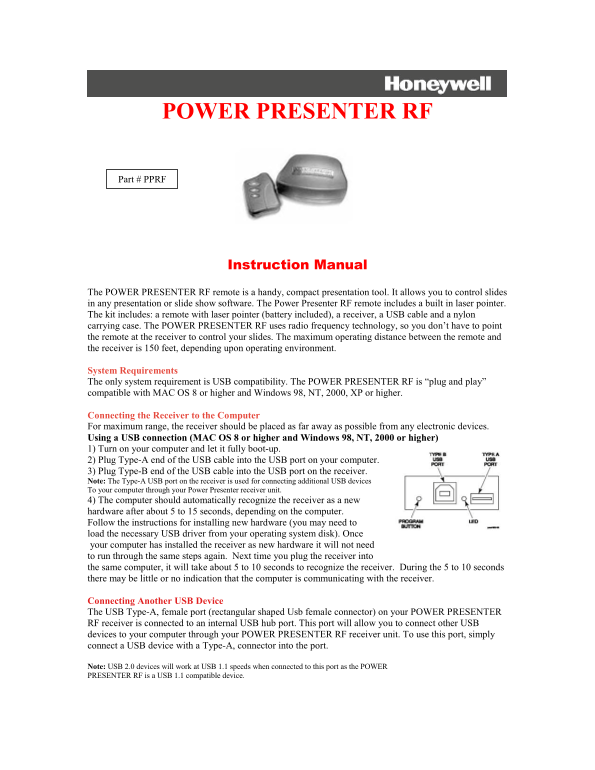
The POWER PRESENTER RF remote is a handy, compact presentation tool. It allows you to control slides in any presentation or slide show software. The Power Presenter RF remote includes a built in laser pointer. The kit includes: a remote with laser pointer (battery included), a receiver, a USB cable and a nylon carrying case. The POWER PRESENTER RF uses radio frequency technology, so you don’t have to point the remote at the receiver to control your slides. The maximum operating distance between the remote and the receiver is 150 feet, depending upon operating environment.
System Requirements The only system requirement is USB compatibility. The POWER PRESENTER RF is “plug and play” compatible with MAC OS 8 or higher and Windows 98, NT, 2000, XP or higher.
Connecting the Receiver to the Computer For maximum range, the receiver should be placed as far away as possible from any electronic devices. Using a USB connection (MAC OS 8 or higher and Windows 98, NT, 2000 or higher) 1) Turn on your computer and let it fully boot-up. 2) Plug Type-A end of the USB cable into the USB port on your computer. 3) Plug Type-B end of the USB cable into the USB port on the receiver. Note: The Type-A USB port on the receiver is used for connecting additional USB devices To your computer through your Power Presenter receiver unit. 4) The computer should automatically recognize the receiver as a new hardware after about 5 to 15 seconds, depending on the computer. Follow the instructions for installing new hardware (you may need to load the necessary USB driver from your operating system disk). Once your computer has installed the receiver as new hardware it will not need to run through the same steps again. Next time you plug the receiver into the same computer, it will take about 5 to 10 seconds to recognize the receiver. During the 5 to 10 seconds there may be little or no indication that the computer is communicating with the receiver.
Connecting Another USB Device The USB Type-A, female port (rectangular shaped Usb female connector) on your POWER PRESENTER RF receiver is connected to an internal USB hub port. This port will allow you to connect other USB devices to your computer through your POWER PRESENTER RF receiver unit. To use this port, simply connect a USB device with a Type-A, connector into the port.
Note: USB 2.0 devices will work at USB 1.1 speeds when connected to this port as the POWER PRESENTER RF is a USB 1.1 compatible device.
Page Summary Contents For Honeywell POWER PRESENTER RF Instruction Manual
Manual Details
| Brand | Honeywell |
|---|---|
| Pages | 4 |
| File Size | 122.14 KB |
| Published | June 03, 2026 |
Enter the captcha to get the download link:

Frequently Asked Questions
What is the maximum operating distance for this remote?
The maximum distance is 150 feet, depending on the operating environment.
Is the device plug and play with modern computers?
Yes, it is compatible with MAC OS 8 or higher and Windows XP or higher.
How many remotes can the receiver support?
The receiver supports up to 7 total remotes.
What should I do if my presentation needs specific key mapping (like F10)?
Launch a text editing program and use the Program Button method on the base unit to assign custom keystrokes.