# A B C D E F G H I J K L M N O P Q R S T U V W X Y Z

EXTECH INSTRUMENTS LCR200 Digital LCR Meter User's Guide

Summary

Accurately characterize electronic components with the Extech Model LCR200 Digital LCR Meter. This professional instrument measures inductors, capacitors, and resistors using five selectable frequencies (100Hz to 100kHz), providing crucial data like series/parallel equivalents, Q factor, and phase angle on a dual display. The manual offers comprehensive instructions for utilizing advanced features such as relative %(%) deviation measurement and component sorting. It is the essential tool for electrical engineers and technicians requiring precise performance testing of RLC circuits in critical applications.
📄 Preview PAGE OF 10

Page 1 Text Content

User’s Guide

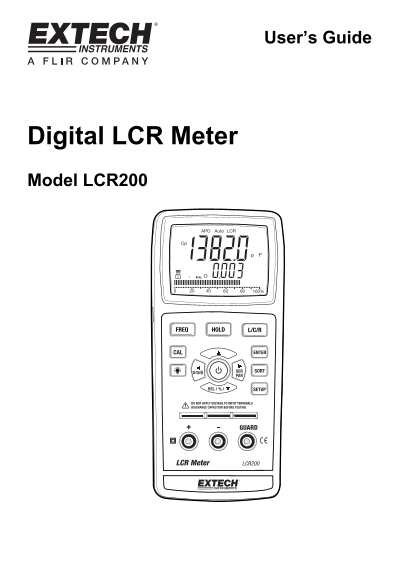
Digital LCR Meter Model LCR200

Page Summary Contents For EXTECH INSTRUMENTS LCR200 Digital LCR Meter User's Guide

Page 1 User’s Guide Digital LCR Meter Model LCR200
Page 2 Introduction Thank you for selecting the Extech Model LCR200 LCR meter. This meter will accurately measure capacitors, inductors and resistors using the test frequencies of 100Hz, 120Hz 1 k Hz, 10 k H...
Page 3 Meter Description 1. Display 2. Frequency Button 3. ▲ Button, RS232 Button 4. CAL Button 5. Backlight Button 6. ◄, D/Q/θ Button 7. REL/%/ ▼ Button 8. Input terminals (pin terminals) 9. Input terminals...
Page 4 Operation Setup 1. Press the Power button to switch the meter ON. 2. The meter will switch ON in the default mode: AUTO LCR and 1k Hz 3. APO will be active with auto shutoff every 5 minutes. LCR prima...
Page 5 Relative / % Function The REL/% mode allows for % deviation measurements from a stored reference value. 1. Configure the meter with the parameters required for the test to be performed. 2. Insert the ...
Page 6 Open/Short Calibration In order to improve the accuracy for high/low impedance measurements, it is recommended that an OPEN/SHORT calibration be performed before the measurement; this removes stray im...
Page 7 Battery Replacement The battery icon indicates the status of the 9V battery. A fresh battery will show the battery icon with three lines above it. As the battery weakens, the number of lines will decr...
Page 8 Specifications Display LCD size: 66.8 X 52.8 mm (2.7 x 2.1”) LCD with green backlight Test frequency 100Hz, 120Hz, 1KHz, 10KHz, 100KHz Dissipation factor 0.000 to 1999 Quality factor 0.000 to 1999 θ m...
Page 9 AC Resistance Range Accuracy Accuracy Remark 100Hz/120Hz 1000Hz 20Ω ± ( 1% + 5digits ) ± ( 1%rdg + 5digits ) After calibration 200Ω ± ( 0.5%rdg + 5digits ) ± ( 0.5%rdg + 5digits ) 2kΩ ± ( 0.5%rdg + 5d...
Page 10 Capacitance ( Cp/Cs ) : D  0.1 Range Accuracy Accuracy Remark 10k Hz 100k Hz 20p F ± (1.0%rdg + 5digits ) ± (1.0%rdg + 5digits ) After calibration 200p F ± (0.5%rdg + 5digits ) ± (0.5%rdg+ 5digits ) ...

Manual Details

Brand Extech Instruments
Pages 10
File Size 270.24 KB
Published May 19, 2026
93 views

Enter the captcha to get the download link:

captcha

Frequently Asked Questions

What frequencies can the LCR200 meter test?

It supports five test frequencies: 100Hz, 120Hz, 1kHz, 10kHz, and 100kHz.

How do I select a specific measurement parameter (L/C/R)?

Press the L/C/R button to step through and manually select the desired primary parameter: Auto-LCR, Auto Range, Auto Parameter, Auto-L, etc.

Where does the meter automatically detect whether to use series or parallel calculation?

The default selection is based on impedance; a parallel circuit (Lp, Cp or Rp) is selected if impedance > 10kΩ, and a series circuit (Ls, Cs or Rs) is selected if impedance < 10kΩ.

What manual setting can I use for comparing two components?

Use the REL/% button to measure % deviation from a stored reference value in relative mode.