Dell OptiPlex 3050 - Quick User Guide - Windows 10
Summary
Dell OptiPlex 3050 All-in-One Quick Start Guide with height adjustable stand (HAS), multilingual setup covering keyboard/mouse, cable cover installation with Torx screw, power adapter, Windows setup, network connection, Microsoft account sign-in, and Taiwan RoHS compliance table for model W18B.
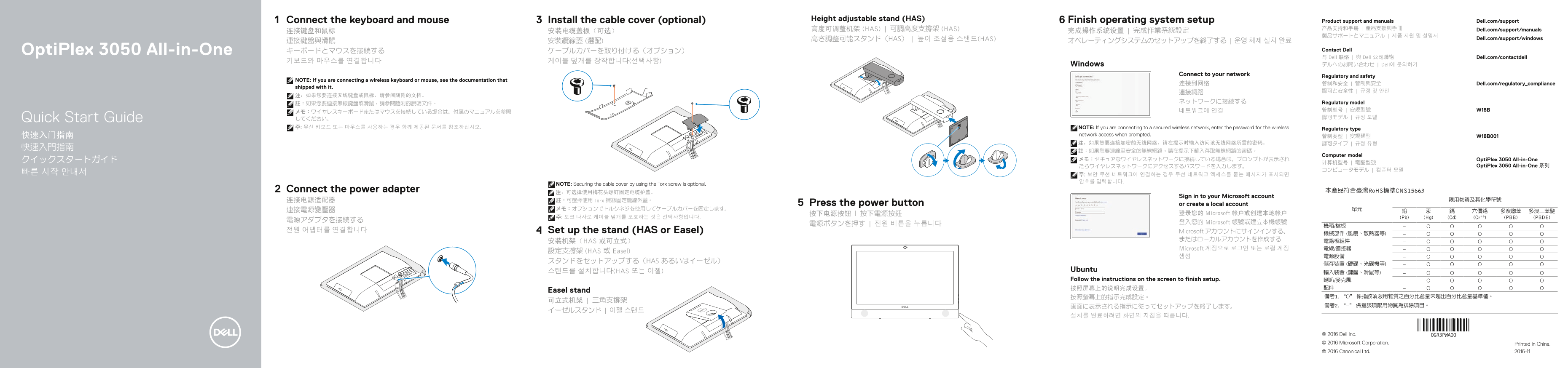
Page 1 Text Content
Connect the keyboard and mouse Install the cable cover (optional) Height adjustable stand (HAS) Finish operating system setup Product support and manuals Dell.com/support
高度可调整机架 (HAS) | 可調高度支撐架 (HAS) 产品支持和手册 | 產品支援與手冊 Dell.com/support/manuals
高さ調整可能スタンド(HAS) | 높이 조절용 스탠드(HAS) Dell.com/support/windows
Opti Plex 3050 All-in-One キーボードとマウスを接続する ケーブルカバーを取り付ける(オプション) Contact Dell 与 Dell 联络 | 與 Dell 公司聯絡 Dell.com/contactdell
Windows デルへのお問い合わせ | Dell에 문의하기
Connect to your network
Regulatory and safety
NOTE: If you are connecting a wireless keyboard or mouse, see the documentation that
连接到网络 管制和安全 | 管制與安全 Dell.com/regulatory_compliance
shipped with it.
ネットワークに接続する Regulatory model
Quick Start Guide してください。 認可モデル | 규정 모델
주: 무선 키보드 또는 마우스를 사용하는 경우 함께 제공된 문서를 참조하십시오. NOTE: If you are connecting to a secured wireless network, enter the password for the wireless Regulatory type
快速入门指南 network access when prompted. 管制类型 | 安規類型 W18B001 注:如果您要连接加密的无线网络,请在提示时输入访问该无线网络所需的密码。 認可タイプ | 규정 유형
Computer model
クイックスタートガイド メモ:セキュアなワイヤレスネットワークに接続している場合は、プロンプトが表示され Opti Plex 3050 All-in-One
たらワイヤレスネットワークにアクセスするパスワードを入力します。 Opti Plex 3050 All-in-One 系列
NOTE: Securing the cable cover by using the Torx screw is optional.
Connect the power adapter 本產品符合臺灣Ro HS標準CNS15663
Sign in to your Microsoft account
连接电源适配器 註:可選擇使用 Torx 螺絲固定纜線外蓋。 限用物質及其化學符號
Press the power button or create a local account
按下电源按钮 | 按下電源按鈕 登录您的 Microsoft 帐户或创建本地帐户
주: 토크 나사로 케이블 덮개를 보호하는 것은 선택사항입니다. (Pb) (Hg) (Cd) (Cr+6) (PBB) (PBDE)
電源ボタンを押す | 전원 버튼을 누릅니다 登入您的 Microsoft 帳號或建立本機帳號
전원 어댑터를 연결합니다 Set up the stand (HAS or Easel) Microsoft アカウントにサインインする、
安装机架(HAS 或可立式)
Microsoft 계정으로 로그인 또는 로컬 계정 電線/連接器
設定支撐架 (HAS 或 Easel)
スタンドをセットアップする(HAS あるいはイーゼル)
스탠드를 설치합니다(HAS 또는 이젤) Ubuntu
Follow the instructions on the screen to finish setup. 喇叭/麥克風
Easel stand
© 2016 Dell Inc. © 2016 Microsoft Corporation. Printed in China. © 2016 Canonical Ltd. 2016-11
Page Summary Contents For Dell OptiPlex 3050 - Quick User Guide - Windows 10
Manual Details
| Brand | Dell |
|---|---|
| Pages | 2 |
| File Size | 505.30 KB |
| Published | July 03, 2026 |
Enter the captcha to get the download link:

Frequently Asked Questions
如何设置或安装电脑?
请先设置支架(HAS 或 Easel),然后连接电源适配器,接着接上键盘和鼠标,最后完成操作系统设置。
如果使用无线设备需注意什么?
如果是无线键盘或鼠标,请参阅随附的文件;连接到安全网络需要输入访问密码。
如何固定可选的电缆盖板?
电缆盖板可以使用 Torx 螺丝固定(这部分是可选步骤)。
该设备支持哪些显示输出端口?
它具有 DisplayPort、VGA 连接埠以及 USB 3.0 和 USB 2.0 等多个接口。