Dell Latitude 5179 2-in-1 Quick User Guide - Windows 10
Summary
Quick Start Guide for the Dell Latitude 5175/5179 2-in-1 detachable tablet (Regulatory Model T04E). Multi-language document covering power cable connection with 1-second button press, Windows setup completion, recovery drive creation via Windows Recovery tool, Dell application location, SupportAssist system checks, and Microsoft account sign-in with wireless network security guidance for this business-class detachable device.
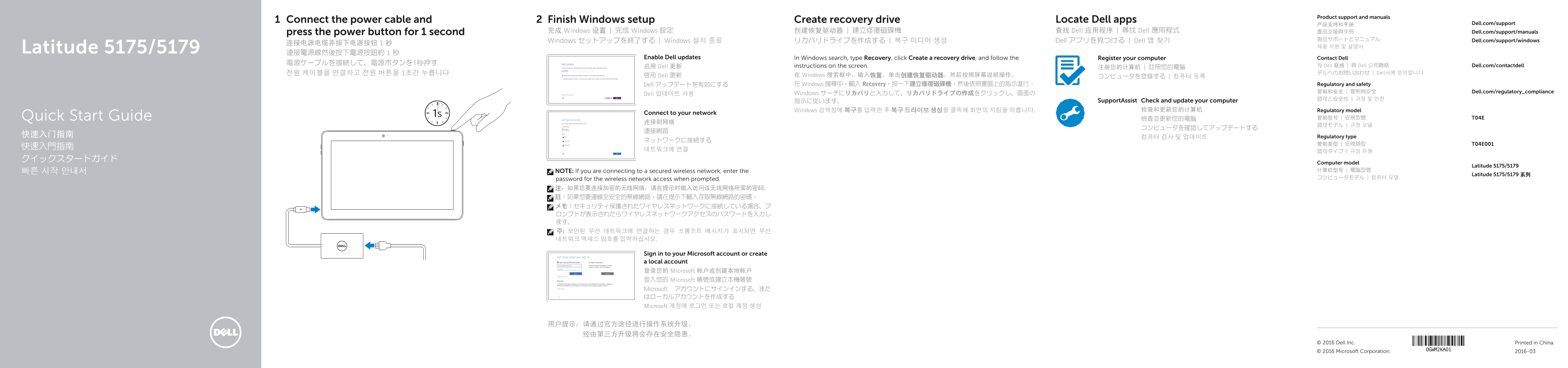
Page 1 Text Content
Product support and manuals
Connect the power cable and Finish Windows setup Create recovery drive Locate Dell apps
产品支持和手册 Dell.com/support
press the power button for 1 second 完成 Windows 设置 | 完成 Windows 設定 创建恢复驱动器 | 建立修復磁碟機 查找 Dell 应用程序 | 尋找 Dell 應用程式 產品支援與手冊 Dell.com/support/manuals
Dell アプリを見つける | Dell 앱 찾기 製品サポートとマニュアル Dell.com/support/windows
Windows セットアップを終了する | Windows 설치 종료 リカバリドライブを作成する | 복구 미디어 생성
Latitude 5175/5179 連接電源線然後按下電源按鈕約 1 秒
Enable Dell updates In Windows search, type Recovery, click Create a recovery drive, and follow the Register your computer Contact Dell
启用 Dell 更新 instructions on the screen. 与 Dell 联络 | 與 Dell 公司聯絡 Dell.com/contactdell
전원 케이블을 연결하고 전원 버튼을 1초간 누릅니다 デルへのお問い合わせ | Dell사에 문의합니다
啟用 Dell 更新 在 Windows 搜索框中,输入恢复,单击创建恢复驱动器,然后按照屏幕说明操作。 コンピュータを登録する | 컴퓨터 등록
Dell アップデートを有効にする 在 Windows 搜尋中,輸入 Recovery,按一下建立修復磁碟機,然後依照畫面上的指示進行。 Regulatory and safety 管制和安全 | 管制與安全 Dell.com/regulatory_compliance
Dell 업데이트 사용 Windows サーチにリカバリと入力して、リカバリドライブの作成をクリックし、画面の
指示に従います。 Support Assist Check and update your computer
Windows 검색창에 복구를 입력한 후 복구 드라이브 생성을 클릭해 화면의 지침을 따릅니다. 检查和更新您的计算机 Regulatory model
Connect to your network
Quick Start Guide 檢查並更新您的電腦 管制型号 | 安規型號 T04E
快速入门指南 Regulatory type
Computer model
Latitude 5175/5179
빠른 시작 안내서 NOTE: If you are connecting to a secured wireless network, enter the 计算机型号 | 電腦型號
Latitude 5175/5179 系列
password for the wireless network access when prompted. コンピュータモデル | 컴퓨터 모델
Sign in to your Microsoft account or create a local account 登录您的 Microsoft 帐户或创建本地帐户 登入您的 Microsoft 帳號或建立本機帳號 Microsoft アカウントにサインインする、また はローカルアカウントを作成する Microsoft 계정에 로그인 또는 로컬 계정 생성
© 2016 Dell Inc. Printed in China. © 2016 Microsoft Corporation. 2016-03
Page Summary Contents For Dell Latitude 5179 2-in-1 Quick User Guide - Windows 10
Manual Details
| Brand | Dell |
|---|---|
| Pages | 2 |
| File Size | 1.40 MB |
| Published | July 02, 2026 |
Enter the captcha to get the download link:

Frequently Asked Questions
如何为设备创建恢复驱动?
在 Windows 搜索框中输入 Recovery,点击 Create a recovery drive,并按照屏幕提示完成操作。
是否可以通过官方途径升级操作系统?
是的,请通过官方渠道进行操作系统升级,避免安全隐患。
连接无线网络需要什么信息?
如果连接的是加密的无线网络,您需要在提示时输入访问该网络的密码。
Latitude 5179 型号有哪些独特功能?
它配备了 NFC 感应区、指纹识别器和智能卡读取器等附加组件。
设备支持哪些存储卡类型?
此设备支持 micro-SIM 卡和 microSD 卡。