# A B C D E F G H I J K L M N O P Q R S T U V W X Y Z

ASUS Server Workstations Motherboard Z87-WS-Intel 2013 Desktop Responsiveness Technologies User's Manual

Summary

Boost your PC's speed and efficiency with Intel Desktop Responsiveness Technologies. This guide provides comprehensive instructions for implementing three performance-boosting features: Smart Response, Rapid Start, and Smart Connect. Designed for users with compatible 4th Gen Core processors running Windows 7 or 8, this manual covers prerequisites, optimal hardware setup (including dedicated SSD advice), and detailed steps to maximize system responsiveness and optimize data retrieval. Achieve noticeably faster application loading and seamless daily computing experience.
📄 Preview PAGE OF 16

Page 1 Text Content

DE121

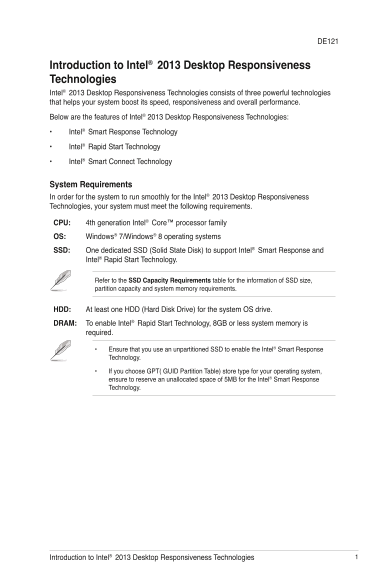
Introduction to Intel® 2013 Desktop Responsiveness Technologies Intel® 2013 Desktop Responsiveness Technologies consists of three powerful technologies that helps your system boost its speed, responsiveness and overall performance. Below are the features of Intel® 2013 Desktop Responsiveness Technologies: • Intel® Smart Response Technology • Intel® Rapid Start Technology • Intel® Smart Connect Technology

System Requirements In order for the system to run smoothly for the Intel® 2013 Desktop Responsiveness Technologies, your system must meet the following requirements.

CPU: 4th generation Intel® Core™ processor family

OS: Windows® 7/Windows® 8 operating systems

SSD: One dedicated SSD (Solid State Disk) to support Intel® Smart Response and

Intel® Rapid Start Technology.

Refer to the SSD Capacity Requirements table for the information of SSD size, partition capacity and system memory requirements.

HDD: At least one HDD (Hard Disk Drive) for the system OS drive.

DRAM: To enable Intel® Rapid Start Technology, 8GB or less system memory is

required.

Ensure that you use an unpartitioned SSD to enable the Intel® Smart Response Technology.

• If you choose GPT( GUID Partition Table) store type for your operating system, ensure to reserve an unallocated space of 5MB for the Intel® Smart Response Technology.

Introduction to Intel® 2013 Desktop Responsiveness Technologies

Page Summary Contents For ASUS Server Workstations Motherboard Z87-WS-Intel 2013 Desktop Responsiveness Technologies User's Manual

Page 1 DE121 Introduction to Intel® 2013 Desktop Responsiveness Technologies Intel® 2013 Desktop Responsiveness Technologies consists of three powerful technologies that helps your system boost its speed, re...
Page 2 In te l® or ag co bi na tio ns SSD Capacity Requirements SSD Partition Capacity System DRAM Requirements 2GB 4GB 8GB Intel® Rapid Start 2GB 4GB 8GB Intel® Smart Response 20GB 20GB 20GB Separate 20GB S...
Page 3 Intel® Smart Response Technology Intel® Smart Response Technology helps boost your system’s overall performance. It allows you to speed up data transmission and easily retrieve your recently-used appl...
Page 4 4. In the Accelerate Disk or Volume window, you can do any of the following: a. Select from the drop-down list the disk you want to use to accelerate your storage system. b. Tick any of these accelera...
Page 5 Intel® Rapid Start Technology Intel® Rapid Start Technology allows you to quickly resume your computer from hibernate or sleep mode. It reduces the amount of data transferred to SSD resulting in a fas...
Page 6 5. If your SSD is not initialized: a. Right-click the disk that you to partition then select Initialize. b. Right-click the unallocated volume then select New Simple Volume. c. When the New Simple Wiz...
Page 7 8. Launch the disk partitioning tool for the following Windows® operating systems: a. For Windows® 7, click Start > Programs > Accessories > Command Prompt. b. For Windows® 8, right click to ...
Page 8 14. Key in set id=84 override then press <Enter>. After the shrinking process, the Disk Management utility identifies a new partition called Hibernation Partition. The command set id=84 override...
Page 9 Using the Intel® Rapid Start Technology To use Intel® Rapid Start Technology: 1. On the task bar, click to show hidden icons then click Intel® Rapid Start Technology icon. 2. In the Intel® Rapid Start...
Page 10 Recovering the partition This procedure allows you to recover the partition that you made for the Intel® Rapid® Start Technology. To recover the partition: 1. Launch the disk partitioning tool for the...
Page 11 7. Launch the Computer Management window for the following Windows® operating systems: a. For Windows® 7, click Start then right-click Computer > Manage. b. For Window® 8, right-click on the Start ...
Page 12 14. To remove the Intel® Rapid Start Manager from the following Windows® operating systems: a. For Windows 7, click Start > Control Panel > Programs > Programs and Features. Click Intel® Rapi...
Page 13 Configuring Intel® Smart Connect Technology You need to configure the settings of Intel® Smart Connect Technology before using it for the first time. To configure Intel® Smart Connect Technology: 1. O...
Page 14 �. Click Finish to start using Intel® Smart Connect Technology. Introduction to Intel® 2013 Desktop Responsiveness Technologies
Page 15 Using the Intel® Smart Connect Technology • Before the system goes to sleep mode, ensure to keep your applications running on the desktop and key in the passwords for applications that require authori...
Page 16 1� Introduction to Intel® 2013 Desktop Responsiveness Technologies

Manual Details

Brand Server
Pages 16
File Size 2.70 MB
Published June 02, 2026
61 views

Enter the captcha to get the download link:

captcha

Frequently Asked Questions

What are the minimum system requirements for this technology to work?

You need a 4th generation Intel Core CPU, Windows 7/8 OS, an unpartitioned SSD, and at least one HDD.

Can I use RAID functionality on the dedicated SSD?

No. Do not create a RAID set on the SSD when setting up Smart Response Technology.

What must I do before my system enters sleep mode if I use Smart Connect?

Ensure your applications are running and enter passwords for any apps that require authorization to keep them active.

How is Intel Smart Response Technology activated after initial setup?

Before enabling it, you must set the SATA Mode item to [RAID mode] in the BIOS.