ASUS Server Workstation Mainboard P8P67 WS Revolution - P8P67 & P8H67 Series BIOS Update Insert Page.
Summary
Optimize your system’s startup performance with comprehensive BIOS utility updates designed for the ASUS P8P67/P8H67 motherboards. This technical guide details advanced configuration options, allowing users to manage Boot Option Priorities and customize the device initialization sequence (BBS Utilities). Perfect for PC builders and advanced users, it provides step-by-step instructions for setting diverse boot device orders and accessing critical functions like Safe Mode setup via the UEFI BIOS.
Page 1 Text Content
華碩 P8P67/P8H67 系列 BIOS 更新 以下為 P8P67/P8H67 系列主機板的資訊更新。
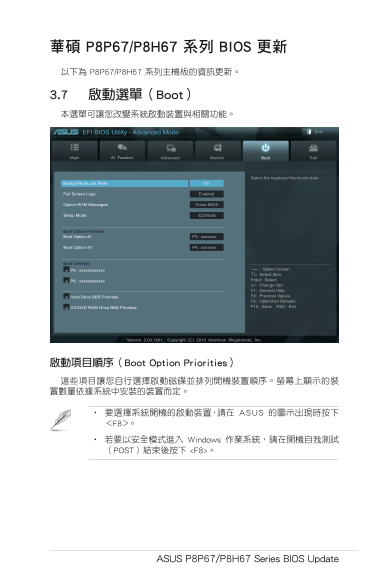
3.7 啟動選單(Boot) 本選單可讓您改變系統啟動裝置與相關功能。
EFI BIOS Utility - Advanced Mode Exit
Main Ai Tweaker Advanced Monitor Boot Tool
Select the keyboard Num Lock state
Bootup Num Lock State On
Full Screen Logo Enabled
Option ROM Messages Force BIOS
Setup Mode EZ Mode
Boot Option Priorities Boot Option #1 P3: xxxxxxx
Boot Option #2 P4: xxxxxxx
Boot Override
→←: Select Screen
> P5: xxxxxxxxxxxx
↑↓: Select Item Enter: Select
> P6: xxxxxxxxxxxx
+/-: Change Opt. F1: General Help F2: Previous Values
> Hard Drive BBS Priorities
F5: Optimized Defaults F10: Save ESC: Exit
> CD/DVD ROM Drive BBS Priorities
Version 2.00.1201. Copyright (C) 2010 American Megatrends, Inc.
啟動項目順序(Boot Option Priorities) 這些項目讓您自行選擇啟動磁碟並排列開機裝置順序。螢幕上顯示的裝 置數量依據系統中安裝的裝置而定。
• 要選擇系統開機的啟動裝置,請在 ASUS 的圖示出現時按下 <F8>。 • 若要以安全模式進入 Windows 作業系統,請在開機自我測試 (POST)結束後按下 <F8>。
ASUS P8P67/P8H67 Series BIOS Update
Page Summary Contents For ASUS Server Workstation Mainboard P8P67 WS Revolution - P8P67 & P8H67 Series BIOS Update Insert Page.
Manual Details
| Brand | Server |
|---|---|
| Pages | 1 |
| File Size | 172.09 KB |
| Published | June 02, 2026 |
Enter the captcha to get the download link:

Frequently Asked Questions
如何更改系統的啟動裝置順序?
您可以使用「啟動項目順序」(Boot Option Priorities)來選擇和排列開機裝置的順序。
如果需要以安全模式進入 Windows 系統,應該按下哪個按鍵?
應在開機自我測試(POST)結束後按下 <F8> 按鍵。
如何在 ASUS Logo 出現時手動選取特定的啟動裝置?
當螢幕上出現 ASUS 的圖示時,請按下 <F8> 進行選擇。