# A B C D E F G H I J K L M N O P Q R S T U V W X Y Z

ASROCK BIOS Setup Utility Manual User Guide

Summary

Gain complete control over your system's fundamental performance settings with this comprehensive utility manual. This guide details how to navigate and utilize advanced BIOS features, allowing users to fine-tune everything from CPU and memory configurations to storage device parameters and boot order sequence. It covers critical functions such as setting security passwords, managing power recovery settings, and optimizing hardware compatibility before your operating system loads. Ideal for PC builders and experienced technicians needing deep system access and performance tuning capabilities.
📄 Preview PAGE OF 16

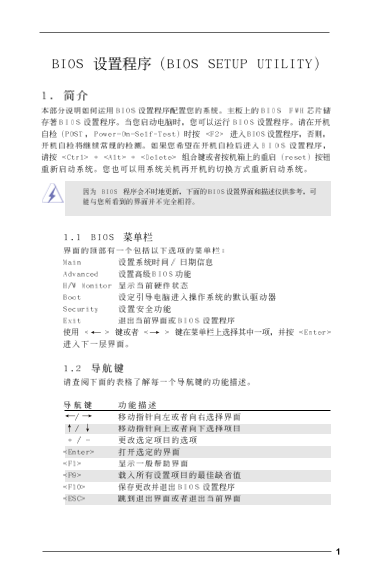
Page Summary Contents For ASROCK BIOS Setup Utility Manual User Guide

Page 2 BIOS SETUP UTILITY Main Advanced H/W Monitor Boot Security Exit System Overview Use [Enter], [TAB] or [SHIFT-TAB] to select field. System Time :00:09] System Date [Sat 12/17/2005] Use or to BIOS Versi...
Page 3 BIOS SETUP UTILITY Advanced CPU Configuration Select how to set the CPU host frequency. CPU Host Frequency [Auto] Actual Frequency (MHz) [200] Boot Failure Guard [Enabled] Spread Spectrum [Auto] Ratio...
Page 4 BIOS SETUP UTILITY Advanced Chipset Configuration Options DRAM Frequency [Auto] Auto [Disabled] 200MHz (DDRII400) Flexibility Option [Enabled] 266MHz (DDRII533) Configure DRAM Timing by SPD DRAM CAS# ...
Page 7 BIOS SETUP UTILITY Advanced ACPI Configuration Select auto-detect or disable the STR Suspend To RAM [Disabled] feature. Restore on AC/Power Loss [Power Off] Ring-In Power On [Disabled] PCI Devices Pow...
Page 8 BIOS SETUP UTILITY Advanced Set [Compatible] IDE Configuration when Legacy OS (MS-DOS, Win NT) ATA/IDE Configuration [Enhanced] is used. Configure SATA as [AHCI] Set [Enhanced] SATAII_BLUE (PORT0) [Ha...
Page 9 [SATA0, 1, 2, 3] [SATA0, SATA2, IDE1] [IDE1, SATA1, SATA3] SATAII_BLUE SATAII_BLUE SATAII_BLACK (PORT0), (PORT0) (PORT1) SATAII_BLACK (PORT1) SATAII_RED SATAII_RED SATAII_ORANGE (PORT2), (PORT2) (PORT...
Page 10 BIOS SETUP UTILITY Advanced Advanced PCI Pn P Settings Value in units of PCI clocks for PCI device latency timer WARNING: Setting wrong values in below actions register. may cause system to malfunctio...
Page 11 BIOS SETUP UTILITY Advanced Floppy Configuration Select the type of floppy drive Floppy [1.44 MB "]1 connected to the system. Select Screen Select Item Change Option F1 General Help F9 Load Defau...
Page 12 BIOS SETUP UTILITY Advanced USB Configuration To enable or disable the onboard USB USB Controller [Enabled] controllers. USB 2.0 Support [Enabled] Legacy USB Support [Disabled] Select Screen Select It...
Page 13 BIOS SETUP UTILITY Main Advanced Monitor Boot Security Exit H/W Target Fan Speed Hardware Health Event Monitoring Fast CPU Temperature Middle Temperature Slow CPU Fan Speed RPM Chassis Fan Speed Vcore...
Page 14 BIOS SETUP UTILITY Main Advanced H/W Monitor Boot Security Exit Boot Settings Configure Settings during System Boot. Boot Settings Configuration 1st Boot Device [1st Floppy Device] 2nd Boot Device [HD...
Page 15 BIOS SETUP UTILITY Main Advanced H/W Monitor Boot Security Exit Security Settings Install or Change the password. Supervisor Password Not Installed User Password Not Installed Change Supervisor Passwo...
Page 16 BIOS SETUP UTILITY Main Advanced H/W Monitro Boot Security Exit Exit Options Exit system setup after saving the Save Changes and Exit changes. Discard Changes and Exit F10 key can be used Discard Chan...

Manual Details

Brand ASRock
Pages 16
File Size 1.09 MB
Published May 14, 2026
220 views

Enter the captcha to get the download link:

captcha

Frequently Asked Questions

How do I configure IDE/SATA storage devices?

Select the Boot Settings section under Main Advanced to manage which device is used as a primary boot device.

Where can I check system memory details?

Check 'Total Memory' in the System Overview screen to verify installed RAM capacity, e.g., 256MB.

What does setting 'AHCI' do for SATA configurations?

Setting SATA as [AHCI] is necessary when running older Operating Systems (MS-DOS, WinNT) with Enhanced IDE Configuration.

How can I change the default system BIOS settings?

Press F9 to Load Defaults within any of the setup utility screens.