# A B C D E F G H I J K L M N O P Q R S T U V W X Y Z

ASRock BIOS Setup Utility Guide - (6) User's Manual and Technical Specifications

Summary

Master your computer's performance with this comprehensive BIOS Setup Utility guide. Covering deep hardware configurations, it allows advanced users to fine-tune settings for CPUs, system memory timing (RAM), and storage modes (SATA/IDE). The manual provides detailed instructions on adjusting CPU multipliers, optimizing boot sequences, implementing security passwords, and managing power consumption. Essential reading for PC enthusiasts, system builders, and technicians needing granular control over core hardware parameters for maximum optimization and stability.
📄 Preview PAGE OF 22

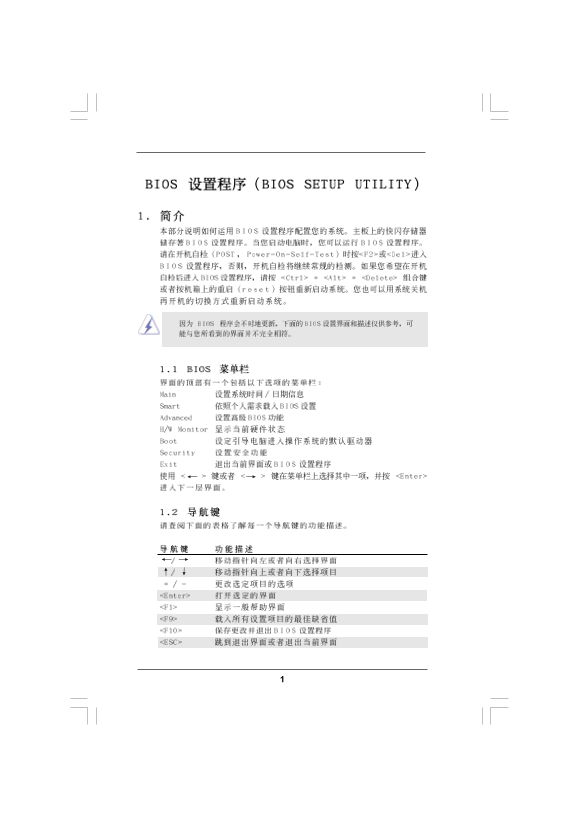
Page Summary Contents For ASRock BIOS Setup Utility Guide - (6) User's Manual and Technical Specifications

Page 2 BIOS SETUP UTILITY Main Smart H/W Monitor Boot Security Exit Advanced System Overview Use [Enter], [TAB] System Time :00:09] or [SHIFT-TAB] to System Date [Mon 02/02/2009] select field. BIOS Version M...
Page 4 BIOS SETUP UTILITY Main Smart Advanced H/W Monitor Boot Security Exit Options for CPU Advanced Settings WARNING Setting wrong values in below sections may cause system to malfunction. CPU Configuratio...
Page 6 BIOS SETUP UTILITY Advanced CPU Configuration If AUTO, multiplier and Overclock Mode [Auto] voltage will be at the CPU Frequency (MHz) [200] rated frequency/voltage. If PCIE Frequency (MHz) [100] Manu...
Page 7 BIOS SETUP UTILITY Advanced Memory Configuration Memory Clock [Auto] Memory Controller Mode [Unganged] Power Down Enable [Disabled] Bank Interleaving [Auto] Channel Interleaving [XOR of Address bit] T...
Page 11 BIOS SETUP UTILITY Advanced Chipset Settings Options Onboard HD Audio [Auto] UMA Panel [Auto] SIDEPORT On Board Lan [Enabled] UMA+SIDEPORT Onboard IEEE [Enabled] Primary Graphics Adapter [PCI] Interna...
Page 13 BIOS SETUP UTILITY Advanced ACPI Settings Select auto-detect or disable the STR Suspend To RAM [Disabled] feature. Check Ready Bit [Enabled] Away Mode Support [Disabled] Restore on AC Power Loss [Powe...
Page 14 BIOS SETUP UTILITY Advanced Configure onboard Storage Configuration serial ATA controller. Onboard SATA Controller [Enabled] SATA Operation Mode [IDE] IDE1 Master [Hard Disk] IDE1 Slave [Not Detected]...
Page 16 BIOS SETUP UTILITY Advanced Advanced PCI Pn P Settings Value in units of PCI clocks for PCI device latency timer PCI Latency Timer [32] register. PCI IDE Bus Master [Enabled] Select Screen Select Item...
Page 17 BIOS SETUP UTILITY Advanced Configure Super IO Chipset Allow BIOS to Enable or Disable Floppy On Board Floppy Controller [Enabled] Controller. Serial Port Address [3F8 IRQ4] Infrared Port Address [Dis...
Page 18 BIOS SETUP UTILITY Advanced USB Configuration To enable or disable the onboard USB USB Controller [Enabled] controllers. USB 2.0 Support [Enabled] Legacy USB Support [Enabled] Select Screen Select Ite...
Page 19 BIOS SETUP UTILITY Main Smart Advanced Monitor Boot Security Exit H/W Enable/Disable Hardware Health Event Monitoring CPU Quiet Fan Function. CPU Temperature Temperature CPU Fan Speed RPM Chassis Fan ...
Page 20 BIOS SETUP UTILITY Main Smart Advanced H/W Monitor Boot Security Exit Boot Settings Configure Settings during System Boot. Boot Settings Configuration 1st Boot Device [1st Floppy Device] 2nd Boot Devi...
Page 21 BIOS SETUP UTILITY Main Smart Advanced H/W Monitor Boot Security Exit Security Settings Install or Change the password. Supervisor Password Not Installed User Password Not Installed Change Supervisor ...
Page 22 BIOS SETUP UTILITY Main Smart Advanced H/W Monitor Boot Security Exit Exit Options Exit system setup after saving the Save Changes and Exit changes. Discard Changes and Exit Discard Changes F10 key ca...

Manual Details

Brand ASRock
Pages 22
File Size 746.39 KB
Published May 14, 2026
180 views

Enter the captcha to get the download link:

captcha

Frequently Asked Questions

How can I change the SATA operation mode?

Navigate to Onboard Storage and select 'IDE' to choose the SATA Operation Mode.

What is the default method for loading BIOS settings?

Use F9 repeatedly in various menus (e.g., Advanced CPU Configuration) or use the dedicated 'Load Defaults' option found under general help/initial setup.

Which function guides me through saving and exiting changes?

Pressing the F10 key is used to Save Changes and Exit the BIOS Setup Utility.

Where can I configure boot order and devices?

Access 'Boot Settings' (Main screen) to set up the 1st, 2nd, etc., Boot Devices.