Page 1
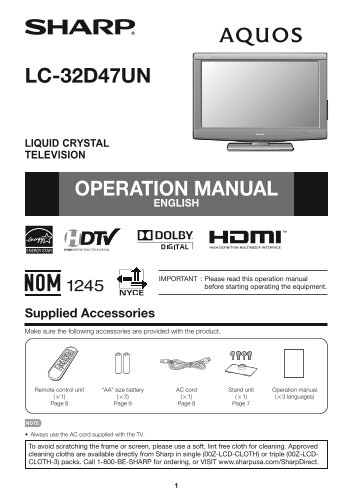
LC-32D47UN LIQUID CRYSTAL TELEVISION OPERATION MANUAL ENGLISH IMPORTANT : Please read this operation manual before starting operating the equipment. Supplied Accessories Make sure the following access...
Page 2
IMPORTANT: Model No.: To aid reporting in case of loss or theft, please record the TV's model and serial numbers in the space Serial No.: provided. The numbers are located at the rear of the TV. IMPOR...
Page 3
IMPORTANT INFORMATION DECLARATION OF CONFORMITY: SHARP LIQUID CRYSTAL TELEVISION, MODEL LC-32D47UN This device complies with Part 15 of the FCC Rules. Operation is subject to the following two conditi...
Page 4
DEAR SHARP CUSTOMER Thank you for your purchase of the Sharp Liquid Crystal Television. To ensure safety and many years of trouble-free operation of your product, please read the Important Safety Inst...
Page 5
IMPORTANT SAFETY INSTRUCTIONS Outdoor Antenna Grounding — If an outside antenna is EXAMPLE OF ANTENNA GROUNDING AS PER connected to the television equipment, be sure the antenna NATIONAL ELECTRICAL CO...
Page 6
IMPORTANT SAFETY INSTRUCTIONS CHILD SAFETY: It Makes A Difference How and Where You Use Your Flat Panel Display Congratulations on your purchase! As you enjoy your new product, please keep these safet...
Page 7
QUICK REFERENCE Attaching/Detaching the Stand Setting the TV on the Wall Before attaching (or detaching) the stand, unplug the AC cord from the AC INPUT terminal. CAUTION Before performing work spread...
Page 8
QUICK REFERENCE QUICK INSTALLATION TIPS Using the Remote Control Unit 1 Attach your antenna to the back of the television. Use the remote control unit by pointing it towards the (See page 9.) remote c...
Page 9
Preparation Antennas To enjoy a clearer picture, use an outdoor antenna. The following is a brief explanation of the types of connections that are used for a coaxial cable. If your outdoor antenna use...
Page 10
Part Names TV (Front) Remote control sensor OPC sensor* (See page 18.) POWER indicator (See page 12.) *OPC: Optical Picture Control TV (Rear/Side) POWER button MENU button AC INPUT terminal INPUT butt...
Page 11
Connecting to External Equipment You can connect many types of external equipment to your TV like a Blu-ray disc player, DVD player, VCR, Digital TV tuner, HDMI equipment, game console or camcorder. T...
Page 12
Watching TV Turning On/Off the Power Press POWER on the TV or on the remote control unit to turn the power on. POWER The POWER indicator (Green): The TV is on. (After a few seconds, a window appears w...
Page 13
Direct Button Operation Changing Volume You can change the volume by pressing VOLk/l on the TV or on the remote control unit. To increase the volume, press VOLk. To decrease the volume, press VOLl. Au...
Page 14
Direct Button Operation AV MODE AUDIO AV MODE gives you several viewing options to choose MTS/SAP stereo mode from to best match the surrounding environment of the The TV has a feature that allows rec...
Page 15
Direct Button Operation INPUT 1 Press CC. This will present the Closed Caption information display. To view external source images, select the input source 2 Press CC while the Closed Caption informat...
Page 16
Direct Button Operation VIEW MODE You can select the screen size. 1 Press VIEW MODE. The View Mode menu displays. The menu lists the View Mode options selectable for the type of video signal currently...
Page 17
On-Screen Display Menu On-Screen Display Menu Operation Example Example Picture Option Audio Only OPC [On(Display)] Input Select Backlight Output Select Contrast [ 30] b40 Color System Brightness [ 0]...
Page 18
On-Screen Display Menu Picture Menu Advanced Picture Setting This TV provides various advanced functions for Adjusts the picture to your preference with the optimizing the picture quality. following p...
Page 19
On-Screen Display Menu Monochrome Bass Enhancer For viewing a video in monochrome. This function allows you to enjoy bass-enhanced sound. On: For viewing in monochrome. On: Bass Enhancer function is o...
Page 20
On-Screen Display Menu Setup Menu CH Setup If initial setup does not memorize all the channels in Example your region, follow the instructions below to manually Setup memorize the channels. Air/Cable:...
Page 21
On-Screen Display Menu Position Fine Sync. For adjusting a picture's horizontal and vertical Ordinarily you can easily adjust the picture as position. necessary to change image position using Auto Syn...
Page 22
On-Screen Display Menu Audio Setup New Secret No. You can set and change the secret number by using You can output digital audio to an AV amplifi er or similar device whose DIGITAL AUDIO INPUT termina...
Page 23
On-Screen Display Menu MPAA (Voluntary movie rating system) G: General audiences. All ages admitted. PG: Parental guidance suggested. Some material may not be Example suitable for children. MPAA PG-13...
Page 24
On-Screen Display Menu Canadian Rating Systems (Canadian English ratings and Canadian French ratings) The TV rating systems in Canada are based on the Canadian Radio-Television and Telecommunications ...
Page 25
On-Screen Display Menu Option Menu Output Select Allows you to select what controls the audio output. Example Fixed: Sound via speaker is adjusted with VOLk/l on Option the remote control unit or VOLk...
Page 26
On-Screen Display Menu Favorite CH Software Update (Favorite Channel Setting) This function allows software updates by inserting This function allows you to program 4 favorite a USB memory device with...
Page 27
On-Screen Display Menu 6 During the data checking, “Checking” blinks. 7 Press ENTER to start updating. The screen becomes dark for a while until the update screen can be displayed. Please wait for the...
Page 28
Appendix Troubleshooting Problem Possible Solution No power• Check if you pressed POWER on the remote control unit. (See page 12.) If the indicator on the TV does not light up, press POWER on the TV. ...
Page 29
Appendix Specifi cations Item Model: LC-32D47UN 32o Class (31 1/2o Diagonal) LCD panel Active Matrix (a-Si TFT LCD) Resolution 1,049,088 pixels (1,366 g 768) TV-standard (CCIR) American TV Standard AT...
Page 30
Appendix PC Compatibility Chart It is necessary to set the PC correctly to display XGA and WXGA signal. PC Horizontal Frequency Vertical Frequency VESA Standard Resolution 720 x 400 31.5 k Hz 70 Hz 31...
Page 31
Calling for Service For location of the nearest Sharp Authorized Service, or to obtain product literature, accessories, supplies, or customer assistance, please call 1-800-BE-SHARP. LIMITED WARRANTY C...