Page 1
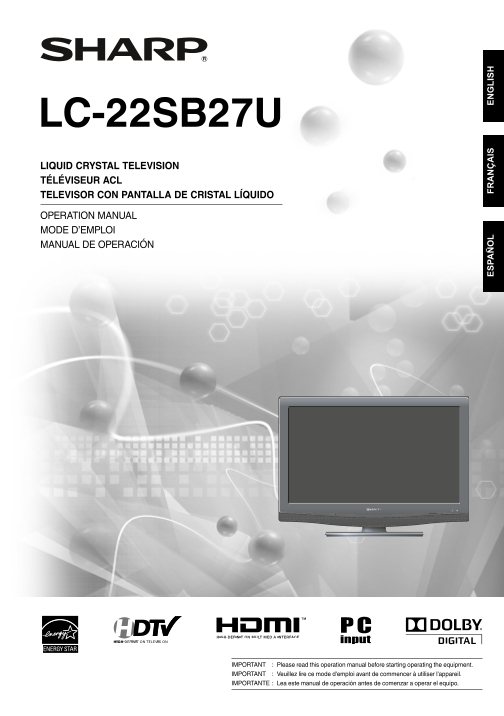
LC-22SB27U LIQUID CRYSTAL TELEVISION TÉLÉVISEUR ACL TELEVISOR CON PANTALLA DE CRISTAL LÍQUIDO OPERATION MANUAL MODE D’EMPLOI MANUAL DE OPERACIÓN ES PA FR IS EN LI SH IMPORTANT : Please read this opera...
Page 2
37N0101A.indb 2 3/3/09 2:09:06 PM
Page 3
LC-22SB27U LIQUID CRYSTAL TELEVISION ENGLISH OPERATION MANUAL IMPORTANT: To aid reporting in case of loss or theft, please record the Model No.: TV’s model and serial numbers in the space provided. Th...
Page 4
IMPORTANT INFORMATION CAUTION: TO PREVENT ELECTRIC SHOCK, MATCH WIDE BLADE OF PLUG TO WIDE SLOT, FULLY INSERT. WARNING: FCC Regulations state that any unauthorized changes or modifications to this equ...
Page 5
DEAR SHARP CUSTOMER Thank you for your purchase of the Sharp Liquid Crystal Television. To ensure safety and many years of trouble-free operation of your product, please read the Important Safety Inst...
Page 6
IMPORTANT SAFETY INSTRUCTIONS • Water and Moisture — Do not use this product near water - for example, near a bath tub, wash bowl, kitchen sink, or laundry tub; in a wet basement; or near a swimming p...
Page 7
IMPORTANT SAFETY INSTRUCTIONS CHILD SAFETY It Makes A Difference How and Where You Use Your Flat Panel Display Congratulations on your purchase! As you enjoy your new product, please keep these safety...
Page 8
Supplied accessories Make sure the following accessories are provided with the product. Remote control unit “AA” size battery AC cord (X1) Cable Tie (X1) Screw (X3) Operation manual (X1) (X2) (X1) • A...
Page 9
QUICK REFERENCE QUICK INSTALLATION TIPS Attach your antenna to the back of the TV. How to turn on the TV for the first time. (See page 12.) A) Press POWER on TV. Connect the AC plug for the TV into th...
Page 10
QUICK REFERENCE If the remote control fails to operate TV functions, replace the batteries in the remote control unit. 1 Open the battery cover. 2 Insert two “AA” size batteries 3 Close the battery co...
Page 11
Contents IMPORTANT INFORMATION ................................... Other convenience functions ............................... DEAR SHARP CUSTOMER ..................................... Menu operation ...
Page 12
Part names TV (Front) TV (Left) Volume (VOL–/+)/ ◀/▶buttons POWER indicator Remote control sensor Channel /▲ button Channel /▼ button MENU button INPUT/ENTER button POWER button TV (Rear) Listening wi...
Page 13
Part names Remote control unit 1 POWER: Switch the power on or enters standby mode. (See page 14.) 2 0–9: Set the channel. (See page 14.) 3 • (DOT): (See page 14.) 4 FREEZE: Set the still image. Press...
Page 14
Preparation Using the remote control unit Use the remote control unit by pointing it towards the remote control sensor on the TV. Objects between the remote control unit and the remote control sensor ...
Page 15
Using external equipment You can connect many types of external equipment to your TV like a DVD player, VCR, Digital TV tuner, HDMI equipment, game console or camcorder. Displaying an external equipme...
Page 16
Watching TV Preparation Turning off the power Perform the following steps before you press POWER Press POWER on the TV, or POWER on the remote on the remote control unit. control. • The TV enters stan...
Page 17
Watching TV Auto Ch Memory Display the channel information Auto Ch Memory makes the TV look for all channels Press DISPLAY to display the current channel (or viewable in the set area. input source) in...
Page 18
Watching TV Selecting the digital audio language View mode for HD programs When two or more audio languages are included in a Stretch mode is available for HD programs. digital signal, you can select ...
Page 19
Watching TV Favorite channel setting This function allows you to program 4 favorite channels in 4 different categories. By setting the favorite channels in advance, you can select your favorite channe...
Page 20
Watching TV Tune the TV to the desired program. Closed captions and digital closed Press CC and the Closed Caption screen displays. captions Press ◀ or ▶ to setting the “CC Setting” to “On”. NOTE Pres...
Page 21
Watching TV Caption setup Password setting for parental control This function allows you to adjust the closed caption screen appearance to suit your preference. Allows you to use a password to protect...
Page 22
Watching TV Parental control (V-CHIP) V-CHIP might not function according to the condition of the signal from the broadcasting station. V-CHIP is an electronic filtering device built into your TV. Thi...
Page 23
Watching TV Canadian rating systems • The TV rating systems in Canada are based on the Canadian Radio-Television and Telecommunications Commission (CRTC) policy on violence in television programming. ...
Page 24
Other convenience functions Menu operation buttons Quick guide for MENU operation Use the following buttons on the remote control to example : Select Language operate the menu. Press MENU and the MENU...
Page 25
Other convenience functions Icon Selected item Description Picture Picture Setting Brightness / Contrast / You can adjust the picture quality to your preference. Sharpness / Color / Tint Color Tempera...
Page 26
Connecting a PC (Personal computer) Viewing an image from a PC Use the INPUT4 (PC) terminals to connect a PC. (When you use HDMI cable, use the INPUT3 (HDMI) terminals.) NOTE • The PC input terminals ...
Page 27
Appendix Troubleshooting Problem Possible Solution • No power • Check if you pressed POWER on the TV,or on the remote control unit. (See page 14.) • Is the AC cord disconnected? (See page 7.) • Has th...
Page 28
Appendix Specifications Item Model: LC-22SB27U LCD panel 22” Class (211/2 Diagonal) Active Matrix (a-Si TFT LCD) Resolution 1,049,088 pixels (1366 x 768) TV TV-standard (CCIR) American TV Standard ATS...
Page 29
Calling for Service For location of the nearest Sharp Authorized Service, or to obtain product literature, accessories, supplies, or customer assistance, please call 1-800-BE-SHARP. LIMITED WARRANTY C...
Page 30
Dimensional drawings Unit: inch (mm) Unité: pouce (mm) Unidad: pulgada (mm) 37N0131A_SP.indb 27 3/3/09 2:36:02 PM
Page 31
Printed in Thailand Imprimé en Thaïlande Impreso en Tailandia 9JDJ37N0131A 09/04 N 09P03-TH-NOJ37N0131A SH 37N0131A_SP.indb 28 3/3/09 2:36:03 PM