Page 1
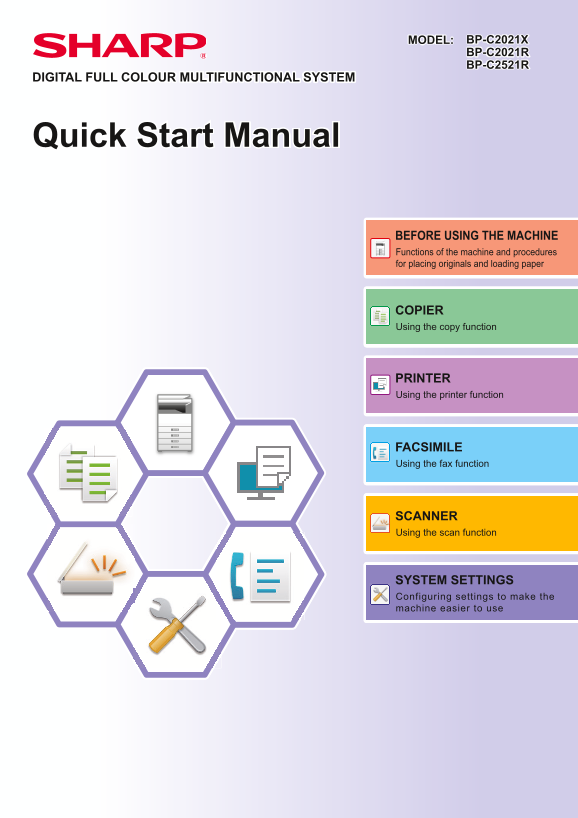
MODEL: BP-C2021X BP-C2021R BP-C2521R DIGITAL FULL COLOUR MULTIFUNCTIONAL SYSTEM Quick Start Manual BEFORE USING THE MACHINE Functions of the machine and procedures for placing originals and loading pa...
Page 2
OPERATION MANUALS AND HOW TO USE THEM Start Guide This manual explains basic procedures for using the machine, cautions for safe use of the machine, and information for the administrator. Read this ma...
Page 3
Other manual Like the "User's Manual", some manuals as follow can be downloaded from our website and viewed on your computer. Manual types may be updated. For more information, see our websi...
Page 4
ACCESSING THE WEB SERVER IN THE MACHINE When the machine is connected to a network, the machine's built-in Web server can be accessed from a Web browser on your computer. OPENING THE WEB PAGES Open th...
Page 5
DOWNLOADING THE OPERATION GUIDE The Operation Guide, which is a more detailed manual, can be downloaded from the machine's Web pages. Click [Operation Manual Download] in the menu of the Web page. Log...
Page 6
TABLE OF CONTENTS OPERATION MANUALS AND HOW TO USE THEM . . . . . . . . . . . . . . . . . . . . . . . . . . 2 ACCESSING THE WEB SERVER IN THE MACHINE . . . . . . . . . . . . . . . . . . . . . . . . . ...
Page 7
BEFORE USING THE MACHINE This section provides general information about the machine, including the names and functions of the parts of the machine and its peripheral devices, and the procedures for p...
Page 8
BEFORE USING THE MACHINE (1) Fusing unit (5) Waste toner box Heat is applied here to fuse the transferred image onto This container collects excess toner that remains after the paper. printing. (6) Ha...
Page 9
BEFORE USING THE MACHINE AUTOMATIC DOCUMENT FEEDER AND DOCUMENT GLASS BP-C2021X BP-C2021R/BP-C2521R (1) Document cover (5) Original exit tray Open to make copies from the document glass. The original ...
Page 10
BEFORE USING THE MACHINE OPERATION PANEL This section describes the names and functions of the respective parts of the operation panel. (1) Display (10) [PROGRAM 1 / PROGRAM 2] key Shows various messa...
Page 11
BEFORE USING THE MACHINE (19) [COMM. SETTING] key * (26) FAX mode indicators* This is used to switch between memory transmission and LINE indicator direct transmission, and to switch between automatic...
Page 12
BEFORE USING THE MACHINE DISPLAY This section explains how to use the display. LEFT MENU AND RIGHT MENU The display on the machine has a right menu containing frequently used settings and a left menu ...
Page 13
BEFORE USING THE MACHINE Right Menu (7) Connection status display (7) (8) (Models with the wireless LAN function only) Displayed when wireless LAN is on. Wireless infrastructure mode: Connecting Orig....
Page 14
BEFORE USING THE MACHINE TURNING ON/OFF THE POWER This section describes how to turn on/off the machine's power and how to restart the machine. The power switch is located on the left side of the mach...
Page 15
BEFORE USING THE MACHINE PLACING ORIGINALS The automatic document feeder can be used to automatically scan many originals at once, and this saves you the trouble of manually feeding each original. For...
Page 16
BEFORE USING THE MACHINE Specifying the size of the original(DOCUMENT GLASS) Select "Original Size" in the right menu of the base screen of copy mode and press the [OK] key. Orig. Size Paper...
Page 17
BEFORE USING THE MACHINE LOADING PAPER NAMES AND LOCATIONS OF TRAYS The names of the trays are as follows. (1) Bypass tray (2) Tray 1 (3) Tray 2 (when a 500-sheet paper feed tray is installed) (4) Tra...
Page 18
BEFORE USING THE MACHINE Insert the paper into the tray. Load the paper with the print side facing up. Make sure the stack of paper is straight before loading it. Place the paper under the roller on t...
Page 19
BEFORE USING THE MACHINE LOAD PAPER INTO THE TRAY 2 - 4 Pull out the paper tray. Gently pull the tray out until it stops. To load paper, go to step 3. To load a different size of paper, go to the next...
Page 20
BEFORE USING THE MACHINE Bypass tray Open the bypass tray. If you are loading paper of length greater than 250 mm, open the extension tray. Do not place heavy objects on the bypass tray or press down ...
Page 21
BEFORE USING THE MACHINE Do not forcefully push in paper that you are loading. This may cause misfeeds. If the bypass tray guides are set wider than the paper, move the bypass tray guides in until the...
Page 22
BEFORE USING THE MACHINE TRAY SETTINGS These programs are used to change the paper size and type setting of a tray. Changing the paper size setting of a tray If the size of the loaded paper is differe...
Page 23
BEFORE USING THE MACHINE USER AUTHENTICATION MODE When user authentication mode is enabled, a count is kept of the pages printed by each account. The page counts can be viewed in the display. Users th...
Page 24
COPIER This section explains the basic procedures for using the copier function. MAKING COPIES This section explains how to set a Copy Ratio. Switch to copy mode. Place the original. Place the origina...
Page 25
COPIER COPYING ON SPECIAL PAPER (Bypass Copy) This section explains how to load A4 heavy paper 1 in the bypass tray. Load the paper with the print side facing down. When you load paper in the bypass t...
Page 26
PRINTER This section explains the basic procedure for printing using the printer driver of the machine. The explanations of screens and procedures are primarily for Windows® 10 in Windows® environment...
Page 27
PRINTER Select print settings. (1) Click the [Main] tab. (2) Select the original size. To select settings on other tabs, click the desired tab and then select the settings. (3) Click the [OK] button. ...
Page 28
PRINTER PRINTING IN A mac OS ENVIRONMENT The following example explains how to print an A4 size document from "Text Edit", which is a standard accessory program in mac OS. To install the pri...
Page 29
PRINTER Select print settings. (1) Make sure that the correct printer is selected. (2) Select items from the menu and configure the settings as needed. (3) Click the [Print] button. PRINTING ON ENVELO...
Page 30
PRINTER DIRECTLY PRINTING A FILE IN USB MEMORY Files in a USB memory device connected to the machine are printed from the operation panel of the machine without using the printer driver. The file type...
Page 31
FACSIMILE This section explains the basic procedures for using the fax function of the machine. SENDING A FAX This section explains the basic procedure for sending a fax. In fax mode, colour originals...
Page 32
FACSIMILE Press the [B/W Start] key. Scanning begins. If scanning is completed normally, the display returns to the base screen. To cancel the transmission while "Reading" appears or before ...
Page 33
SCANNER his section explains the uses of the network scanner function and the basic procedure for using scan mode. ABOUT THE SCANNER FUNCTIONS With this machine a document or photo can be scanned into...
Page 34
SCANNER SCANNING AN ORIGINAL The basic operation for scanning is explained below. The procedure for sending a scanned file by E-mail to a destination stored in the address book is explained here. For ...
Page 35
SYSTEM SETTINGS The system settings let you adjust the operation of the machine to suit the needs of your workplace. This section briefly introduces several of the system settings. For detailed explan...
Page 36
SYSTEM SETTINGS Press the [OK] key and follow the instructions in the setting screen. Several settings will have checkboxes in front of them. To enable a function (make a checkmark appear), press the ...
Page 37
Please note For information on your operating system, please refer to your operating system manual or the online Help function. The explanations of screens and procedures in a Windows environment are ...
Page 38
2019G-EN2