Samsung YP-T6Z Quick User Guide - Part 2 Product Overview & Instructions
Summary
Enhance your audio management with this comprehensive guide for the YP-T6 portable player. This manual provides detailed instructions on everything from connecting and transferring files via USB to basic operation, including power settings and music playback controls. It is essential reading for new users who wish to master file downloads, ensure proper driver installation, and utilize all features of their digital audio device efficiently.
Page 1 Text Content
YP-T6 Quick Guide
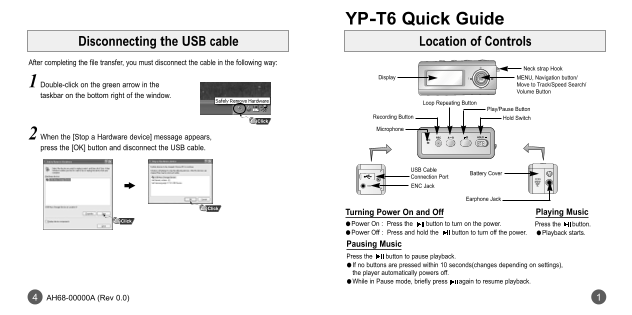
Disconnecting the USB cable Location of Controls
After completing the file transfer, you must disconnect the cable in the following way:
Neck strap Hook
Display MENU, Navigation button/
1 Double-click on the green arrow in the Move to Track/Speed Search/ Volume Button
taskbar on the bottom right of the window.
Loop Repeating Button
Play/Pause Button
Recording Button Hold Switch
Microphone
2 When the [Stop a Hardware device] message appears, press the [OK] button and disconnect the USB cable.
USB Cable
Battery Cover
Connection Port ENC Jack
Earphone Jack
Turning Power On and Off Playing Music
●Power On : Press the button to turn on the power. Press the button. ●Power Off : Press and hold the button to turn off the power. ●Playback starts.
Pausing Music Press the button to pause playback. If no buttons are pressed within 10 seconds(changes depending on settings), the player automatically powers off. ●While in Pause mode, briefly press again to resume playback.
AH68-00000A (Rev 0.0)
Page Summary Contents For Samsung YP-T6Z Quick User Guide - Part 2 Product Overview & Instructions
Manual Details
| Brand | Samsung |
|---|---|
| Pages | 2 |
| File Size | 121.79 KB |
| Published | May 31, 2026 |
Enter the captcha to get the download link:

Frequently Asked Questions
How do I connect the player to a PC for transferring files?
Connect the player using the supplied USB cable, but first ensure you install the required USB driver by running the setup CD.
What steps should I take when disconnecting the USB cable after file transfer?
When the [Stop a Hardware device] message appears, press [OK] before physically disconnecting the USB cable.
How can I turn the player on and off?
Press one of the power buttons to turn it on. To power off, press and hold the dedicated button until it shuts down.
What happens if I disconnect the USB cable while transferring files?
Disconnecting the USB cable while the “WRITING/READING” message is displayed may cause a malfunction of the unit.