Page 1
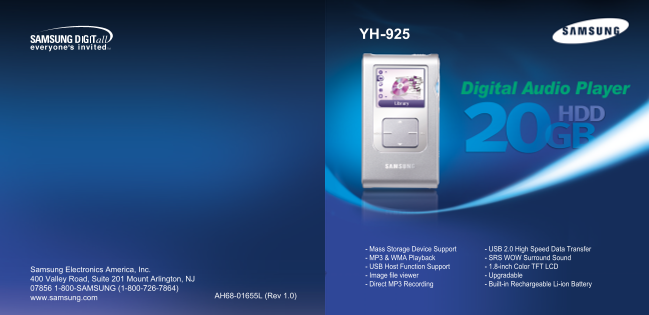
YH-925 - Mass Storage Device Support - USB 2.0 High Speed Data Transfer - MP3 & WMA Playback - SRS WOW Surround Sound - USB Host Function Support - 1.8-inch Color TFT LCD Samsung Electronics Ameri...
Page 2
Contents Contents Preparations Using Your Player Safety Instructions ......................................................................................................................................
Page 3
Safety Instructions Safety Instructions Please read and understand all the instructions to avoid injury to yourself and damage to the device Earphones Do not expose to extreme Do not apply excessive D...
Page 4
Battery Charger Safety Charging the Battery A charger is supplied with your player. Plug the charger into a wall outlet. RISK OF ELECTRIC SHOCK. DO NOT OPEN !CAUTION ✻ When recharging is complete, “Fu...
Page 5
Features Features Mass Storage Device Support USB 2.0 High Speed Data Transfer ●You can use the built-in 20GB hard drive to store your entire music library, ●Maximum data speed transfer of 120 Mbps pl...
Page 6
Components Location of Controls LINE IN jack SELMENU Earphone jack HOLD switch LINE-IN MIC HOLD Player Belt Clip Earphones Line-In Cable USB Cable Installation CD Display AH61-01929A AH30-00070D AH39-...
Page 7
Connecting the player to your PC Connecting the player to your PC Before connecting the player to PC, make sure to install ❑ System Requirements. Driver&Utilities. If “Add New Hardware Wizard” app...
Page 8
Connecting the player to your PC Connecting the player to your PC Connecting the player to your PC with a USB cable How to check if USB driver is properly installed Use the USB adaptor to connect the ...
Page 9
Formatting in PC Formatting in PC Connect the USB cable to the USB port your computer. Press the [Format Device] button. When the format screen appears, select the file system as FAT32 and then press ...
Page 10
Using Recovery Utilities Downloading Recorded Files The Recovery Utility can be used to recover your system in the event the following occurs: You can upload the files recorded in the player to your P...
Page 11
Using the Mass Storage Device Installing Windows Media Player10 ●The Removable Disk can be used as Mass Storage. Video, audio and image files can be downloaded but cannot be played back. Insert the in...
Page 12
Installing Windows Media Player10 Using Windows Media Player 10 ●You can download MP3 and WMA files using Windows Media Player 10. ●The file, downloaded from WMP10 to the player, will be automatically...
Page 13
Using Windows Media Player 10 Using Windows Media Player 10 When the [Sync] window appears, Make sure the music files you want to Using Other Functions select the file you want to transfer to download...
Page 14
Using Windows Media Player 10 Using Windows Media Player 10 Viewing Properties Deleting File and Folder Press the [Display Properties and Settings] Select the file or folder to delete, and then press ...
Page 15
Installing Multimedia Studio Installing Multimedia Studio ● Multimedia Studio is a program that supports image editing, video playback and format conversion, and multimedia album creation. 1 Insert th...
Page 16
Using Multimedia Studio Using Multimedia Studio ● Run Multimedia Studio in the Desktop. ● Files downloaded without using Multimedia Studio cannot be viewed on the screen. Editing Images Sending images...
Page 17
Using Multimedia Studio Using Multimedia Studio ● Albums created from [Making Album for the use of PPL] can be viewed as slide shows on the player. 5 Set the size and path of the image at the [Resize ...
Page 18
Using Multimedia Studio Using Multimedia Studio ● The Multimedia Studio software allows you to capture a still frame from a video file and save it 6 Press the [Save] button at the top of the [PPL Albu...
Page 19
To View Help on Multimedia Studio Using Multimedia Studio 3 Press the [Capture] button and then press the [Capture] button when Run Multimedia Studio and press the Help button at the top of the the im...
Page 20
Playing music Hold Feature Make sure the player is fully charged and the earphones are connected. Use the Hold feature to lock and disable all buttons. The Hold feature is useful to prevent your Turni...
Page 21
Searching Within Music Files Menu Mode Press the MENU button to switch to Menu mode. Searching for Specific Parts in PLAY Mode ● Use the SCROLL UP/SCROLL DOWN buttons to select the menu item you want,...
Page 22
Browsing Your Music Browsing Your Music In the Menu, use the SCROLL UP/SCROLL DOWN buttons to select the Library, and press the SEL button. Library Tracks Artists 009 5tion-Sorry Searching for and Sel...
Page 23
Browsing Your Music Browsing Your Music Play Options (Artist, Album, Tracks, Genres) Selecting a Playlist 1 Select Artist, Album, Track, Genre, and press and hold the SEL button. 1 In the Library, use...
Page 24
Browsing Your Music Recording Voice Searching for and Selecting Voice Files 1 In the Library, use the SCROLL UP/SCROLL DOWN buttons to select Voice 1 Slide the REC switch up to start voice recording. ...
Page 25
Recording MP3s Viewing Image Files Your player can be to used to record directly from any external audio source such as a CD player, cassette player, home stereo or radio. 1 Press the MENU button. In ...
Page 26
Viewing Slide Show Using USB Host You can transfer files back and forth between your YH925 and a Digital Camera. 1 Press the MENU button. Connecting an External Device In the Menu, select Photo Album ...
Page 27
Using USB Host Using USB Host Transferring Files from an External Device to the Player Transferring Files from the Player to an External Device 1 At the External Device screen, move to a file to trans...
Page 28
Shuffle and Repeat Playback Equalizer Settings 1 In the Menu, use the SCROLL UP/SCROLL DOWN buttons to select 1 In the Menu, use the SCROLL UP/SCROLL DOWN buttons to select Settings, and then press th...
Page 29
SRS Settings Recording Settings 1 In the Menu, use the SCROLL UP/SCROLL DOWN buttons to select 1 In the Menu, use the SCROLL UP/SCROLL DOWN buttons to select Settings, and then press the SEL button. S...
Page 30
Backlight Settings LCD Off Time Settings 1 In the Menu, use the SCROLL UP/SCROLL DOWN buttons to select Settings, 1 In the Menu, use the SCROLL UP/SCROLL DOWN buttons to select Settings, and then pres...
Page 31
Fader Effect Power Off Settings 1 In the Menu, use the SCROLL UP/SCROLL DOWN buttons to select Settings, 1 In the Menu, use the SCROLL UP/SCROLL DOWN buttons to select Settings, and then press the SEL...
Page 32
Restoring Default Settings Player Information 1 In the Menu, use the SCROLL UP/SCROLL DOWN buttons to select Settings, buttons to select Settings, and then press the SEL button.1 In the Menu, use the ...
Page 33
Troubleshooting Troubleshooting One of the messages below appears: The Backlight is off. “The device firmware needs repairs. Please connect to PC and repair firmware with recovery Please check the Bac...
Page 34
Specifications Specifications Model YH-925 The product unit accompanying this user manual is licensed under certain intellectual property Internal Memory Capacity 20GB rights of certain third parties....
Page 35
Safety Information Safety Information FCC FCC This device complies with part 15 of the FCC If this equipment does cause harmful Any changes or modifications not expressly Rules. Operation is subject t...
Page 36
Warranty Warranty 5. The warranty is not applicable in cases ◆Unauthorized modifications carried out for Samsung warrants this product as free of WARRANTY CONDITIONS: other than defects in material, d...
Page 37
Warranty Warranty THERE ARE NO EXPRESS WARRANTIES ASSUMES ALL RISK AND LIABILITY FOR To obtain warranty service, please contact OTHER THAN THOSE LISTED AND LOSS, DAMAGE OR INJURY TO PUR- SAMSUNG at: D...