Samsung Quick User Guide ED40D for all Samsung products
Summary
This comprehensive technical manual is designed for users setting up or maintaining Samsung commercial digital displays. It provides detailed instructions on connecting the monitor using various inputs (HDMI, D-SUB, AV), performing software updates, optimizing power consumption with PowerSaver mode, and ensuring optimal device operation. Perfect for IT professionals and enterprise clients who require simple installation guides and advanced connectivity management for their professional visual solutions.
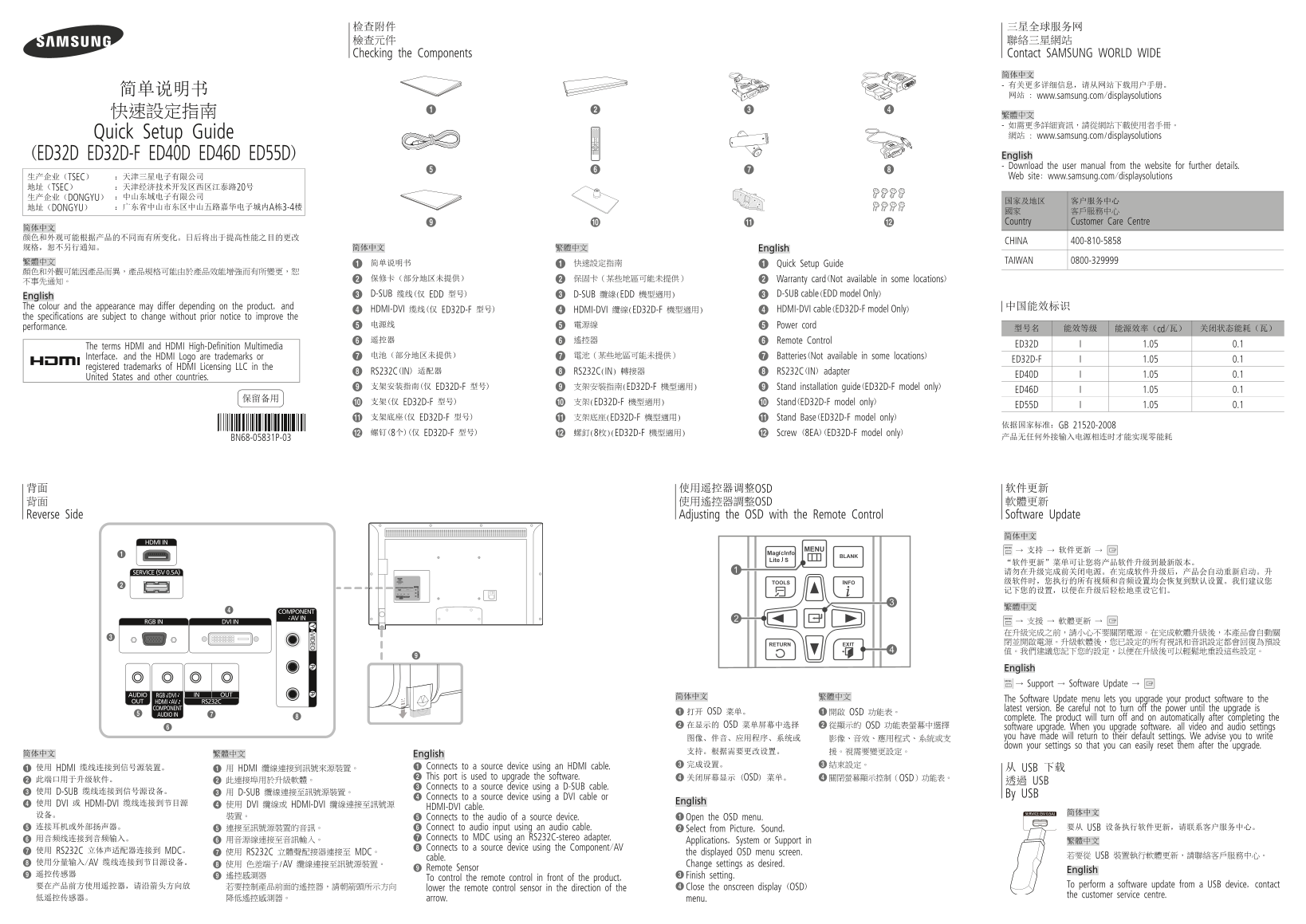
Page 1 Text Content
检查附件 三星全球服务网 檢查元件 聯絡三星網站 Checking the Components Contact SAMSUNG WORLD WIDE
网站 : www.samsung.com/displaysolutions
- 如需更多詳細資訊,請從網站下載使用者手冊。 Quick Setup Guide 網站 : www.samsung.com/displaysolutions (ED32D ED32D-F ED40D ED46D ED55D) English - Download the user manual from the website for further details. 生产企业(TSEC) :天津三星电子有限公司 Web site: www.samsung.com/displaysolutions
地址(TSEC) :天津经济技术开发区西区江泰路20号 生产企业(DONGYU) :中山东域电子有限公司
地址(DONGYU) :广东省中山市东区中山五路嘉华电子城内A栋3-4楼
國家 客戶服務中心 Country Customer Care Centre
CHINA 400-810-5858
规格,恕不另行通知。 简体中文 繁體中文 English
繁體中文 快速設定指南 TAIWAN 0800-329999
简单说明书 Quick Setup Guide
保修卡(部分地区未提供) 保固卡(某些地區可能未提供) Warranty card(Not available in some locations)
D-SUB 缆线(仅 EDD 型号) D-SUB 纜線(EDD 機型適用) D-SUB cable(EDD model Only)
English The colour and the appearance may differ depending on the product, and 中国能效标识
HDMI-DVI 缆线(仅 ED32D-F 型号) HDMI-DVI 纜線(ED32D-F 機型適用) HDMI-DVI cable(ED32D-F model Only)
the specifications are subject to change without prior notice to improve the
电源线 電源線 Power cord
performance. 型号名 能效等级 能源效率(cd/瓦) 关闭状态能耗(瓦)
遥控器 遙控器 Remote Control
The terms HDMI and HDMI High-Definition Multimedia ED32D 1.05 0.1
Interface, and the HDMI Logo are trademarks or 电池(部分地区未提供) 電池(某些地區可能未提供) Batteries(Not available in some locations)
ED32D-F 1.05 0.1
registered trademarks of HDMI Licensing LLC in the
RS232C(IN) 适配器 RS232C(IN) 轉接器 RS232C(IN) adapter
ED40D 1.05 0.1
United States and other countries.
支架安装指南(仅 ED32D-F 型号) 支架安裝指南(ED32D-F 機型適用) Stand installation guide(ED32D-F model only)
ED46D 1.05 0.1
支架(仅 ED32D-F 型号) 支架(ED32D-F 機型適用) Stand(ED32D-F model only)
ED55D 1.05 0.1
支架底座(仅 ED32D-F 型号) 支架底座(ED32D-F 機型適用) Stand Base(ED32D-F model only)
依据国家标准:GB 21520-2008
螺钉(8个)(仅 ED32D-F 型号) 螺釘(8枚)(ED32D-F 機型適用) Screw (8EA)(ED32D-F model only)
BN68-05831P-03 产品无任何外接输入电源相连时才能实现零能耗
背面 使用遥控器调整OSD 软件更新 背面 使用遙控器調整OSD 軟體更新 Reverse Side Adjusting the OSD with the Remote Control Software Update
简体中文 MENU 支持 软件更新
繁體中文 MENU 支援 軟體更新
English MENU Support Software Update
The Software Update menu lets you upgrade your product software to the latest version. Be careful not to turn off the power until the upgrade is
1 打开 OSD 菜单。 1 開啟 OSD 功能表。
complete. The product will turn off and on automatically after completing the
2 在显示的 OSD 菜单屏幕中选择 2 從顯示的 OSD 功能表螢幕中選擇 software upgrade. When you upgrade software, all video and audio settings
图像、伴音、应用程序、系统或 影像、音效、應用程式、系統或支 you have made will return to their default settings. We advise you to write down your settings so that you can easily reset them after the upgrade.
简体中文 繁體中文 English
1 使用 HDMI 缆线连接到信号源装置。 1 用 HDMI 纜線連接到訊號來源裝置。 1 Connects to a source device using an HDMI cable. 从 USB 下载 2 This port is used to upgrade the software. 4 关闭屏幕显示 (OSD) 菜单。 4 關閉螢幕顯示控制(OSD)功能表。
2 此端口用于升级软件。 2 此連接埠用於升級軟體。 透過 USB
3 Connects to a source device using a D-SUB cable.
3 使用 D-SUB 缆线连接到信号源设备。 3 用 D-SUB 纜線連接至訊號源裝置。 By USB
4 Connects to a source device using a DVI cable or
English
4 使用 DVI 或 HDMI-DVI 缆线连接到节目源 4 使用 DVI 纜線或 HDMI-DVI 纜線連接至訊號源
HDMI-DVI cable.
设备。 裝置。 1 Open the OSD menu.
5 Connects to the audio of a source device.
5 连接耳机或外部扬声器。 5 連接至訊號源裝置的音訊。 6 Connect to audio input using an audio cable. 2 Select from Picture, Sound, 要从 USB 设备执行软件更新,请联系客户服务中心。
6 用音频线连接到音频输入。 7 Connects to MDC using an RS232C-stereo adapter.
6 用音源線連接至音訊輸入。 Applications, System or Support in 繁體中文
8 Connects to a source device using the Component/AV
7 使用 RS232C 立体声适配器连接到 MDC。 7 使用 RS232C 立體聲配接器連接至 MDC。 the displayed OSD menu screen.
若要從 USB 裝置執行軟體更新,請聯絡客戶服務中心。
cable.
8 使用分量输入/AV 缆线连接到节目源设备。 8 使用 色差端子/AV 纜線連接至訊號源裝置。 Change settings as desired.
9 Remote Sensor English
9 遥控传感器 9 遙控感測器 3 Finish setting.
To control the remote control in front of the product,
要在产品前方使用遥控器,请沿箭头方向放 若要控制產品前面的遙控器,請朝箭頭所示方向 4 Close the onscreen display (OSD) To perform a software update from a USB device, contact
lower the remote control sensor in the direction of the
the customer service centre.
低遥控传感器。 降低遙控感測器。 arrow. menu.
BN68-05831P-03.indd 1 2014-12-04 6:35:38
Page Summary Contents For Samsung Quick User Guide ED40D for all Samsung products
Manual Details
| Brand | Samsung |
|---|---|
| Pages | 2 |
| File Size | 1.37 MB |
| Published | May 31, 2026 |
Enter the captcha to get the download link:

Frequently Asked Questions
What are the cables available for connecting external signal sources?
You can use HDMI cables or D-SUB/HDMI-DVI cables to connect to source devices.
How do I perform a software update on this display unit?
Open the OSD menu, select 'Software Update,' and follow the prompts; be careful not to turn off the power until the process is complete.
What is the recommended environmental operating temperature range?
The stated environmental operating temperature range is 32°F - 104°F (0°C - 40°C).
How can I manage power consumption settings?
The unit supports PowerSaver mode, and specific models list minimum wattages for both 'Power off' and 'Normal Operation'.