Samsung QM55R Quick Setup Guide
Summary
Master your professional display setup with this comprehensive guide for Samsung commercial signage solutions. This resource details essential connectivity features, covering critical inputs such as HDMI, DVI, DP, and specialized ports for network integration (LAN/RS232C). Ideal for IT professionals and system integrators, the manual provides detailed specifications, quick setup instructions, and troubleshooting steps to ensure seamless connection between your display, PCs, sources, and audio systems.
Page 1 Text Content
Ports
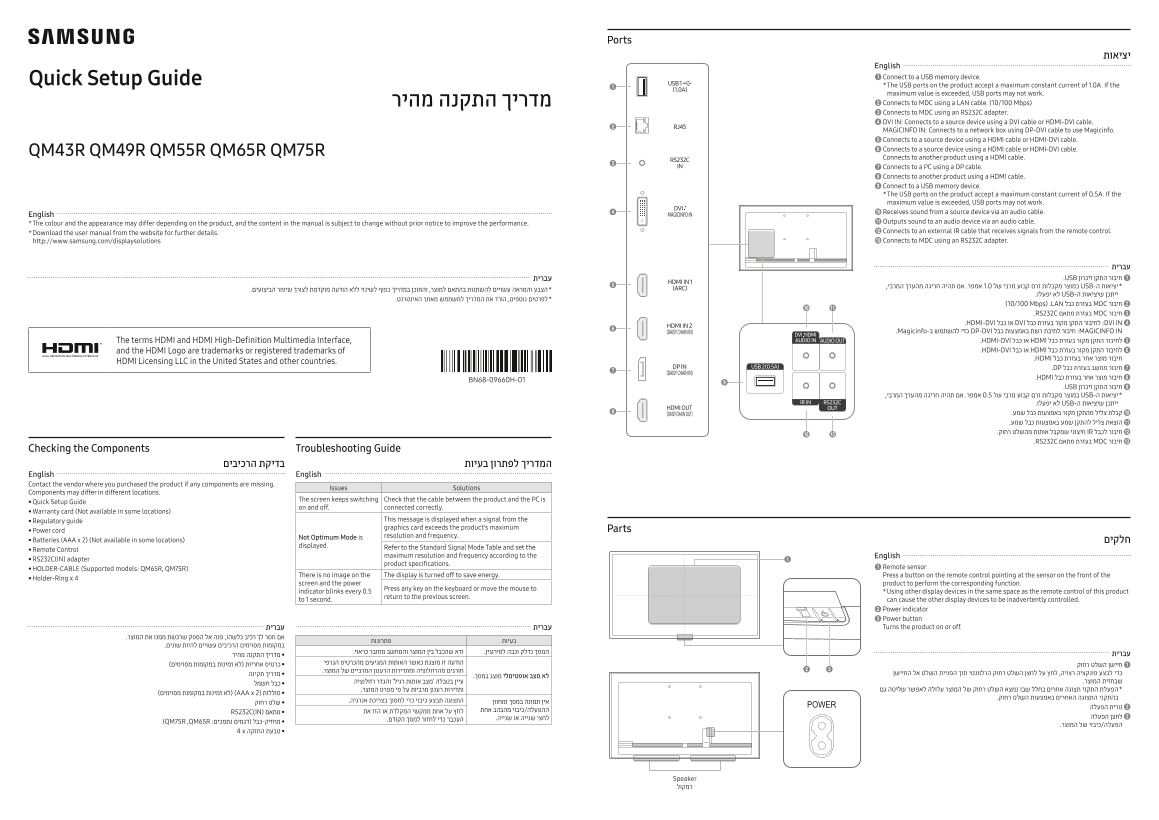
English 1 Connect to a USB memory device.
Quick Setup Guide
* The USB ports on the product accept a maximum constant current of 1.0A. If the maximum value is exceeded, USB ports may not work. מדריך התקנה מהיר 2 Connects to MDC using a LAN cable. (10/100 Mbps) 3 Connects to MDC using an RS232C adapter. 4 DVI IN: Connects to a source device using a DVI cable or HDMI-DVI cable. MAGICINFO IN: Connects to a network box using DP-DVI cable to use Magicinfo. 5 Connects to a source device using a HDMI cable or HDMI-DVI cable. 6 Connects to a source device using a HDMI cable or HDMI-DVI cable.
QM43R QM49R QM55R QM65R QM75R
Connects to another product using a HDMI cable. 7 Connects to a PC using a DP cable. 8 Connects to another product using a HDMI cable. 9 Connect to a USB memory device. * The USB ports on the product accept a maximum constant current of 0.5A. If the maximum value is exceeded, USB ports may not work. 0Receives sound from a source device via an audio cable.
English
* The colour and the appearance may differ depending on the product, and the content in the manual is subject to change without prior notice to improve the performance. !Outputs sound to an audio device via an audio cable. * Download the user manual from the website for further details. Connects to an external IR cable that receives signals from the remote control. http://www.samsung.com/displaysolutions Connects to MDC using an RS232C adapter.
עברית עברית 1 .USB חיבור התקן זיכרון יציאות ה-USB במוצר מקבלות זרם קבוע מרבי של 1.0 אמפר. אם תהיה חריגה מהערך המרבי,
ייתכן שיציאות ה-USB לא יפעלו.
2 ) 10/100 Mbps( .LAN בעזרת כבל MDC חיבור 3 .RS232C בעזרת מתאם MDC חיבור 4 .HDMI-DVI או כבל DVI לחיבור התקן מקור בעזרת כבל :DVI IN
.Magicinfo-כדי להשתמש ב DP-DVI חיבור לתיבת רשת באמצעות כבל :MAGICINFO IN
The terms HDMI and HDMI High-Definition Multimedia Interface, 5 .HDMI-DVI או כבל HDMI לחיבור התקן מקור בעזרת כבל and the HDMI Logo are trademarks or registered trademarks of 6 .HDMI-DVI או כבל HDMI לחיבור התקן מקור בעזרת כבל
.HDMI חיבור מוצר אחר בעזרת כבל
HDMI Licensing LLC in the United States and other countries.
7 .DP חיבור מחשב בעזרת כבל 8 .HDMI חיבור מוצר אחר בעזרת כבל
BN68-09660H-01
9 .USB חיבור התקן זיכרון יציאות ה-USB במוצר מקבלות זרם קבוע מרבי של 0.5 אמפר. אם תהיה חריגה מהערך המרבי,
ייתכן שיציאות ה-USB לא יפעלו.
קבלת צליל מהתקן מקור באמצעות כבל שמע. 0 הוצאת צליל להתקן שמע באמצעות כבל שמע. ! חיבור לכבל IR חיצוני שמקבל אותות מהשלט רחוק. @ # .RS232C בעזרת מתאם MDC חיבור
Troubleshooting Guide Checking the Components
English English Contact the vendor where you purchased the product if any components are missing.
Issues Solutions
Components may differ in different locations.
The screen keeps switching Check that the cable between the product and the PC is
• Quick Setup Guide
on and off. connected correctly.
• Warranty card (Not available in some locations)
• Regulatory guide This message is displayed when a signal from the graphics card exceeds the product’s maximum Parts
• Power cord
Not Optimum Mode is resolution and frequency.
• Batteries (AAA x 2) (Not available in some locations) חלקים
displayed. Refer to the Standard Signal Mode Table and set the
• Remote Control
maximum resolution and frequency according to the English
• RS232C(IN) adapter
product specifications.
• HOLDER-CABLE (Supported models: QM65R, QM75R) 1 Remote sensor
There is no image on the The display is turned off to save energy. Press a button on the remote control pointing at the sensor on the front of the
• Holder-Ring x 4
screen and the power product to perform the corresponding function.
Press any key on the keyboard or move the mouse to
indicator blinks every 0.5 * Using other display devices in the same space as the remote control of this product
return to the previous screen.
to 1 second. can cause the other display devices to be inadvertently controlled.
2 Power indicator 3 Power button עברית עברית Turns the product on or off.
סוללות )AAA x 2( )לא זמינות במקומות מסוימים(
RS232C)IN( מתאם
)QM75R ,QM65R :מחזיק-כבל )דגמים נתמכים
Speaker רמקול
BN68-09660H-01_QSG_QMR_ISRAEL_L02.indd 1 2019-05-28 오전 9:13:22
Page Summary Contents For Samsung QM55R Quick Setup Guide
Manual Details
| Brand | Samsung |
|---|---|
| Pages | 2 |
| File Size | 3.41 MB |
| Published | June 02, 2026 |
Enter the captcha to get the download link:

Frequently Asked Questions
What is the maximum constant current limit for the USB ports?
The USB ports accept a maximum constant current of 0.5A.
Which cable should be used to connect the device (Magicinfo) to a network box?
Use a DP-DVI cable connection at the MAGICINFO IN port.
What type of adapter is required for connecting to a Mini-Digital Control (MDC) unit via an older standard?
An RS232C adapter can be used to connect to MDC.
How should I troubleshoot if the screen keeps switching or shows no image?
Check that all cables, especially those connected between the product and the PC, are physically connected correctly.