Roland SP-555 Sampling Workstation Quick Start User Guide
Summary
This professional sampling unit provides musicians and sound producers the tools to create rich musical performances. Manual instructions cover everything from safe setup protocols and connecting external speakers to advanced features, including USB integration with DAW software (like SONAR LE). Learn how to utilize high-capacity CompactFlash cards for extensive sampling, import audio files via specialized software, and master every component of this versatile sound workstation.
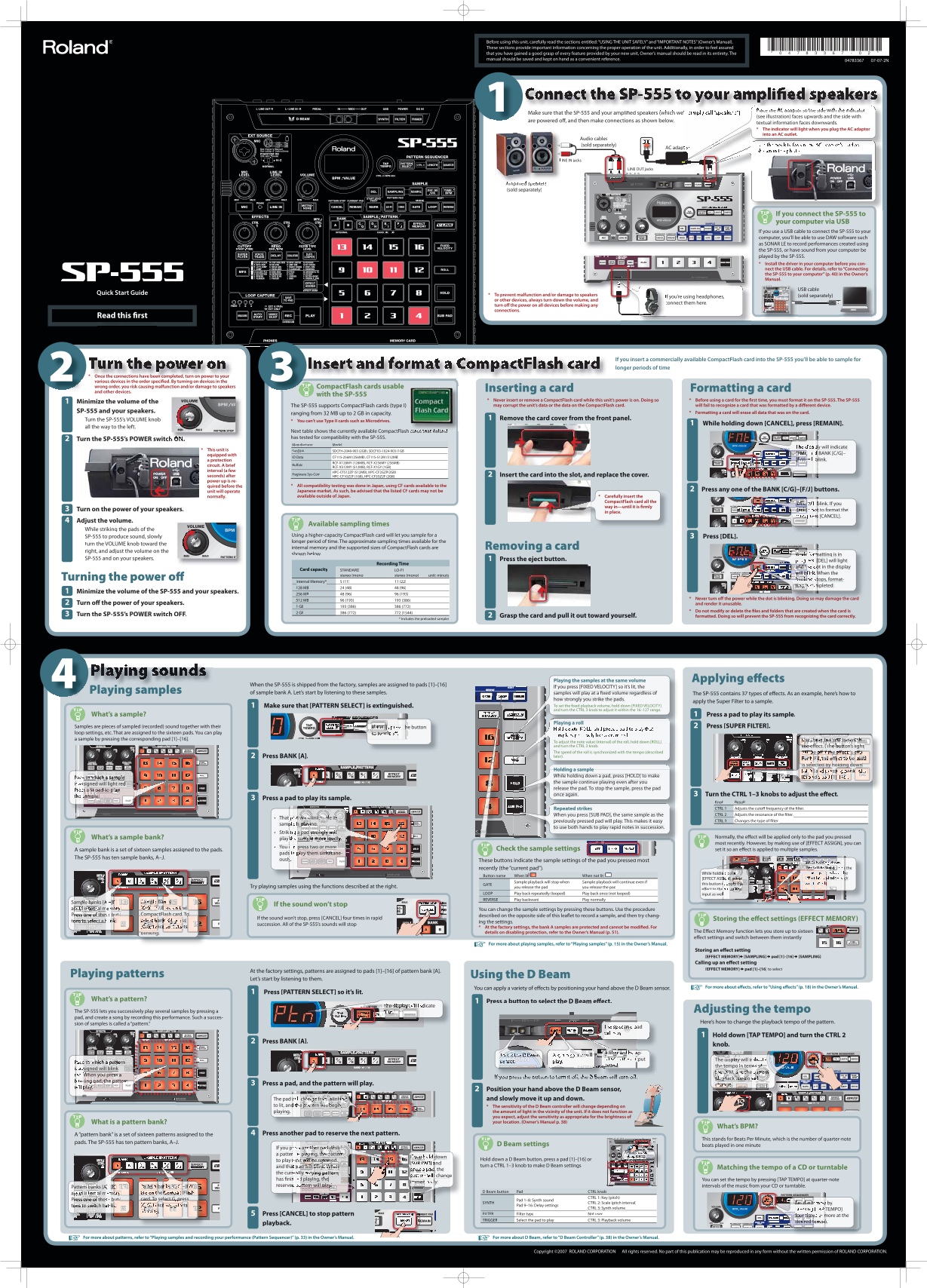
Page 1 Text Content
Before using this unit, carefully read the sections entitled: “USING THE UNIT SAFELY” and “IMPORTANT NOTES” (Owner’s Manual). These sections provide important information concerning the proper operation of the unit. Additionally, in order to feel assured that you have gained a good grasp of every feature provided by your new unit, Owner’s manual should be read in its entirety. The manual should be saved and kept on hand as a convenient reference. 04783367 07-07-2N
Place the AC adaptor so the side with the indicator
Make sure that the SP-555 and your amplifi ed speakers (which we
(see illustration) faces upwards and the side with
are powered off , and then make connections as shown below.
textual information faces downwards. The indicator will light when you plug the AC adaptor into an AC outlet.
Audio cables (sold separately)
AC adap
INE IN jacks
LINE OUT jacks
Amplifi ed speakers (sold separately)
If you connect the SP-555 to your computer via USB If you use a USB cable to connect the SP-555 to your computer, you’ll be able to use DAW software such as SONAR LE to record performances created using the SP-555, or have sound from your computer be played by the SP-555. Install the driver in your computer before you con- nect the USB cable. For details, refer to “Connecting the SP-555 to your computer” (p. 40) in the Owner’s Manual.
USB cable
Quick Start Guide To prevent malfunction and/or damage to speakers
f you’re using headphones, (sold separately)
or other devices, always turn down the volume, and
connect them here.
turn off the power on all devices before making any connections.
Read this fi rst
If you insert a commercially available Compact Flash card into the SP-555 you’ll be able to sample for longer periods of time
Once the connections have been completed, turn on power to your various devices in the order specifi ed. By turning on devices in the wrong order, you risk causing malfunction and/or damage to speakers Compact Flash cards usable
and other devices. Inserting a card Formatting a card
with the SP-555
Never insert or remove a Compact Flash card while this unit’s power is on. Doing so Before using a card for the fi rst time, you must format it on the SP-555. The SP-555
Minimize the volume of the
The SP-555 supports Compact Flash cards (type I) may corrupt the unit’s data or the data on the Compact Flash card. will fail to recognize a card that was formatted by a diff erent device.
SP-555 and your speakers. Formatting a card will erase all data that was on the card.
ranging from 32 MB up to 2 GB in capacity.
Turn the SP-555’s VOLUME knob Remove the card cover from the front panel.
You can’t use Type II cards such as Microdrives.
While holding down [CANCEL], press [REMAIN].
all the way to the left.
Next table shows the currently available Compact Flash cards that Roland has tested for compatibility with the SP-555.
Turn the SP-555’s POWER switch ON.
Manufacturer Model
ay will indicate
This unit is San Disk SDCFH-2048-903 (2GB), SDCFX3-1024-903 (1GB)
BANK [C/G]–d “FMt,”
equipped with
IO Data CF115-256M (256MB), CF115-512M (512MB)
a protection blink.[F/J] w
RCF-X128MY (128MB), RCF-X256MY (256MB)
circuit. A brief Buff alo
RCF-X512MY (512MB), RCF-X1GY (1GB)
interval (a few HPC-CF512ZP (512MB), HPC-CF2GZP(2GB)
Hagiwara Sys-Com Insert the card into the slot, and replace the cover.
seconds) after HPC-CF1GZ2F (1GB), HPC-CF2GZ2F (2GB) power up is re-
quired before the All compatibility testing was done in Japan, using CF cards available to the
unit will operate Japanese market. As such, be advised that the listed CF cards may not be Press any one of the BANK [C/G]–[F/J] buttons.
normally. available outside of Japan. Carefully insert the
Compact Flash card all the
blink. If you [DEL]
way in—until it is fi rmly
Turn on the power of your speakers. t to format thedecid
in place.
s [CANCEL].card,
Adjust the volume.
Available sampling times
While striking the pads of the
Using a higher-capacity Compact Flash card will let you sample for a
SP-555 to produce sound, slowly Press [DEL].
longer period of time. The approximate sampling times available for the
turn the VOLUME knob toward the
internal memory and the supported sizes of Compact Flash cards are Removing a card
right, and adjust the volume on the
shown below. matting is in While
SP-555 and on your speakers. Press the eject button.
[DEL] will light
Recording Time
ot in the display and th
Card capacity STANDARD LO-FI
When the will b
stereo (mono) stereo (mono) unit: minuts
Turning the power off tops, format-blinki
Internal Memory* 5 (11) 11 (22)
mpleted.ting is
128 MB 24 (48) 48 (96)
Minimize the volume of the SP-555 and your speakers.
256 MB 48 (96) 96 (193)
Never turn off the power while the dot is blinking. Doing so may damage the card
512 MB 96 (193) 193 (386)
Turn off the power of your speakers. and render it unusable.
1 GB 193 (386) 386 (772)
Do not modify or delete the fi les and folders that are created when the card is
2 GB 386 (772) 772 (1544)
Turn the SP-555’s POWER switch OFF. Grasp the card and pull it out toward yourself. formatted. Doing so will prevent the SP-555 from recognizing the card correctly.
* Includes the preloaded samples
Playing the samples at the same volume Applying eff ects
When the SP-555 is shipped from the factory, samples are assigned to pads [1]–[16]
If you press [FIXED VELOCITY] so it’s lit, the
Playing samples of sample bank A. Let’s start by listening to these samples. samples will play at a fi xed volume regardless of
The SP-555 contains 37 types of eff ects. As an example, here’s how to
how strongly you strike the pads.
apply the Super Filter to a sample.
Make sure that [PATTERN SELECT] is extinguished. To set the fi xed playback volume, hold down [FIXED VELOCITY] and turn the CTRL 3 knob to adjust it within the 16–127 range.
What’s a sample? Press a pad to play its sample.
Playing a roll
Samples are pieces of sampled (recorded) sound together with their it is he buttonitlf Press [SUPER FILTER].
loop settings, etc. That are assigned to the sixteen pads. You can play to turn a sample by pressing the corresponding pad [1]–[16]. witch Use these buttons to s
To adjust the note value (interval) of the roll, hold down [ROLL] and turn the CTRL 3 knob. the eff ect. (The button’s light The speed of the roll is synchronized with the tempo (described will be off if the eff ect is off .) Press BANK [A]. later).
FX, the eff ect to be M For sed is selected by holding down
Holding a sample ] and pressing bank MF A] o While holding down a pad, press [HOLD] to make d a pad [1]n B]
s to which a sample
the sample continue playing even after you
is signed will light red.
release the pad. To stop the sample, press the pad
li ds a t pa to play
once again. Turn the CTRL 1–3 knobs to adjust the eff ect.
sample.
Press a pad to play its sample.
Knob Result Repeated strikes CTRL 1 Adjusts the cutoff frequency of the fi lter. When you press [SUB PAD], the same sample as the CTRL 2 Adjusts the resonance of the fi lter.
That d will blink while its
previously pressed pad will play. This makes it easy CTRL 3 Changes the type of fi lter.
samp s playing.
to use both hands to play rapid notes in succession.
Striki a pad strongly will
What’s a sample bank? Normally, the eff ect will be applied only to the pad you pressed
play sample more loudly.
most recently. However, by making use of [EFFECT ASSIGN], you can
You c press two or more
A sample bank is a set of sixteen samples assigned to the pads. Check the sample settings set it so an eff ect is applied to multiple samples.
pads play them simultane-
The SP-555 has ten sample banks, A–J.
ously These buttons indicate the sample settings of the pad you pressed most
While holding do
recently (the “current pad”). ASS[EFF IGN], p s the ECT
While holdin own he ds
Button name When lit When not lit
[EFFECT ASS ], press ch ed tp
Sample playback will stop when Sample playback will continue even if it
GATE this button t pply the
Try playing samples using the functions described at the right. you release the pad you release the pad
eff ect to the c or line
LOOP Play back repeatedly (looped) Play back once (not looped) input as well REVERSE Play backward Play normally
Sa [Bmple banks [A baamp ks
If the sound won’t stop
ar mory. internal mne i F/J] are on the [C/G]–[ You can change the sample settings by pressing these buttons. Use the procedure but-ress one of thes Compact Flash card. To described on the opposite side of this leafl et to record a sample, and then try chang-
If the sound won’t stop, press [CANCEL] four times in rapid Storing the eff ect settings (EFFECT MEMORY)
to nkns to select a b ank [G], press elect ing the settings.
succession. All of the SP-555’s sounds will stop.
ice so it startsw C/G] At the factory settings, the bank A samples are protected and cannot be modifi ed. For
details on disabling protection, refer to the Owner’s Manual (p. 51). The Eff ect Memory function lets you store up to sixteen
gblinkin
eff ect settings and switch between them instantly.
For more about playing samples, refer to “Playing samples” (p. 15) in the Owner’s Manual.☞
Storing an eff ect setting [EFFECT MEMORY] [SAMPLING] pad [1]–[16] [SAMPLING] Calling up an eff ect setting [EFFECT MEMORY] pad [1]–[16] to select
At the factory settings, patterns are assigned to pads [1]–[16] of pattern bank [A].
Using the D Beam Playing patterns
Let’s start by listening to them.
You can apply a variety of eff ects by positioning your hand above the D Beam sensor. For more about eff ects, refer to “Using eff ects” (p. 18) in the Owner’s Manual.☞
Press [PATTERN SELECT] so it’s lit.
What’s a pattern?
Press a button to select the D Beam eff ect.
la y The dis dicatep
The SP-555 lets you successively play several samples by pressing a “Ptn.” Adjusting the tempo
pad, and create a song by recording this performance. Such a succes-
Here’s how to change the playback tempo of the pattern.
sion of samples is called a “pattern.”
adifi ed
Hold down [TAP TEMPO] and turn the CTRL 2
Press BANK [A].
knob.
ap-A fi lter will
m This is the D Bea so
th tput li The display will in
s to which a pattern nsor
sound. the tempo in term of
is signed will blink
PM, and thethe B pattern
h W en you press a
If you press the button to turn it off , the D Beam will turn off . playback tempo will
king pad, the pattern
Press a pad, and the pattern will play. change.
play.
Position your hand above the D Beam sensor, The pad w change from blinking and slowly move it up and down.
to lit, and e pattern will begin The sensitivity of the D Beam controller will change depending on
playing. the amount of light in the vicinity of the unit. If it does not function as you expect, adjust the sensitivity as appropriate for the brightness of What is a pattern bank? your location. (Owner’s Manual p. 38)
What’s BPM?
A “pattern bank” is a set of sixteen patterns assigned to the Press another pad to reserve the next pattern.
This stands for Beats Per Minute, which is the number of quarter-note
pads. The SP-555 has ten pattern banks, A–J.
D Beam settings beats played in one minute.
If you p s another pad while
w Hold dow hiln
a patter playing, the pattern
down If you h kinma g setting
to play n t will be reserved, Hold down a D Beam button, press a pad [1]–[16] or
PA and[SUB
and tha ad will blink. When turn a CTRL 1–3 knob to make D Beam settings.
, the dpress a Matching the tempo of a CD or turntable
the curr ly playing pattern
tt e changlp
has fi nis d playing, the You can set the tempo by pressing [TAP TEMPO] at quarter-note
y.limmed
banks [C/G]–[Fatter reserved attern will play . intervals of the music from your CD or turntable.
Pa [Bttern banks [A
he Compact Flaare on t sh D Beam button Pad CTRL knob
ar mory. internal mne i
CTRL 1: Key (pitch)
but-ress one of thes card. To select G, press Pad 1–8: Synth sound
SYNTH CTRL 2: Scale (pitch interval) the te o by Set
to ksns to switch ba ice so it startsw C/G] Pad 9–16: Delay settings
CTRL 3: Synth volume TEMPO]
.glinki
Press [CANCEL] to stop pattern FILTER Filter type Not used
more at the four time
TRIGGER Select the pad to play CTRL 3: Playback volume
o.desired t
playback.
For more about patterns, refer to “Playing samples and recording your performance (Pattern Sequencer)” (p. 33) in the Owner’s Manual.☞ For more about D Beam, refer to “D Beam Controller” (p. 38) in the Owner’s Manual.☞
Copyright ©2007 ROLAND CORPORATION All rights reserved. No part of this publication may be reproduced in any form without the written permission of ROLAND CORPORATION.
Page Summary Contents For Roland SP-555 Sampling Workstation Quick Start User Guide
Manual Details
| Brand | Roland |
|---|---|
| Pages | 2 |
| File Size | 18.49 MB |
| Published | May 31, 2026 |
Enter the captcha to get the download link:

Frequently Asked Questions
What is the correct startup procedure for connecting external devices?
Turn off all connected devices before making any connections, and then power them on in the specified order.
How do I format a newly inserted CompactFlash card into the SP-555?
Press [CANCEL] while holding down [REMAIN], then press [REMAIN]. (The unit will indicate 'F' when complete).
What software can be used to transfer WAV or AIFF files to the SP-555?
Use the included 'SP-555 Wave Converter' software, available free of charge.
What types of CompactFlash cards are compatible with the SP-555?
The SP-555 supports Type I CompactFlash cards, ranging from 32 MB up to 2 GB in capacity.