# A B C D E F G H I J K L M N O P Q R S T U V W X Y Z

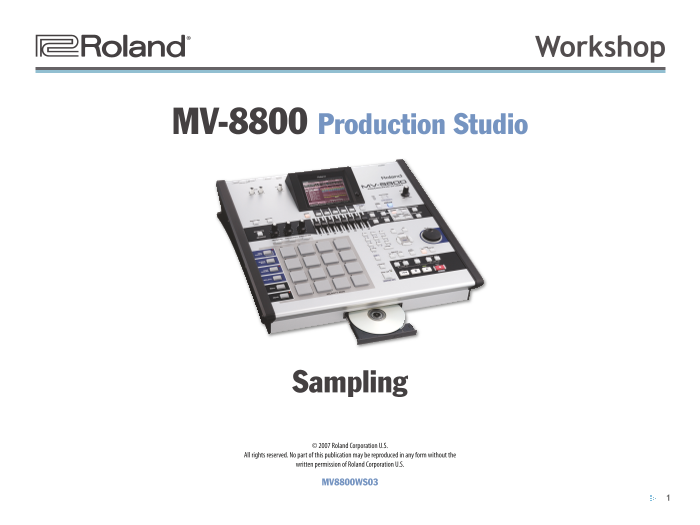
Roland MV-8800 Recording Studio Product MV-8800 Workshop 03 Sampling Support Document

Summary

The Roland MV-8800 Production Studio is a feature-rich, professional sampler and MIDI sequencer designed for advanced music creation. This guide details comprehensive functionality, offering an in-depth look at mastering sampling techniques, utilizing audio phrases, naming patches, and streamlining your workflow with 136 tracks. It is essential reading for musicians, producers, and performance artists looking to maximize the power of their studio rig and create professional master mixes.
📄 Preview PAGE OF 15

Page 1 Text Content

®ÂØÒňή Workshop

MV-8800 Production Studio

Sampling © 2007 Roland Corporation U.S. All rights reserved. No part of this publication may be reproduced in any form without the written permission of Roland Corporation U.S. MV8800WS03

Page Summary Contents For Roland MV-8800 Recording Studio Product MV-8800 Workshop 03 Sampling Support Document

Page 1 ®ÂØÒňή Workshop MV-8800 Production Studio Sampling © 2007 Roland Corporation U.S. All rights reserved. No part of this publication may be reproduced in any form without the written permission of Rol...
Page 2 About the MV-8800 Workshop Series If you’re using a mouse: If you’re using the MV-8800’s buttons: Roland’s MV-8800 Production Studio is packed with features for making music. It’s a heavy-duty sampler...
Page 3 Some Things You Need to Know About Sampling Two Ways You Can Use Samples There are basically two ways to use samples on the MV-8800. You can use How a Sound Becomes a Sample them: as audio phrases. • ...
Page 4 What’s a Patch? About Expanding Sample RAM A patch puts a sampled note on each of the MV-8800 pads for playing. A pad The MV-8800 ships with 128 MB of sample RAM, and you can expand it up in a patch m...
Page 5 Setting Your Analog Sampling/Input Level If you’ve installed an optional MV8-OP1 Audio I/O Expansion board in your MV-8800, you can connect a stereo digital device—such as a synth Press the MIXER butt...
Page 6 The Sampling Setup The Level Start Trigger Pad and Play settings are used in resampling, which we’ll get to in a bit. Press the SAMPLING button to display the SAMPLING window. When you set Start Trigg...
Page 7 Other Sampling Options The checkboxes at the bottom of the screen turn some sampling options on or off: Auto Divide—When you turn Auto Divide on, the MV-8800 creates a new sample each time there’s sil...
Page 8 To Begin Sampling If you’ve turned on Auto Divide, you’ll see a list of the samples you’ve To begin sampling, click Start. If Start Trigger is set to: made. Click on a sample, and then click OK to see...
Page 9 We sampled one extra beat in this loop so that we’d know exactly where to set the red We named our End Point flag—right before sample “Broke the extra beat. Beat.” Set the BPM Base Note parameter to t...
Page 10 Making an Audio Phrase If the audio phrase’s pad bank isn’t shown, press PAD BANKS to select the right bank. In the Quick Assign window shown on Page 9, click Asgn To APhrs (for “Assign to Audio Phras...
Page 11 Loop Mode—If you’d like your audio phrase to loop, set Loop Mode to BPM Sync—With BPM sync on, the tempo of the audio phrase becomes something other than Off. You can choose: automatically locked with...
Page 12 Command—This button displays a menu of operations the MV-8800 Select the desired part. If you want to: can perform on your audio phrase’s sample: create a new patch that plays your sample—select a par...
Page 13 Controlling the Behavior of the Sample When you record with a patch, its track has its own Pan setting that shifts the stereo position of all of the samples in the patch to the left Follow the instruc...
Page 14 Finger on the Trigger Saving an Audio Phrase One Shot—Turn this parameter on so that the sample plays all the way To save your audio phrases, simply save the project they’re in. You can do this throug...
Page 15 Saving Your Patch Press INSTRUMENTS and make sure the patch’s part is selected. Click Library and select the project library location where you’d like to save your patch. You can put it anywhere you w...

Manual Details

Brand Roland
Pages 15
File Size 2.18 MB
Published June 02, 2026
60 views

Enter the captcha to get the download link:

captcha

Frequently Asked Questions

How many tracks are available for MIDI sequencing on the MV-8800?

Its sequencer has 136 tracks for MIDI sequencing and playing back audio.

What types of inputs should I use for connecting a microphone or instrument?

Use the MIC/LINE inputs for connecting microphones (“mics”) and instruments.

How do I ensure my samples are saved when working on projects?

You must save your work to avoid losing it, as the MV-8800 clears its RAM at power-down.

Can I use an external display with the MV-8800?

The MV-8800 can function on a built-in color LCD or connect to an optional VGA monitor.