Roland INTEGRA-7 Sound Source with Real-Time Technology About the Wireless LAN Function User Manual
Summary
Enhance your instrument's functionality with wireless LAN capabilities. This manual provides comprehensive instructions for connecting the INTEGRA-7 to external networks using a specialized USB adapter (sold separately). Learn how to establish secure connections via WPS, connect manually by selecting access points, and integrate remote applications—such as those running on iPads—allowing you to view and edit settings while away from the console. Ideal for users requiring robust, flexible networking and seamless wireless integration for advanced performance control.
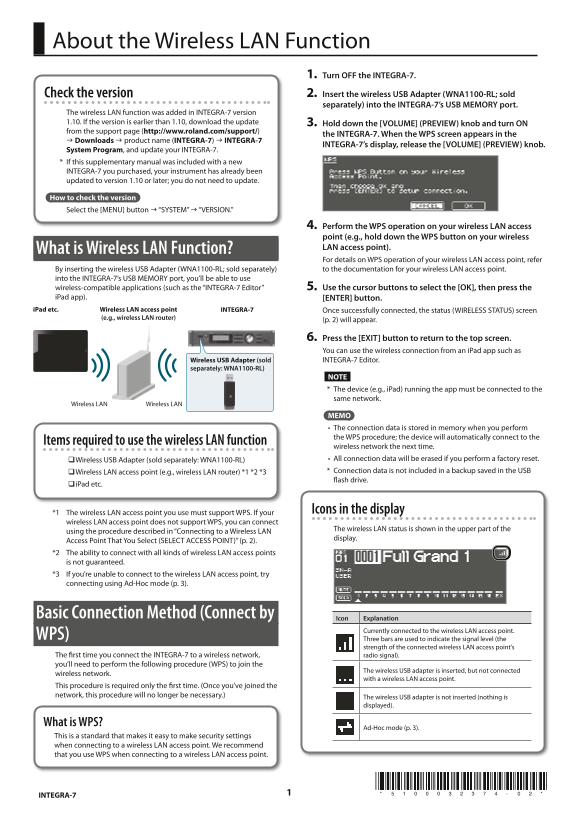
Page 1 Text Content
About the Wireless LAN Function
1. Turn OFF the INTEGRA-7. Check the version 2. Insert the wireless USB Adapter (WNA1100-RL; sold separately) into the INTEGRA-7’s USB MEMORY port.
The wireless LAN function was added in INTEGRA-7 version 1.10. If the version is earlier than 1.10, download the update 3. Hold down the [VOLUME] (PREVIEW) knob and turn ON from the support page (http://www.roland.com/support/)
the INTEGRA-7. When the WPS screen appears in the
g Downloads g product name (INTEGRA-7) g INTEGRA-7
INTEGRA-7’s display, release the [VOLUME] (PREVIEW) knob.
System Program, and update your INTEGRA-7. * If this supplementary manual was included with a new INTEGRA-7 you purchased, your instrument has already been updated to version 1.10 or later; you do not need to update.
How to check the version Select the [MENU] button g “SYSTEM” g “VERSION.”
4. Perform the WPS operation on your wireless LAN access point (e.g., hold down the WPS button on your wireless What is Wireless LAN Function? LAN access point). For details on WPS operation of your wireless LAN access point, refer By inserting the wireless USB Adapter (WNA1100-RL; sold separately) to the documentation for your wireless LAN access point.
into the INTEGRA-7’s USB MEMORY port, you’ll be able to use wireless-compatible applications (such as the “INTEGRA-7 Editor” 5. Use the cursor buttons to select the [OK], then press the i Pad app). [ENTER] button. i Pad etc. Wireless LAN access point INTEGRA-7 Once successfully connected, the status (WIRELESS STATUS) screen
(e.g., wireless LAN router)
(p. 2) will appear.
6. Press the [EXIT] button to return to the top screen. You can use the wireless connection from an i Pad app such as Wireless USB Adapter (sold INTEGRA-7 Editor.
separately: WNA1100-RL)
NOTE * The device (e.g., i Pad) running the app must be connected to the same network.
Wireless LAN Wireless LAN
MEMO • The connection data is stored in memory when you perform the WPS procedure; the device will automatically connect to the
Items required to use the wireless LAN function
wireless network the next time. Wireless USB Adapter (sold separately: WNA1100-RL) • All connection data will be erased if you perform a factory reset. Wireless LAN access point (e.g., wireless LAN router) *1 *2 *3 * Connection data is not included in a backup saved in the USB flash drive.
i Pad etc.
*1 The wireless LAN access point you use must support WPS. If your Icons in the display
wireless LAN access point does not support WPS, you can connect
The wireless LAN status is shown in the upper part of the
using the procedure described in “Connecting to a Wireless LAN
display.
Access Point That You Select (SELECT ACCESS POINT)” (p. 2). *2 The ability to connect with all kinds of wireless LAN access points is not guaranteed. *3 If you’re unable to connect to the wireless LAN access point, try connecting using Ad-Hoc mode (p. 3).
Basic Connection Method (Connect by
Icon Explanation
Currently connected to the wireless LAN access point.
WPS) Three bars are used to indicate the signal level (the
strength of the connected wireless LAN access point’s
The first time you connect the INTEGRA-7 to a wireless network, radio signal). you’ll need to perform the following procedure (WPS) to join the
The wireless USB adapter is inserted, but not connected
wireless network.
with a wireless LAN access point.
This procedure is required only the first time. (Once you’ve joined the network, this procedure will no longer be necessary.) The wireless USB adapter is not inserted (nothing is
displayed).
What is WPS?
Ad-Hoc mode (p. 3).
This is a standard that makes it easy to make security settings when connecting to a wireless LAN access point. We recommend that you use WPS when connecting to a wireless LAN access point.
INTEGRA-7
Page Summary Contents For Roland INTEGRA-7 Sound Source with Real-Time Technology About the Wireless LAN Function User Manual
Manual Details
| Brand | Integra |
|---|---|
| Pages | 4 |
| File Size | 1013.02 KB |
| Published | May 23, 2026 |
Enter the captcha to get the download link:

Frequently Asked Questions
How do I check if my INTEGRA-7 is updated for Wireless LAN function?
Select [MENU] > "SYSTEM" > "VERSION." The function requires version 1.10 or later to be active.
What accessories are required for the wireless LAN function?
You need a Wireless USB Adapter (WNA1100-RL), a compatible wireless LAN access point, and a device like an iPad running the appropriate app.
I cannot connect to the wireless network; what should I check first?
Verify that both the INTEGRA-7 and connecting device are on the same network, and try bringing them closer together or changing the AP's channel setting.
If I perform a factory reset, will my connection data be saved?
No. All wireless connection data is erased if you perform a factory reset because this information is not included in standard backups.