# A B C D E F G H I J K L M N O P Q R S T U V W X Y Z

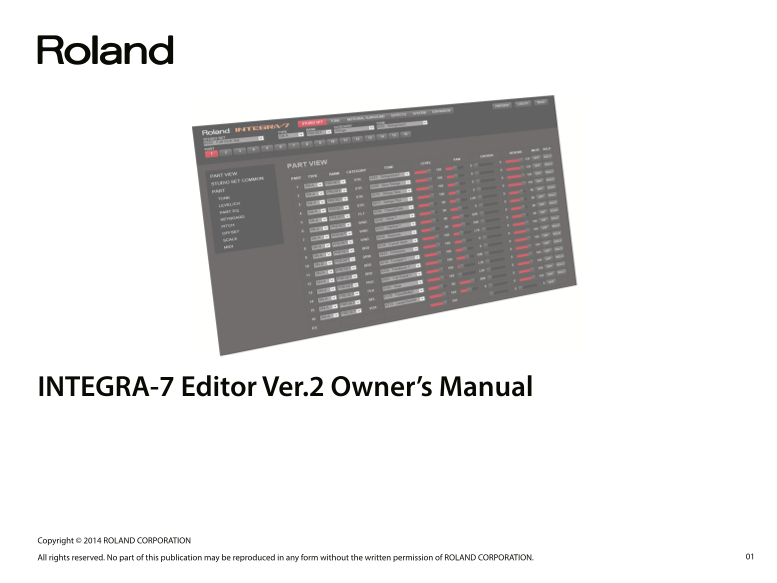
Roland INTEGRA-7 with REAL Technology Sound Source INTEGRA-7 Editor Ver.2 Owner's Manual

Summary

Master the powerful sound design of your INTEGRA-7 synthesizer using this comprehensive guide to Editor Ver.2. This manual details every function needed to control studio sets, shape complex tones, and adjust parameters in real time from within any DAW (VSTi/AU). Ideal for professional composers, producers, and sound designers, the guide teaches you how to customize everything—from spatial placement and EQ adjustments to saving perfected tones and setups directly onto the hardware.
📄 Preview 📖 Table of Contents Contents PAGE OF 12

Page 1 Text Content

INTEGRA-7 Editor Ver.2 Owner’s Manual

Copyright © 2014 ROLAND CORPORATION All rights reserved. No part of this publication may be reproduced in any form without the written permission of ROLAND CORPORATION.

Page Summary Contents For Roland INTEGRA-7 with REAL Technology Sound Source INTEGRA-7 Editor Ver.2 Owner's Manual

Page 1 INTEGRA-7 Editor Ver.2 Owner’s Manual Copyright © 2014 ROLAND CORPORATION All rights reserved. No part of this publication may be reproduced in any form without the written permission of ROLAND CORPOR...
Page 2 Contents About INTEGRA-7 Editor Ver.2 How the Screens Are Organized . How the Editor Is Organized [STUDIO SET] tab . [TONE] tab [MOTIONAL SURROUND] tab . [EFFECTS] tab . [SYSTEM] tab [EXPANSION] tab ....
Page 3 How the Screens Are Organized How the Editor Is Organized You can switch the display between the studio sets, parts, or parameters that you’re editing. The selection area consists of a pull- Studio Se...
Page 4 How the Screens Are Organized [STUDIO SET] tab In the [STUDIO SET] tab you can edit overall settings for the entire studio set and make detailed settings for each part. PART VIEW For each part, you ca...
Page 5 How the Screens Are Organized [TONE] tab In the [TONE] tab you can select the instrument and partials that are the basis of the tone, and edit the parameters to modify the sound. COMMON These settings...
Page 6 How the Screens Are Organized [MOTIONAL SURROUND] tab In the [MOTIONAL SURROUND] tab you can control the stereo position and depth of each part. COMMON These settings edit the reverb type, room size, ...
Page 7 How the Screens Are Organized [EFFECTS] tab In the [EFFECTS] tab you can edit the settings of the effects used by the tone, part, or studio set. TONE Here you can specify the type and character of eff...
Page 8 How the Screens Are Organized [SYSTEM] tab In the [SYSTEM] tab you can make settings for tuning and specify how MIDI messages are received. SOUND These settings specify the master level, master tune, ...
Page 9 How the Screens Are Organized [EXPANSION] tab In the [EXPANSION] tab you can load sound data into the INTEGRA-7’s virtual slots for use. VIRTUAL SLOT Select the sound data that is loaded into the four...
Page 10 How the Screens Are Organized [UTILITY] button By clicking the [UTILITY] button you can save the studio set and tone settings that you’ve edited, or initialize a studio set, tone, or partial. STUDIO S...
Page 11 Loading a Studio Set (READ) A studio set saved in the INTEGRA-7 itself can be loaded into INTEGRA-7 Editor Ver.2 and edited. Loading a Studio Set 1. On the INTEGRA-7, select the studio set that you wa...
Page 12 Saving the Studio Set and Tones The studio set and tones you’ve edited are temporary. If you turn off the power of the INTEGRA-7 itself, or select another studio set or tone, the edited content is los...

Manual Details

Brand Integra
Pages 12
File Size 1.33 MB
Published May 23, 2026
75 views

Enter the captcha to get the download link:

captcha

Frequently Asked Questions

How does the INTEGRA-7 Editor integrate with my DAW?

It can be plugged into a DAW supporting VST instruments (VSTi) or Audio Units (AU), allowing real-time parameter edits for studio sets and tones.

What must I do before leaving the editor screen?

Because edited content is temporary, you must use the WRITE buttons in the [UTILITY] section to save your changes as described on page 12.

How can I adjust the spatial depth of a part?

In the [MOTIONAL SURROUND] tab, you can drag parts or move sliders to specify their stereo position and depth.

What kind of adjustments are possible within the [STUDIO SET] tab?

You can edit overall settings like tempo and tone control, and make detailed adjustments for each part's level, equalizer, pitch, and scale.