Roland AX-Edge Shoulder Bag Synthesizer User's Guide
Summary
Master the full potential of your AX-Edge with this essential manual. This guide provides complete instructions on installing or importing SOUND PACK (.SDZ) and WAVE EXPANSION (.EXZ) content, allowing you to vastly expand your device's sound library. It covers everything from preparing USB flash drives and managing user licenses to simple installation procedures for both file types. Ideal for AX-Edge owners looking to customize their tones and maintain professional quality audio performance.
Page 1 Text Content
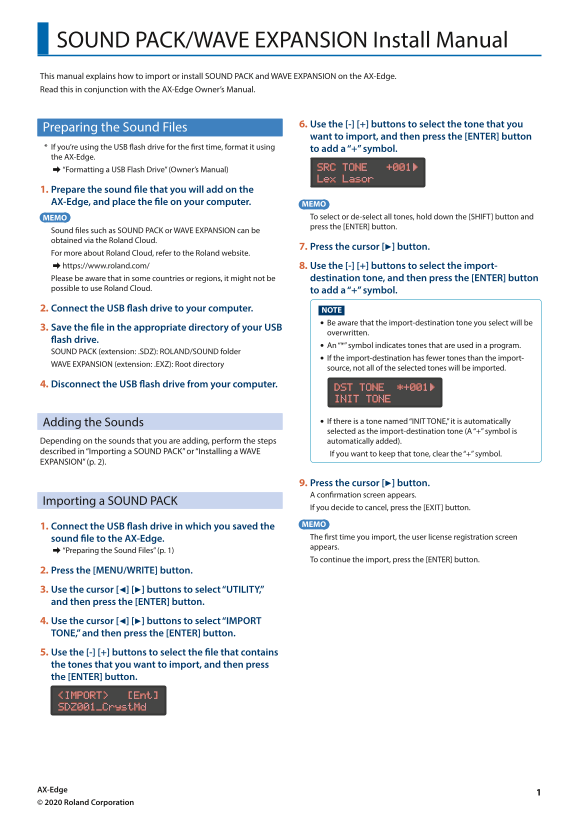
SOUND PACK/WAVE EXPANSION Install Manual This manual explains how to import or install SOUND PACK and WAVE EXPANSION on the AX-Edge. Read this in conjunction with the AX-Edge Owner’s Manual.
6. Use the [-] [+] buttons to select the tone that you
Preparing the Sound Files
want to import, and then press the [ENTER] button
* If you’re using the USB flash drive for the first time, format it using to add a “+” symbol. the AX-Edge.
&“Formatting a USB Flash Drive” (Owner’s Manual) SRC TONE +001À Lex Lasor
1. Prepare the sound file that you will add on the AX-Edge, and place the file on your computer. MEMO
MEMO To select or de-select all tones, hold down the [SHIFT] button and press the [ENTER] button.
Sound files such as SOUND PACK or WAVE EXPANSION can be obtained via the Roland Cloud.
7. Press the cursor [J] button.
For more about Roland Cloud, refer to the Roland website. &https://www.roland.com/ 8. Use the [-] [+] buttons to select the import- Please be aware that in some countries or regions, it might not be destination tone, and then press the [ENTER] button possible to use Roland Cloud.
to add a “+” symbol.
2. Connect the USB flash drive to your computer. NOTE
Be aware that the import-destination tone you select will be
3. Save the file in the appropriate directory of your USB
overwritten.
flash drive.
An “*” symbol indicates tones that are used in a program.
SOUND PACK (extension: .SDZ): ROLAND/SOUND folder
If the import-destination has fewer tones than the import-
WAVE EXPANSION (extension: .EXZ): Root directory
source, not all of the selected tones will be imported.
4. Disconnect the USB flash drive from your computer.
DST TONE *+001À INIT TONE
Adding the Sounds If there is a tone named “INIT TONE,” it is automatically selected as the import-destination tone (A “+” symbol is
Depending on the sounds that you are adding, perform the steps automatically added). described in “Importing a SOUND PACK” or “Installing a WAVE
If you want to keep that tone, clear the “+” symbol.
EXPANSION” (p. 2).
9. Press the cursor [J] button. A confirmation screen appears.
Importing a SOUND PACK
If you decide to cancel, press the [EXIT] button.
1. Connect the USB flash drive in which you saved the MEMO sound file to the AX-Edge. The first time you import, the user license registration screen appears.
&“Preparing the Sound Files” (p. 1)
To continue the import, press the [ENTER] button.
2. Press the [MENU/WRITE] button. 3. Use the cursor [K] [J] buttons to select “UTILITY,” and then press the [ENTER] button. 4. Use the cursor [K] [J] buttons to select “IMPORT TONE,” and then press the [ENTER] button. 5. Use the [-] [+] buttons to select the file that contains the tones that you want to import, and then press the [ENTER] button. <IMPORT> [Ent] SDZ001_Cryst Md
AX-Edge © 2020 Roland Corporation
Page Summary Contents For Roland AX-Edge Shoulder Bag Synthesizer User's Guide
Manual Details
| Brand | Roland |
|---|---|
| Pages | 3 |
| File Size | 185.16 KB |
| Published | June 04, 2026 |
Enter the captcha to get the download link:

Frequently Asked Questions
How do I import sound files like SOUND PACK or WAVE EXPANSION?
Connect the USB, go to MENU/WRITE > UTILITY > IMPORT TONE, select the file, and press [ENTER].
What should I do if I want to install content with a different user license?
You must initialize the user licenses by following the procedure described in “Initializing the User Licenses (REMOVE LICENSE).”
Can I uninstall an installed WAVE EXPANSION?
Press [ENTER] while powering on, use the [-]/[+] buttons to select the file, and press [K].
What steps should be taken if files are inaccessible or corrupted?
Check for 'File Not Found!' (check saving/extension), 'Incorrect File!' (check compatibility/download again), or 'Incorrect License!'. If license issue occurs, initialize user licenses.