Page 1
Actilume Color System
Page 2
About this user manual This user manual is meant for anyone who has to do with installing, programming and / or operating the Actilume Color system. However, not all sections are equally relevant for ...
Page 3
Table of contents About this user manual Uploading a Light Show Important information 1.1 Safety precautions Basic presets in the Actilume Color controller 1.2 Copyright 12.1 Basic (Philips 54W HO) la...
Page 4
1.5 Environmental information Important information Disposal of your old product The product is designed and manufactured with high quality materials and components, which can be recycled and reused. ...
Page 5
2.3 Applications Actilume Color system The Actilume Color system has been designed for all indoor application within retail, hospitality, and public spaces, especially to attract people and to surpris...
Page 6
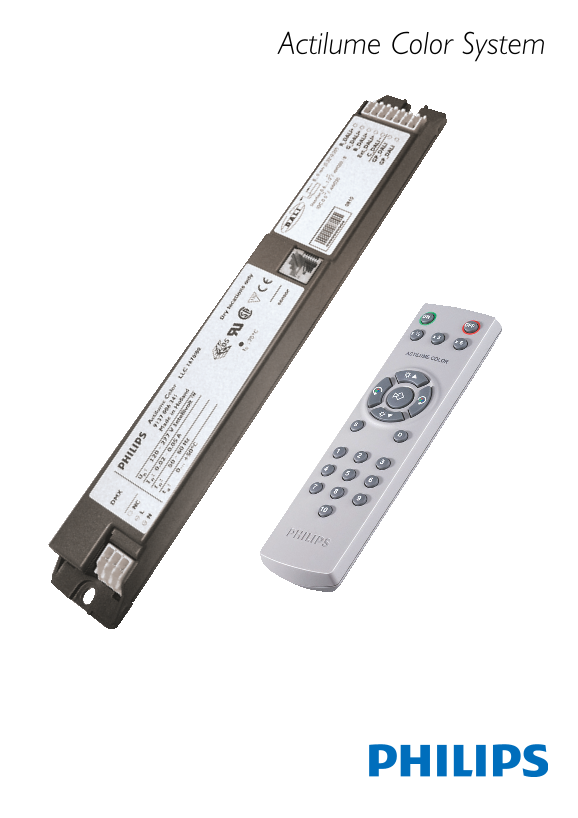
Overview Actilume Color controller LLC 1670/00 DMX input 230V gateway LCU 1670/00 Connects to a DMX control panel when the controller is integrated in a DMX network. DALI Test Master 230VAC/50Hz Power...
Page 7
IRR 1651/00 24V gateway LCU 1671/00 RS232 Connection cord Connects to the IR SENSOR input of the Actilume Color controller. For connecting your computer to the Actilume Color system. IR (Infrared) sen...
Page 8
Remote control IRT 1670/00 Preset keys All presets are preprogrammed at the factory. Colors and sequences can be overwritten as described in 6.1.7 ‘Changing presets’. Preset keys for Static and Dynami...
Page 9
System setup 4.1 Mounting the controller into the fixture Connect the DALI output connectors (R DALI +, G DALI + and B DALI + ) to the corresponding DALI input connectors of the red, green and blue la...
Page 10
4.2 Basic system 1 fixture with 1 Actilume Color controller and red, green and blue lamp drivers.To this fixture other fixtures can be connected with a maximum of 9.These fixtures only contain lamp dr...
Page 11
4.4 DALI network Preprogrammed static and dynamic presets. Up to 40 DALI devices. Fluo RGB DALI power Supply Universal LED driver Actilume Color controller The protocol on the Ext_DALI + output is acc...
Page 12
4.5 DMX network Instant control of the lighting system via DMX control panel. Up to 150 fixtures. In this configuration all (via controllers and drivers) connected lamps will have the same static colo...
Page 13
5.1.4 Selecting preset static colors Operating the Actilume Color system For an overview of preset static colors, refer to 3 ‘Overview’. Once installed, the Actilume Color controller can be operated i...
Page 14
5.1.7 Changing Presets 5.2 Operation via a DALI control system Colors under Preset keys are factory stored, default colors (both When installed in a DALI network, the Actilume Color system can static ...
Page 15
Actilume Color Studio 15Actilume Color Studio
Page 16
Click ‘Next’ to continue. Actilume Color Studio • The ‘Select Installation Folder’ screen appears. 6.1 Introduction Actilume Color Studio enables you to create, preview and upload ‘Light shows’ intend...
Page 17
Properties: 6.5 Terminology Opens the ‘Light Show Properties’ screen.You can fill in properties Throughout this section, the following terminology is used: such as ‘Title’, ‘Author’ and ‘Company’. Fix...
Page 18
Edit Light Group/Fixture Management…: Main menu for ‘Timeline’ editing The clipboard is maintained at Management window for adding, editing and removing ‘Light Groups’ application level enabling cut /...
Page 19
Open…: Contents… (F1): Shows an ‘Open File Dialog’ to enable you to select an existing This is where all Actilume Color Studio help is located. ‘Color Palette’ file from your harddisk. If a ‘Color Pal...
Page 20
Fill the ‘Timelines’ with colors and color fades. For details, refer to Creating a ‘Light Show’ 7.5 ‘Drawing Constant Colors’, 7.6 ‘Drawing Color Fades’, 7.8 ‘Selecting and editing colors’ and 7.9 ‘Fi...
Page 21
7.3 Scenes 7.4 Sequences The default empty ‘Light Show’ contains only one ‘Scene’.The ‘Light The default empty ‘Light Show’ contains one ‘Sequence’ attached to a Show’ menu enables you to add or remov...
Page 22
7.4.3 Removing ‘Sequences’ from a ‘Light Show’ 7.6 Drawing Color Fades Select the ‘Sequence’ you wish to delete by right clicking in the ‘Fades’ are gradual transitions from one color to another color...
Page 23
7.8.2 Clipboard functionality Position Right click in a selected area. Index of the ‘Color Point’ in the ‘Timeline’. • The following menu appears. Click ‘OK’ to save your settings. 7.9 Fine-tuning col...
Page 24
7.10.2 Creating a new Color Palette • The selected ‘Effect Palette’ appears in the ‘Toolbox’ window and can Make sure the ‘Toolbox’ window is open. be used for creating a ‘Light Show’. Select ‘New’ in...
Page 25
Preview Preferences Enables adjustment of ‘Previewing’ settings. Monitor Type Enables you to select the monitor type on which the application is The ‘Preferences’ window in the ‘Tools’ menu shows the ...
Page 26
9.1.2 Editing ‘Light Group’ settings Managing Light Groups and Fixtures ‘Name’ and ‘Type Group’ of a ‘Light Show’ can be changed. If the ‘Light Group’ is coupled to a ‘Sequence’ it is not possible to ...
Page 27
9.2.1 Adding Fixtures 9.2.2 Editing fixture settings Click ‘Add’ in the ‘Light Group / Fixture Management’ screen. Select the fixture you wish to edit in the ‘Light Group / Fixture • The ‘Add New fixt...
Page 28
• A progress bar indicates the update progress. Discover all Fixtures Click ‘Start’. • When the update was successful, the ‘Fixture updated’ screen appears. Before the actual discovery process starts ...
Page 29
Select the fixture you wish to assign a ‘Short Address’ to and click Previewing a Light Show ‘Edit’. On the ‘Light Plan’ in the ‘View’ menu you can preview a ‘Light Show’ to get an impression of how t...
Page 30
10.2 Color Display Click ‘ ’ in the toolbar or select ‘Light Plan’ in the ‘View’ menu. • The ‘Light Plan’ appears in the lower part of the ‘Light Show’ screen. All fixtures in the ‘Light Show’ are dis...
Page 31
10.3.2 Resize Fixture Display Resizing can be useful to scale the ‘Light Plan’ depending on the Uploading a Light Show amount of ‘Fixtures’, to deviate between models and turn (e.g. 140 x 70 to 70 x 1...
Page 32
Sequence 4 Basic presets in the Actilume Color Spring = 10 min Fade Hold controller 2 min 30 sec 2 min 30 sec YELLOW 2 min 30 sec 2 min 30 sec GREEN 12.1 Basic Philips T5 lamp settings Sequence 5 Summ...
Page 33
13.5 Controller unit LLC1670/00 Actilume Color datasheet In DALI operation and based on the pre-programmed colors, Actilume Color calculates the different dim levels for the Red, Green 13.1 Compliance...
Page 34
13.5.2 User interfaces 13.5.6 Connections for DALI and power ts id 0. .5 fo sc re in (U .S Remote control: in si .5 fo sc re in (m et ri c) IRT1670/00 needs to be pointed to the sensor (IRR1651/00 or ...
Page 35
13.7 Actilume Color Studio, programming software Ordering data LCS1670/00 Actilume Color Studio is intuitive software for programming sequences into the Actilume Color controller. It allows direct pre...
Page 36
© 2008 Koninklijke Philips Electronics N.V. All rights reserved. Reproduction in whole or in part is prohibited without the prior written consent of the copyright owner.The information presented in th...