Page 1
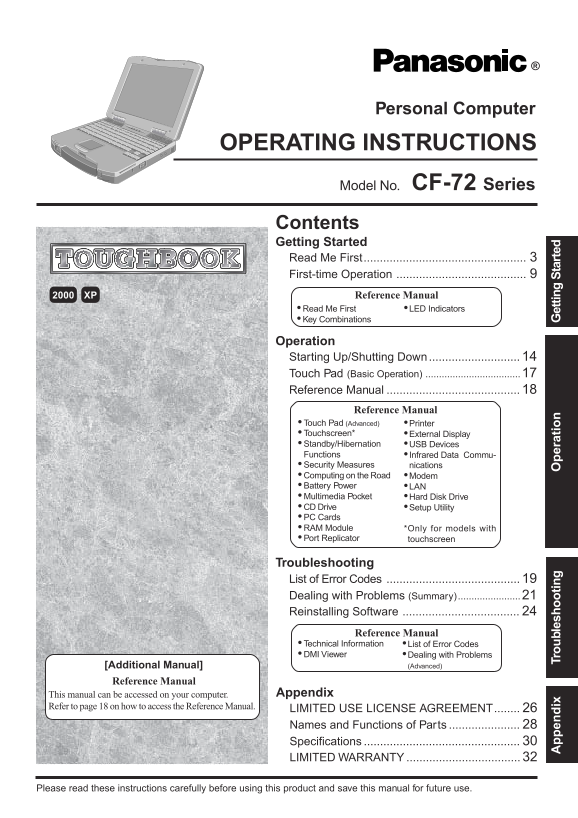
Personal Computer OPERATING INSTRUCTIONS Model No. CF-72 Series Contents Getting Started Read Me First.................................................. First-time Operation XP Reference Manual Read M...
Page 2
Customer's Record Model No.* Dealer's Name Serial No. Code No. Dealer's Address Date of Purchase For the Model No., insert the 12 digit number (for example, CF-72VCJUZQM) located on the bottom of the ...
Page 3
Read Me First For U.S.A. Federal Communications Commission Radio 2. An FCC compliant telephone cord and modular plug is pro- Frequency Interference Statement vided with this equipment. This equipment ...
Page 4
et tin ta rt ed Read Me First For Canada Industry Canada (IC) Notice for modem RESTRICTIONS CONCERNANT LE RACCORDEMENT This equipment contains an Industry Canada approved modem DE MATÉRIEL unit. “AVIS...
Page 5
Lithium Battery Precautions Lithium Battery! This computer has been designed so as to minimize shock to This computer contains a lithium battery to enable the date, time, the LCD and hard disk drive, ...
Page 6
et tin ta rt ed Read Me First Peripherals Cables Incorrectly using peripheral devices may lead to a decrease in Use of an interface cable longer than 3 m (9.84 feet) is not recom- performance, an incr...
Page 7
Saving Data on the Hard Disk Do not expose your computer to shock. Use care when handling your computer, shock may damage your hard disk or make your software applications and data unusable. Do not po...
Page 8
et tin ta rt ed Read Me First Usage Environment Environment Place the computer on a flat stable surface. In use: Temperature: 5 °C to 35 °C {41 °F to 95 °F} Humidity: 30% to 80% RH (No condensation) N...
Page 9
First-time Operation Read the steps below to help you learn what parts are included, and to gain an understanding of some basic computer-related operations. Confirm the inclusion of all parts Make sur...
Page 10
et tin ta rt ed First-time Operation Match the mark on the battery pack cover to the mark on the computer and slide the Mark cover back into place. CAUTION If the cover is not attached properly, the b...
Page 11
Select the Operating System Windows 2000 and Windows XP are preinstalled on this computer. After one of them is selected with the following procedure, only that Operating System can be used. At the sc...
Page 12
et tin ta rt ed First-time Operation Windows XP Windows XP CAUTION Do not press any key or move the touch pad until [Windows XP Professional Setup] is displayed. At the [Welcome to the Windows XP Setu...
Page 13
Create BACKUP Disks for Reinstallation When [You do not need to make “BACKUP DISK”] is displayed (procedure 5 below), there is no need to create a BACKUP DISK. If this message is not displayed, create...
Page 14
er at io Starting Up/Shutting Down Starting Up Open the display Slide the latch as shown and lift open the display. Turn your computer on Slide the power switch toward the rear of the computer and hol...
Page 15
Windows 2000 Input your password Wait for 10 seconds after confirming that the hard disk access has been completed, and input the user name and password, then select [OK]. Until the correct user name ...
Page 16
er at io Starting Up/Shutting Down Shutting Down (power off your computer) This procedure is shutting down without using the standby or hibernation function. “Standby/Hibernation Functions”) Save impo...
Page 17
Touch Pad (Basic Operation) Work Surface Use the touch pad to move the cursor on the display and perform normal computer operations. For instructions on how to operate, refer to "Touch Pad (Advan...
Page 18
er at io Reference Manual The Reference Manual can be accessed on your computer. When a printer is connected, the Reference Manual can also be printed. This manual explains functions for you to make g...
Page 19
List of Error Codes The following is a list of the messages that BIOS can display. Most of them occur during POST. Some of them display informa- tion about a hardware device, e.g., the amount of memor...
Page 20
Tr bl es ho ot in List of Error Codes 02F5: DMA Test Failed Server BIOS2 test error: Cannot write to extended DMA (Direct Memory Access) registers. 02F6: Software NMI Failed Server BIOS2 test error: C...
Page 21
Dealing with Problems (Summary) When a problem occurs, refer to this page. The “Reference Manual” also contains detailed information. If a problem appears to be related to a software application, read...
Page 22
Tr bl es ho ot in Dealing with Problems (Summary) Display No display after powering When there is no display to an external display, on • Check your cable connection to the external display. • Confirm...
Page 23
Battery Indicator The red indicator lights. The battery level is low. Save your data and power off your computer. Repeated beeping sound After connecting the AC adaptor or replacing the battery pack w...
Page 24
Tr ou bl es ho ot in Before Reinstallation Preparing Reinstalling Select a number 1. Restore the whole HDD to factory default 2. Restore Windows(R) 2000 Professional to the first partition Windows XP ...
Page 25
Enter Tr ou bl es ho ot in
Page 26
en ix LIMITED USE LICENSE AGREEMENT THE SOFTWARE PROGRAM(S) (“PROGRAMS”) FURNISHED WITH THIS PANASONIC® PRODUCT (“PRODUCT”) ARE LICENSED ONLY TO THE END-USER (“YOU”), AND MAY BE USED BY YOU ONLY IN AC...
Page 27
Contrat de licence d’usage limité Le(s) logiciel(s) (les “Logiciels”) fournis avec ce produit Panasonic® (le “Produit”) sont exclusivement concédés en licence à l’utilisateur ultime (“vous”), et ils n...
Page 28
en ix Names and Functions of Parts The illustrations shown may differ from the actual physical appearances. LCD (Only for models with touchscreen: “Touchscreen”) LED Indicators Function Keys “LED Indi...
Page 29
Infrared Communication Port External Keyboard/Mouse Port Parallel Port “Printer”) External Display Port “External Display”) DC-IN Jack Ventilation Hole These holes allow heat to exit. USB Ports “USB D...
Page 30
en ix Specifications Main Specifications Model No. CF-72VCJUZQM CF-72V3JUZQM CPU Mobile Pentium® 4 Processor-M 1.6 GHz featuring Intel® Speed Step TM technology L2 (Second) Cache Memory: 512 KB Memory...
Page 31
Main Specifications Model No. CF-72VCJUZQM CF-72V3JUZQM Environment In use Temperature 5 °C to 35°C {41 °F to 95 °F} Humidity 30% to 80% RH (No condensation) Not in use Temperature -20 °C to 60 °C {-4...
Page 32
en ix LIMITED WARRANTY For U.S.A. PANASONIC PERSONAL COMPUTER AND PERIPHERALS LIMITED WARRANTY Panasonic Computer Solution Company (referred to as “Panasonic”) will repair this product (other than sof...
Page 33
For Canada PANASONIC COMPUTER AND PERIPHERALS LIMITED WARRANTY Coverage – Panasonic Canada Inc. (“PCI”) warrants to you, the first end user customer, this computer product (excluding software media), ...
Page 34
en ix
Page 35
en ix
Page 36
Panasonic Computer Solutions Company Panasonic Canada Inc. 50 Meadowlands Parkway, Panazip 2F-5, 5770 Ambler Drive Mississauga, Secaucus, NJ 07094 Ontario L4W 2T3 FJ0402-3033 © 2002 Matsushita Electri...