Page 1
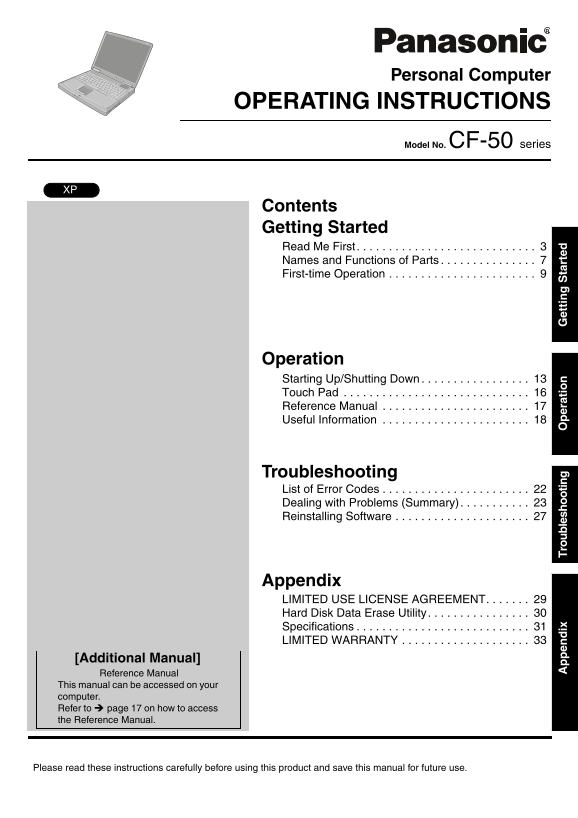
Personal Computer OPERATING INSTRUCTIONS Model No. CF-50 series Contents Getting Started Read Me First . . . . . . . . . . . . . . . . . . . . . . . . . . . . 3 Names and Functions of Parts . . . . . ...
Page 2
Customer’s Record Model No.*1 Dealer’s Name Serial No. Code No. Dealer’s Address Date of Purchase *1 For the Model No., insert the 12 digit number (for example, CF-50J2KUEKM) located on the bottom of ...
Page 3
Read Me First For U.S.A. Federal Communications Commission Radio Fre- FCC Regulation Notice for modem quency Interference Statement This equipment contains a FCC approved modem. Note: This equipment h...
Page 4
et ti ta rt ed Read Me First contains in a margin at the top or bottom of each trans- “Caution: To reduce the risk of fire, use only No.26 AWG or mitted page or on the first page of the transmission, ...
Page 5
Lithium Battery Lithium Battery! This computer contains a lithium battery to enable the date, time, and other data to be stored. The battery should only be exchanged by authorized service personnel. W...
Page 6
et ti ta rt ed Read Me First Precautions (Battery Pack) Care should be exercised with regard to the following Do not touch the terminals on the battery pack. The in order to avoid the possibility of o...
Page 7
Names and Functions of Parts et ti ta rt ed
Page 8
et ti ta rt ed Names and Functions of Parts
Page 9
First-time Operation Read the steps below to help you learn what parts are included, and to gain an under- standing of some basic computer-related operations. Confirm the inclusion of all parts. Make ...
Page 10
et ti ta rt ed First-time Operation Handling the AC adaptor Do not twist or pull the AC power cord forcefully. Doing so may damage the con- nections. Use only the specified AC adaptor with your comput...
Page 11
CAUTION Remember this password! If the password is forgotten, Windows cannot be operated. You can create a password reset disk beforehand ( page 12). NOTE When creating a new user account: If you make...
Page 12
et ti ta rt ed First-time Operation Information for Windows XP Depending on the Windows settings, installed applications, and drivers, menus and other displays may differ, or some functions (such as u...
Page 13
Starting Up/Shutting Down Starting Up Open the display. Slide the latch located at the front. Lift open the display. Turn your computer on. Press the power switch and hold it for approximately one sec...
Page 14
er at io Starting Up/Shutting Down You may encounter the following situations when the computer is turned on at very low temperatures. These functions are designed to prevent hard disk drive malfuncti...
Page 15
Shutting Down (power off your computer) Save important data and close each application. Select [start] - [Turn Off Computer]. Select [Turn Off]. Your computer will power off automatically. Restarting ...
Page 16
er at io Touch Pad Use the touch pad to move the cursor on the screen and perform computer operations. A.Work Surface (Touch Pad) B.Left Button C.Right Button Function Operation Moving the Cursor Move...
Page 17
Reference Manual Reference Manual / Important Tips The Reference Manual and the Important Tips can be accessed on your computer. When a printer is connected, the Reference Manual can also be printed. ...
Page 18
er at io Useful Information Usage Environment Environment Place the computer on a flat stable surface. Do not place the computer upright or allow it to tip over. When the computer receives extremely s...
Page 19
Maintenance Display Avoid using water when cleaning the panel. Ingredients included in water may leave scratches and reduce readability of the screen. <When cleaning dust/dirt> Avoid rubbing off...
Page 20
er at io Useful Information Saving Data on the Hard Disk Do not expose your computer to shock. Use care when handling your computer, shock may damage your hard disk or make your software applications ...
Page 21
Wireless LAN To prevent theft of data or unauthorized access to the hard disk via a wireless LAN If you plan to use wireless LAN functions, we recommend that you do so only after making the appropriat...
Page 22
Tr ou bl es ho ot in List of Error Codes When turning on the computer, if one of the following error codes or messages is displayed, follow the instructions shown below. If the problem persists, or if...
Page 23
Dealing with Problems (Summary) When a problem occurs, refer to this page. The “Reference Manual” also contains detailed information. If a problem appears to be related to a software application, read...
Page 24
Tr ou bl es ho ot in Dealing with Problems (Summary) Starting Up When the previous item is Press F9 in the Setup Utility. This will restore the Setup Utility’s settings to their not the cause default ...
Page 25
Display The screen becomes disor- Changing the number of colors of the display may affect the screen. Restart the dered computer. When using Dualview, use the same display colors for the external disp...
Page 26
Tr ou bl es ho ot in Dealing with Problems (Summary) Reference Manual The Reference Manual is Is Acrobat Reader installed? not displayed If Acrobat Reader is not installed, run [c:\util\reader\acrorea...
Page 27
Reinstalling Software When reinstallation procedure is performed, the contents of the hard disk will be erased. Be sure to back up any criti- cal data that is on your hard disk before running the rein...
Page 28
Tr ou bl es ho ot in Reinstalling Software Do not interrupt the reinstallation procedure before completion, for example by turning off the computer or pressing Ctrl + Alt + Del, as this may prevent Wi...
Page 29
LIMITED USE LICENSE AGREEMENT THE SOFTWARE PROGRAM(S) (“PROGRAMS”) FURNISHED WITH THIS PANASONIC® PRODUCT (“PRODUCT”) ARE LICENSED ONLY TO THE END-USER (“YOU”), AND MAY BE USED BY YOU ONLY IN ACCORDAN...
Page 30
en ix Hard Disk Data Erase Utility This computer is equipped with a utility for completely erasing hard disk data. When disposing of or transferring ownership of this device, erase all data on the har...
Page 31
Specifications This page provides the specifications for the basic model CF-50J2KUEKM. The model number will change depending on the configuration of the unit, such as, CPU speed, memory size, HDD siz...
Page 32
en ix Specifications Main Specifications Model No. CF-50J2KUEKM Slots PC Card Slots Two Type I or Type II, or one Type III Allowable current 3.3 V: 400 m A (total for two 5 V: 400 m A slots) RAM Modul...
Page 33
LIMITED WARRANTY For U.S.A. PANASONIC PERSONAL COMPUTER AND PERIPHERALS LIMITED WARRANTY Panasonic Computer Solutions Company (referred to as “Panasonic”) will repair this product (other than software...
Page 36
As an ENERGY STAR® Partner, Matsushita Electric Industrial Co., Ltd. has determined that this product meets the ENERGY STAR® guidelines for energy efficiency. Outline of the International ENERGY STAR®...