LG Mobile Phone GSM Cellphone LGC320.ACHNWA Product Specifications BOOST (AUSTRALIA)
Summary
Introducing a dependable basic mobile phone designed for essential communication needs. This comprehensive manual is your step-by-step guide to mastering every function, covering everything from initial SIM card installation and charging to making calls, managing contacts, and capturing photos. Perfect for new users or those needing a quick reference, it ensures you can confidently utilize all core features like call waiting, speed dials, and camera functions right out of the box.
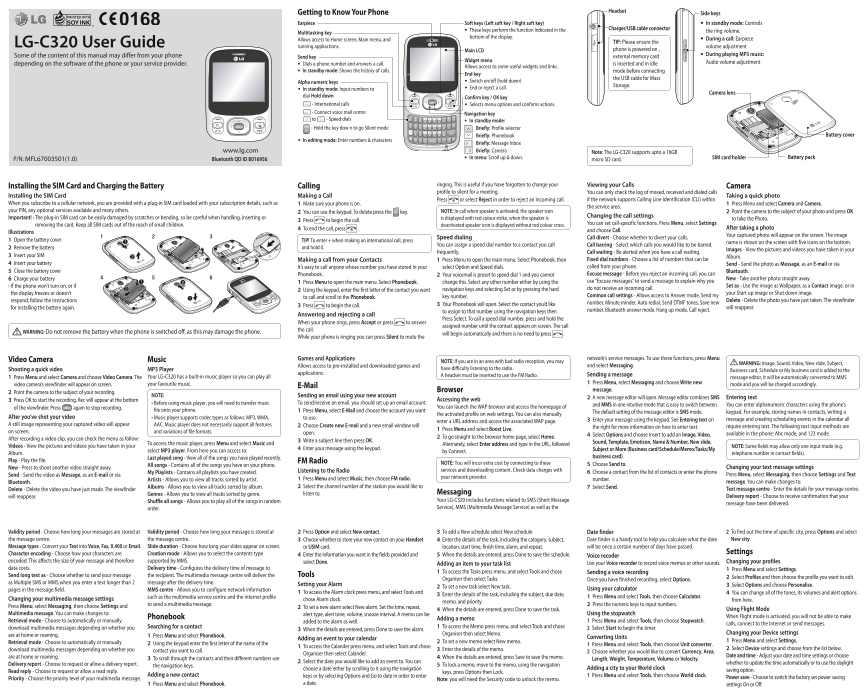
Page 1 Text Content
Headset
Getting to Know Your Phone Side keys
Earpiece Soft keys (Left soft key / Right soft key) In standby mode: Controls
These keys perform the function Indicated in the Charger/USB cable connector
Multitasking key the ring volume.
bottom of the display. During a call: Earpiece
Allows access to Home screen, Main menu, and
LG-C320 User Guide TIP: Please ensure the
running appliactions. volume adjustment
Main LCD phone is powered on ,
Some of the content of this manual may differ from your phone During playing MP3 music:
Send key external memory card
Widget menu Audio volume adjustment
depending on the software of the phone or your service provider. Dials a phone number and answers a call. is inserted and in idle
Allows access to some useful widgets and links.
In standby mode: Shows the history of calls. mode before connecting
End key
the USB cable for Mass
Alpha numeric keys Switch on/off (hold down)
Storage.
In standby mode: Input numbers to End or reject a call.
Camera lens
dial Hold down Confirm key / OK key
- International calls Selects menu options and confirms actions.
- Connect voice mail centre Navigation key to - Speed dials In standby mode:
- Hold the key dow n to go Silent mode Briefly: Profile selector
Briefly: Phonebook Battery cover
In editing mode: Enter numbers & characters
Briefly: Message Inbox www.lg.com Briefly: Camera Note: The LG-C320 supports upto a 16GB
In menu: Scroll up & down. SIM card holder Battery pack
P/N: MFL67003501(1.0) Bluetooth QD ID B016956 micro SD card.
ringing. This is useful if you have forgotten to change your Viewing your Calls
Installing the SIM Card and Charging the Battery Calling Camera
profile to silent for a meeting. You can only check the log of missed, received and dialed calls
Installing the SIM Card Making a Call Taking a quick photo
Press or select Reject in order to reject an incoming call. if the network supports Calling Line Identification (CLI) within
When you subscribe to a cellular network, you are provided with a plug-in SIM card loaded with your subscription details, such as Make sure your phone is on. Press Menu and select Camera and Camera.
the service area.
your PIN, any optional services available and many others. You can use the keypad. To delete press the key. NOTE: In call when speaker is activated, the speaker icon Point the camera to the subject of your photo and press OK
Important! › The plug-in SIM card can be easily damaged by scratches or bending, so be careful when handling, inserting or Changing the call settings
is displayed with red colour strike, when the speaker is to take the Photo.
Press to begin the call.
removing the card. Keep all SIM cards out of the reach of small children. You can set call-specific functions. Press Menu, select Settings
deactivated speaker icon is displayed without red colour cross.
To end the call, press . After taking a photo
Illustrations and choose Call.
Your captured photo will appear on the screen. The image
Speed dialing Call divert - Choose whether to divert your calls.
Open the battery cover TIP! To enter + when making an international call, press
name is shown on the screen with five icons on the bottom.
You can assign a speed dial number to a contact you call Call barring - Select which calls you would like to be barred.
Remove the battery and hold 0.
Images - View the pictures and videos you have taken in your
frequently. Call waiting - Be alerted when you have a call waiting.
Insert your SIM Album.
Making a call from your Contacts Press Menu to open the main menu. Select Phonebook, then Fixed dial numbers - Choose a list of numbers that can be
Insert your battery Send - Send the photo as Message, as an E-mail or via
It’s easy to call anyone whose number you have stored in your select Option and Speed dials. called from your phone.
Close the battery cover Bluetooth.
Phonebook. Your voicemail is preset to speed dial 1 and you cannot Excuse message - Before you reject an incoming call, you can
Charge your battery New - Take another photo straight away.
Press Menu to open the main menu. Select Phonebook. change this. Select any other number either by using the use “Excuse messages” to send a message to explain why you
› If the phone won’t turn on, or if Set as - Use the image as Wallpaper, as a Contact image, or in
Using the keypad, enter the first letter of the contact you want navigation keys and selecting Set or by pressing the hard do not receive an incoming call.
the display freezes or doesn’t your Start up image or Shut down image.
to call and scroll to the Phonebook. key number. Common call settings - Allows access to Answer mode, Send my
respond, follow the instructions Delete - Delete the photo you have just taken. The viewfinder
Your Phonebook will open. Select the contact you’d like number, Minute minder, Auto redial, Send DTMF tones, Save new
Press to begin the call. will reappear.
for installing the battery again.
to assign to that number using the navigation keys then number, Bluetooth answer mode, Hang up mode, Call reject.
Answering and rejecting a call
Press Select. To call a speed dial number, press and hold the
When your phone rings, press Accept or press to answer
assigned number until the contact appears on screen. The call
the call.
WARNING: Do not remove the battery when the phone is switched off , as this may damage the phone. will begin automatically and there is no need to press .
While your phone is ringing you can press Silent to mute the
Games and Applications network’s service messages. To use these functions, press Menu
Video Camera Music NOTE: If you are in an area with bad radio reception, you may
WARNING: Image, Sound, Video, New slide, Subject,
Allows access to pre-installed and downloaded games and and select Messaging.
Shooting a quick video MP3 Player have difficulty listening to the radio.
Business card, Schedule or My business card is added to the
applications. Sending a message
Your LG-C320 has a built-in music player so you can play all A headset must be inserted to use the FM Radio.
Press Menu and select Camera and choose Video Camera. The message editor, it will be automatically converted to MMS
your favourite music. Press Menu, select Messaging and choose Write new mode and you will be charged accordingly.
video camera’s viewfinder will appear on screen. E-Mail
Browser message.
Point the camera to the subject of your recording.
NOTE: Sending an email using your new account
A new message editor will open. Message editor combines SMS Entering text
Press OK to start the recording. Rec will appear at the bottom Accessing the web
• Before using music player, you will need to transfer music To send/receive an email, you should set up an email account. You can enter alphanumeric characters using the phone’s
and MMS in one intuitive mode that is easy to switch between.
of the viewfinder. Press again to stop recording. You can launch the WAP browser and access the homepage of
file onto your phone. Press Menu, select E-Mail and choose the account you want keypad. For example, storing names in contacts, writing a
The default setting of the message editor is SMS mode.
the activated profile on web settings. You can also manually
After you’ve shot your video • Music player supports codec types as follows: MP3, WMA, to use.
Enter your message using the keypad. See Entering text on message and creating scheduling events in the calendar all
enter a URL address and access the associated WAP page.
A still image representing your captured video will appear AAC. Music player does not necessarily support all features Choose Create new E-mail and a new email window will
the right for more information on how to enter text. require entering text. The following text input methods are
Press Menu and select Boost Live.
on screen. and variations of file formats. open.
Select Options and choose Insert to add an Image, Video, available in the phone: Abc mode, and 123 mode.
After recording a video clip, you can check the menu as follow: To go straight to the browser home page, select Home.
Write a subject line then press OK. Sound, Template, Emoticon, Name & Number, New slide,
To access the music player, press Menu and select Music and Alternately, select Enter address and type in the URL, followed
Videos - View the pictures and videos you have taken in your NOTE: Some fields may allow only one input mode (e.g.
Enter your message using the keypad. Subject or More (Business card/Schedule/Memo/Tasks/My
select MP3 player. From here you can access to: by Connect.
Album. telephone number in contact fields).
Last played song - View all of the songs you have played recently. business card).
Play - Play the file. FM Radio
NOTE: You will incur extra cost by connecting to these Choose Send to.
All songs - Contains all of the songs you have on your phone.
New - Press to shoot another video straight away. Changing your text message settings
Listening to the Radio services and downloading content. Check data charges with
My Playlists - Contains all playlists you have created. Choose a contact from the list of contacts or enter the phone
Send - Send the video as Message, as an E-mail or via Press Menu, select Messaging, then choose Settings and Text
Press Menu and select Music, then choose FM radio. your network provider.
Artists - Allows you to view all tracks sorted by artist. number.
Bluetooth. message. You can make changes to:
Albums - Allows you to view all tracks sorted by album. Select the channel number of the station you would like to Select Send.
Delete - Delete the video you have just made. The viewfinder Text message centre - Enter the details for your message centre.
Genres - Allows you to view all tracks sorted by genre. listen to. Messaging
will reappear. Delivery report - Choose to receive confirmation that your
Shuffle all songs - Allows you to play all of the songs in random Your LG-C320 includes functions related to SMS (Short Message
message have been delivered.
order. Service), MMS (Multimedia Message Service) as well as the
Validity period - Choose how long your messages are stored at Validity period - Choose how long your message is stored at Press Option and select New contact. To add a New schedule select New schedule Date finder 2 To find out the time of specific city, press Options and select
the message centre. the message centre. Choose whether to store your new contact on your Handset Enter the details of the task, including the catagory, subject, Date finder is a handy tool to help you calculate what the date New city.
Message types - Convert your Text into Voice, Fax, X.400 or Email. Slide duration - Choose how long your slides appear on screen. or USIM card. location, start time, finish time, alarm, and repeat. will be once a certain number of days have passed.
Character encoding - Choose how your characters are Creation mode - Allows you to select the contents type Settings
Enter the information you want in the fields provided and When the details are entered, press Done to save the schedule. Voice recoder
encoded. This affects the size of your message and therefore supported by MMS. select Done. Changing your profiles
Adding an item to your task list Use your Voice recorder to record voice memos or other sounds.
data costs. Delivery time - Configures the delivery time of message to Press Menu and select Settings.
To access the Tasks press menu, and select Tools and chose Sending a voice recording
Send long text as - Choose whether to send your message the recipient. The multimedia message centre will deliver the Tools
Organiser then select Tasks. Select Profiles and then choose the profile you want to edit.
Once you have finished recording, select Options.
as Multiple SMS or MMS when you enter a text longer than 2 message after the delivery time. Setting your Alarm
To set a new task select New task. Select Options and choose Personalise.
pages in the message field. MMS centre - Allows you to configure network information Using your calculator
To access the Alarm clock press menu, and select Tools and You can change all of the tones, its volumes and alert options
Enter the details of the task, including the subject, due date,
such as the multimedia service centre and the internet profile Press Menu and select Tools, then choose Calculator.
Changing your multimedia message settings chose Alarm clock. from here.
memo, and priority.
to send a multimedia message. Press the numeric keys to input numbers.
Press Menu, select Messaging, then choose Settings and To set a new alarm select New alarm. Set the time, repeat,
When the details are entered, press Done to save the task. Using Flight Mode
Multimedia message. You can make changes to: alert type, alert tone, volume, snooze interval. A memo can be Using the stopwatch
Phonebook When Flight mode is activated, you will not be able to make
Adding a memo
Retrieval mode - Choose to automatically or manually added to the alarm as well. 1 Press Menu and select Tools, then choose Stopwatch.
calls, connect to the Internet or send messages.
download multimedia messages depending on whether you Searching for a contact To access the Memo press menu, and select Tools and chose 2 Select Start to begin the timer.
When the details are entered, press Done to save the alarm.
Organiser then select Memo. Changing your Device settings
are at home or roaming. Press Menu and select Phonebook.
Adding an event to your calendar Converting Units
Retrieval mode - Choose to automatically or manually To set a new memo select New memo. Press Menu and select Settings.
Using the keypad enter the first letter of the name of the 1 Press Menu and select Tools, then choose Unit converter.
To access the Calander press menu, and select Tools and chose
download multimedia messages depending on whether you Enter the details of the memo. Select Device settings and choose from the list below.
contact you want to call. 2 Choose whether you would like to convert Currency, Area,
Organiser then select Calander.
are at home or roaming. When the details are entered, press Save to save the memo. Date and time - Adjust your date and time settings or choose
To scroll through the contacts and their different numbers use Length, Weight, Temperature, Volume or Velocity.
Select the date you would like to add an event to. You can whether to update the time automatically or to use the daylight
Delivery report - Choose to request or allow a delivery report. the navigation keys. To lock a memo, move to the memo, using the navigation
choose a date either by scrolling to it using the navigation Adding a city to your World clock
Read reply - Choose to request or allow a read reply. saving option.
keys, press Options then Lock.
Adding a new contact keys or by selecting Options and Go to date in order to enter 1 Press Menu and select Tools, then choose World clock.
Priority - Choose the priority level of your multimedia message. Power save - Choose to switch the factory set power saving
Note: you will need the Security code to unlock the memo.
Press Menu and select Phonebook. a date. settings On or Off.
Page Summary Contents For LG Mobile Phone GSM Cellphone LGC320.ACHNWA Product Specifications BOOST (AUSTRALIA)
Manual Details
| Brand | LG |
|---|---|
| Pages | 2 |
| File Size | 1.89 MB |
| Published | June 06, 2026 |
Enter the captcha to get the download link:

Frequently Asked Questions
How do I begin making an international call?
To make an international call, press the '+' key and follow the dialing instructions.
What is required when installing a SIM card?
The provided plug-in SIM card can be easily damaged, so handle it carefully, and ensure your phone remains powered on.
How do I adjust my call settings?
Go to the Menu, select Settings, and then choose Call to access various functions like call divert or auto redial.
Can I take a photo quickly?
Point the camera at your subject and press OK; you can also use the keypad for speed dialing from Photos.