HP Officejet 5600 Series LCD Flyer
Summary
The comprehensive guide for the HP Officejet 5600 All-in-One series printer provides users with detailed instructions across all core functionalities. This manual covers setup, sophisticated operations including high-quality printing, scanning, copying, and faxing capabilities. It includes thorough troubleshooting guides, maintenance procedures like calibration, and step-by-step menu navigations that ensure optimal performance of your device. Perfect for new or existing owners needing expert operational support.
Page 1 Text Content
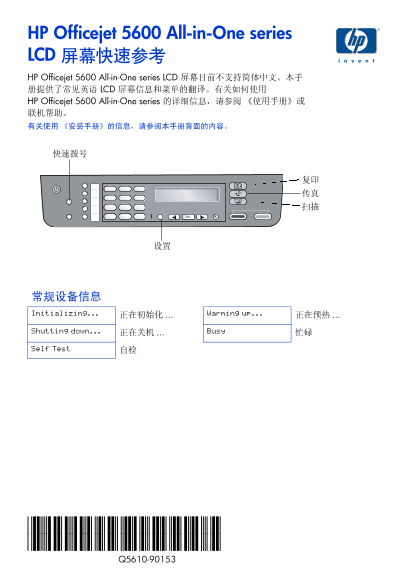
HP Officejet 5600 All-in-One series LCD 屏幕快速参考 HP Officejet 5600 All-in-One series LCD 屏幕目前不支持简体中文。本手 册提供了常见英语 LCD 屏幕信息和菜单的翻译。有关如何使用 HP Officejet 5600 All-in-One series 的详细信息,请参阅《使用手册》或 联机帮助。 有关使用《安装手册》的信息,请参阅本手册背面的内容。
常规设备信息 Initializing... 正在初始化 Warming up... 正在预热
Shutting down... 正在关机 Busy 忙碌
Self Test 自检
Page Summary Contents For HP Officejet 5600 Series LCD Flyer
Manual Details
| Brand | HP |
|---|---|
| Pages | 8 |
| File Size | 330.66 KB |
| Published | June 02, 2026 |
Enter the captcha to get the download link:

Frequently Asked Questions
How do I initially set the LCD screen language or country region?
To select English, press 11 and then 1 on the keypad. To select Country, use button 99.
What should I do if a paper jam occurs?
Clear jam, and then proceed with required steps as outlined in the installation manual.
How must I place pages when printing the calibration page?
Place the page face down in the feeder, ensuring the top edge advances into the machine.
What steps are needed to change the fax ringing count before answering a call?
Press the Settings button repeatedly until 4:Basic Fax Setup appears. Then select 3:Rings to Answer and adjust using ! or ".