Page 1
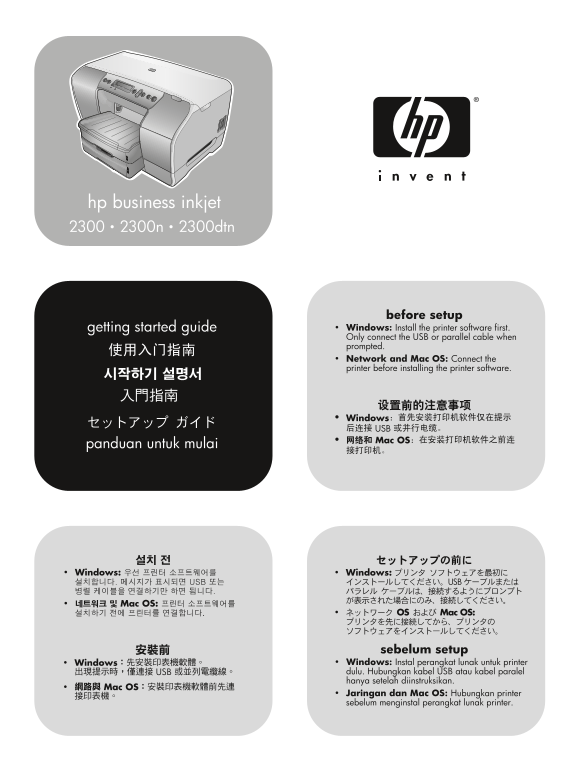
before setup getting started guide • Windows: Install the printer software first. Only connect the USB or parallel cable when prompted. • Network and Mac OS: Connect the printer before installing the ...
Page 2
Curie GSG_new graphics.fm Page 2 Thursday, August 7, 2003 1:06 PM Copyright Information © 2003 Copyright Hewlett-Packard Development Company, L.P. Reproduction, adaptation or translation without prior...
Page 3
Curie GSG_new graphics.fm Page 3 Thursday, August 7, 2003 1:06 PM Informasi Keselamatan Selalu ikuti acuan dasar untuk keselamatan ketika menggunakan produk ini supaya risiko luka bakar atau kejutan l...
Page 4
Curie GSG_new graphics.fm Page 4 Thursday, August 7, 2003 1:06 PM ah as In es ia lis © copyright Hewlett-Packard Company, 2003 printed on recycle d paper printed in China mm* (11.4 in) Getting Started...
Page 5
Curie GSG_new graphics.fm Page 5 Thursday, August 7, 2003 1:06 PM Do not place the printer in direct sunlight or near chemicals. Make Make sure that the location has an adequate power supply. sure tha...
Page 6
Curie GSG_new graphics.fm Page 6 Thursday, August 7, 2003 1:06 PM ah as In es ia lis © copyright Hewlett-Packard Company, 2003 printed on recycle d paper printed in China Step 3: Remove the packing ma...
Page 7
Curie GSG_new graphics.fm Page 7 Thursday, August 7, 2003 1:06 PM Step 5: Identify printer parts (front). Identify printer parts (printing supplies area). 1) Control panel, 2) top cover, 3) ink cartri...
Page 8
Curie GSG_new graphics.fm Page 8 Thursday, August 7, 2003 1:06 PM ah as In es ia lis Identify printer parts (back). Step 6: Identify control panel items. 1) Parallel port, 2) EIO slot, 3) universal se...
Page 9
Curie GSG_new graphics.fm Page 9 Thursday, August 7, 2003 1:06 PM Navigating the control panel menus. Step 7: Install auto-duplex unit (HP Business Inkjet 2300dtn). 1) The button returns you to the pr...
Page 10
Curie GSG_new graphics.fm Page 10 Thursday, August 7, 2003 1:06 PM ah as In es ia lis Step 8: Install optional accessories. Install memory module (optional). If you have purchased other optional acces...
Page 11
Curie GSG_new graphics.fm Page 11 Thursday, August 7, 2003 12:50 PM 3) Remove the DIMM from the antistatic package. 4) Align the DIMM so that the notches on the lower edge line up CAUTION: Always wear...
Page 12
Curie GSG_new graphics.fm Page 12 Thursday, August 7, 2003 12:50 PM ah as In es ia lis 6) Replace the DIMM cover. 7) Replace the side cover. Step 9: Connect the power cord. Connect the power cord to t...
Page 13
Curie GSG_new graphics.fm Page 13 Thursday, August 7, 2003 12:50 PM Step 10: Load paper in Tray 1 or Tray 2. 3) For paper between 356 mm and 279 mm (11 inches and 1) Pull the tray out of the printer. ...
Page 14
Curie GSG_new graphics.fm Page 14 Thursday, August 7, 2003 12:50 PM ah as In es ia lis 4) Slide the media length guide and media width guide to the 6) If you are loading Tray 1, reattach and close the...
Page 15
Curie GSG_new graphics.fm Page 15 Thursday, August 7, 2003 12:50 PM Step 11: Turn on the printer. Step 12: Set the control panel language. Press the power button on the control panel to turn on the pr...
Page 16
Curie GSG_new graphics.fm Page 16 Thursday, August 7, 2003 12:50 PM ah as In es ia lis Step 13: Install the ink cartridges. 3) Align the arrow on each cartridge with the arrow on its 1) Open the ink c...
Page 17
Curie GSG_new graphics.fm Page 17 Thursday, August 7, 2003 12:50 PM Step 14: Install the printheads. 6) Remove each printhead from its package, and then remove the 1) Check that the printer is turned ...
Page 18
Curie GSG_new graphics.fm Page 18 Thursday, August 7, 2003 12:50 PM ah as In es ia lis 8) Pull the printhead latch all the way forward and down, engage 9) Close the top cover and the ink cartridge cov...
Page 19
Curie GSG_new graphics.fm Page 19 Thursday, August 7, 2003 12:50 PM Step 15: Install the software and connect the printer. USB connection (Windows): Follow the instructions for your connection type. F...
Page 20
Curie GSG_new graphics.fm Page 20 Thursday, August 7, 2003 1:10 PM ah as In es ia lis USB connection (Mac): Network connection: 1) Connect the USB cable to the printer and the computer. 1) Connect the...
Page 21
Curie GSG_new graphics.fm Page 21 Thursday, August 7, 2003 1:10 PM Step 16: Test the software installation. Step 17: Register the printer. After you complete the software installation and connect the ...
Page 22
Curie GSG_new graphics.fm Page 22 Thursday, August 7, 2003 1:10 PM ah as In es ia lis Getting Started Guide 3) LDAP gateway (directory services) - optional 2) SMTP gateway (e-mail server) 1) IP addres...
Page 23
Curie GSG_new graphics.fm Page 23 Thursday, August 7, 2003 1:10 PM Hewlett-Packard Limited Warranty Statement HP product Duration of Limited Warranty Software 1 year Accessories 1 year Ink cartridges ...
Page 24
Curie GSG_new graphics.fm Page 24 Thursday, August 7, 2003 1:10 PM 维护或改动不当 89:��;&<&=>��7 A@ 4B CD�EDFGH�I7 #$JKL )_`abcdefg�hijk :��;&<lm�nopq r8 tuv*5_wxyhi+z
Page 25
Curie GSG_new graphics.fm Page 25 Thursday, August 7, 2003 1:10 PM
Page 26
Curie GSG_new graphics.fm Page 26 Thursday, August 7, 2003 1:10 PM
Page 27
Curie GSG_new graphics.fm Page 27 Thursday, August 7, 2003 1:10 PM Hewlett-Packard 社限定保証規定 HP 社製品 限定保証期間 ソフトウェア 1 年 HP 社は、エンドユーザーのお客様に対して、ご購入日から上記の期間 当該地域の法律で許可される範囲内で、HP 社およびそのサードパーティ HP 社以外のソフトウェア、メ...
Page 28
Curie GSG_new graphics.fm Page 28 Monday, August 11, 2003 3:31 PM Pernyataan Garansi Terbatas Hewlett-Packard Produk Hewlett-Packard Duration of Limited Warranty Perangkat lunak 1 tahun Aksesori 1 tah...
Page 29
Curie GSG_new graphics.fm Page 29 Thursday, August 7, 2003 1:10 PM
Page 30
Curie GSG_new graphics.fm Page 30 Thursday, August 7, 2003 1:10 PM
Page 31
Curie GSG_new graphics.fm Page 31 Thursday, August 7, 2003 1:10 PM
Page 32
printed on recycled paper © 2003 Copyright Hewlett-Packard Development Company, L.P. printed in Singapore http://www.hp.com/support/businessinkjet2300