Honeywell 3800 Bar Code Scanner User's Guide
Summary
Streamline your operations with the Honeywell 3800 Bar Code Scanner. This manual provides comprehensive guidance on setting up, programming, and integrating the powerful barcode reader with software like Studio Organizer for efficient data capture. Learn how to automate both class attendance tracking and detailed inventory scanning using simple setup steps. Ideal for educational institutions or businesses requiring reliable point-of-sale or student management systems, this guide ensures quick deployment and maximum operational efficiency right out of the box.
Page 1 Text Content
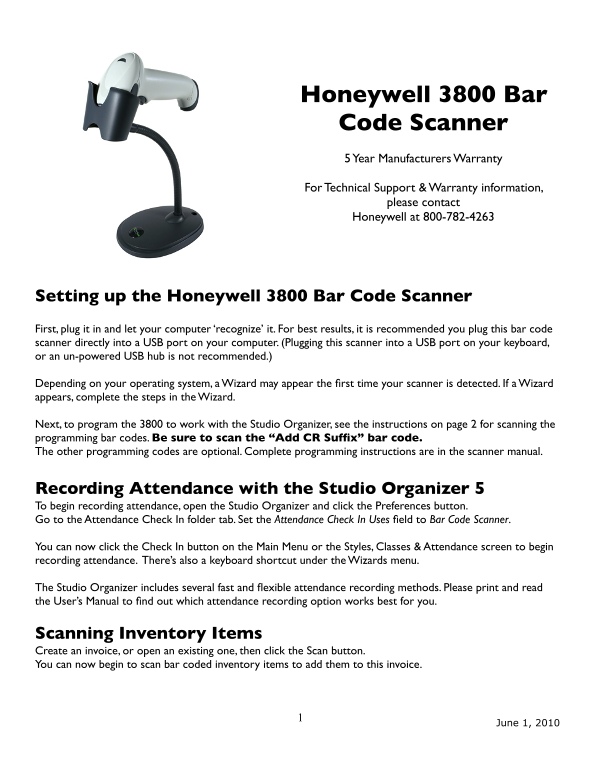
Honeywell 3800 Bar Code Scanner 5 Year Manufacturers Warranty For Technical Support & Warranty information,
please contact Honeywell at 800-782-4263
Setting up the Honeywell 3800 Bar Code Scanner First, plug it in and let your computer ‘recognize’ it. For best results, it is recommended you plug this bar code scanner directly into a USB port on your computer. (Plugging this scanner into a USB port on your keyboard, or an un-powered USB hub is not recommended.)
Depending on your operating system, a Wizard may appear the first time your scanner is detected. If a Wizard appears, complete the steps in the Wizard.
Next, to program the 3800 to work with the Studio Organizer, see the instructions on page 2 for scanning the programming bar codes. Be sure to scan the “Add CR Suffix” bar code. The other programming codes are optional. Complete programming instructions are in the scanner manual.
Recording Attendance with the Studio Organizer 5 To begin recording attendance, open the Studio Organizer and click the Preferences button. Go to the Attendance Check In folder tab. Set the Attendance Check In Uses field to Bar Code Scanner.
You can now click the Check In button on the Main Menu or the Styles, Classes & Attendance screen to begin recording attendance. There’s also a keyboard shortcut under the Wizards menu.
The Studio Organizer includes several fast and flexible attendance recording methods. Please print and read the User’s Manual to find out which attendance recording option works best for you.
Scanning Inventory Items Create an invoice, or open an existing one, then click the Scan button. You can now begin to scan bar coded inventory items to add them to this invoice.
June 1, 2010
Page Summary Contents For Honeywell 3800 Bar Code Scanner User's Guide
Manual Details
| Brand | Honeywell |
|---|---|
| Pages | 2 |
| File Size | 111.81 KB |
| Published | May 22, 2026 |
Enter the captcha to get the download link:

Frequently Asked Questions
What is the recommended way to set up scanning for best results?
Plug the scanner directly into a USB port on your computer; avoid using hubs or connecting it to keyboard ports.
How do I ensure attendance records automatically register after scanning a student number?
Scan the “Add CR Suffix” bar code with the scanner and open the manual for detailed programming instructions.
Are there options other than plug-and-play detection when setting up the scanner?
Yes, you can program manual or always on operation by scanning specific codes like 'Manual Trigger' or 'Automatic Trigger'.
Where can I find technical support or warranty information for this scanner?
For service and warranty details, contact Honeywell directly at 800-782-4263.