Gigabyte Motherboard TRX40 AORUS MASTER (rev.1.0) RAID Setup Guide
Summary
Designed for IT professionals and system builders requiring robust data storage solutions, this guide details the complete process of configuring SATA RAID arrays (RAID 0, 1, and 10). It provides step-by-step instructions covering hardware installation, BIOS/UEFI setup, array creation utilities, and OS driver integration. Use this manual to successfully establish high-performance storage systems and manage critical tasks like rebuilding data from failed drives.
Page 1 Text Content
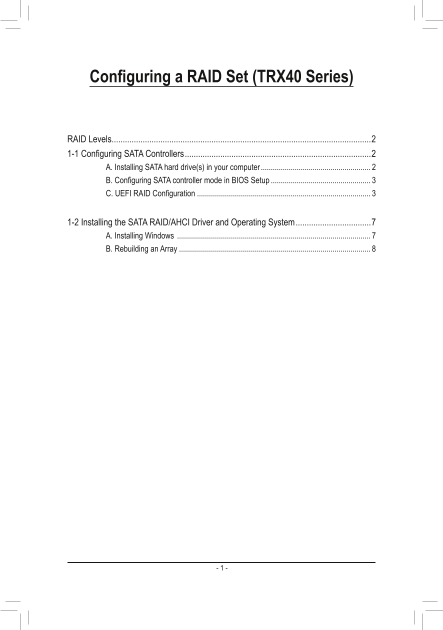
Configuring a RAID Set (TRX40 Series)
RAID Levels .....................................................................................................................2 1-1 Configuring SATA Controllers ....................................................................................2 A. Installing SATA hard drive(s) in your computer .......................................................
B. Configuring SATA controller mode in BIOS Setup .................................................. C. UEFI RAID Configuration .......................................................................................
1-2 Installing the SATA RAID/AHCI Driver and Operating System ..................................7 A. Installing Windows .................................................................................................
B. Rebuilding an Array ................................................................................................
Page Summary Contents For Gigabyte Motherboard TRX40 AORUS MASTER (rev.1.0) RAID Setup Guide
Manual Details
| Brand | GIGABYTE |
|---|---|
| Pages | 8 |
| File Size | 1.90 MB |
| Published | May 28, 2026 |
Enter the captcha to get the download link:

Frequently Asked Questions
Which RAID level offers fault tolerance but requires only two drives?
RAID 1 provides fault tolerance with a minimum of two hard drives.