Dell Vostro 200 Installation Guide - Slim Tower Owner's Manual
Summary
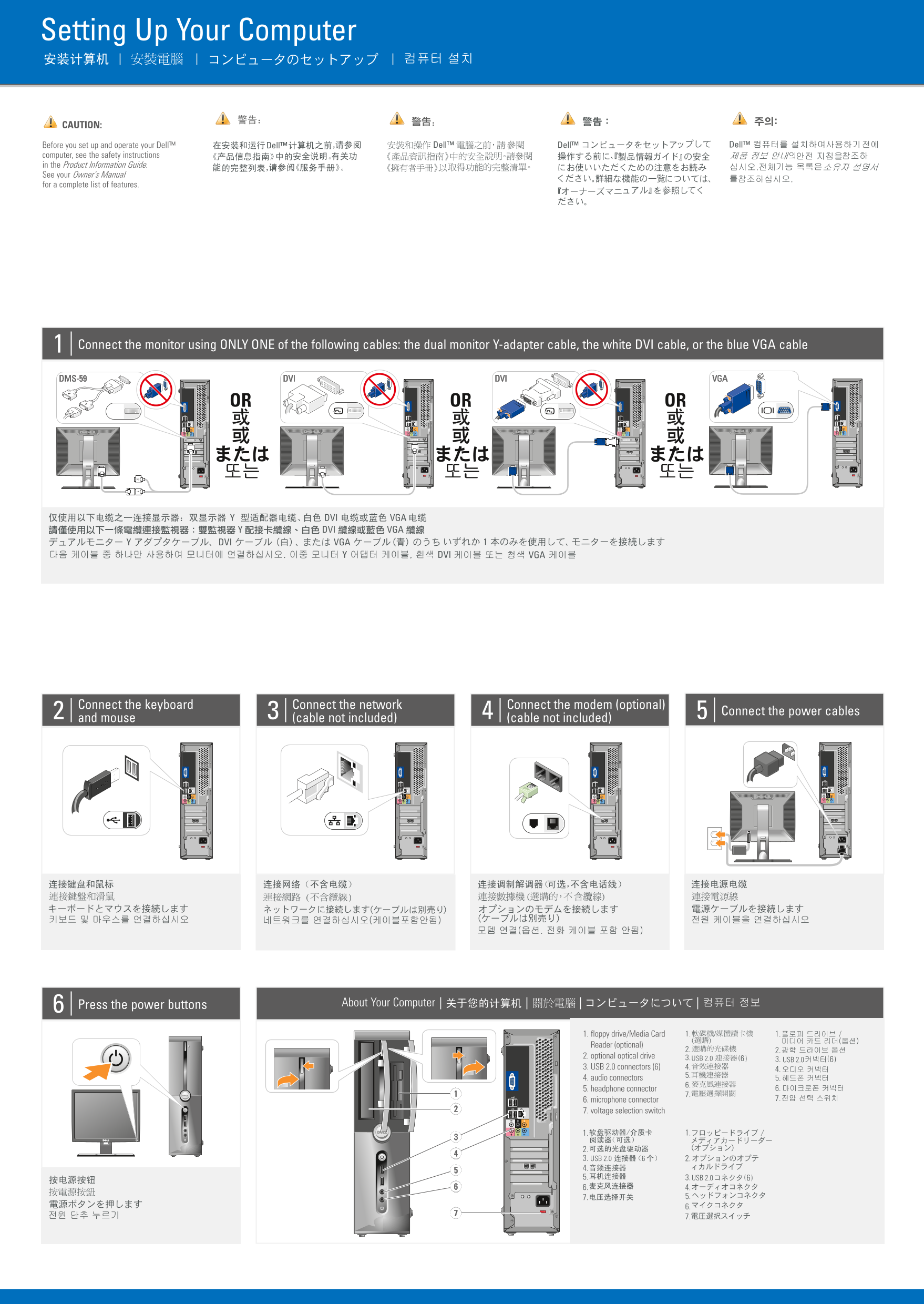
Dell desktop computer quick setup guide. Provides illustrated instructions for connecting monitor, keyboard, mouse, network, modem, and power cables. Includes front and rear panel diagrams with USB, audio, and drive locations. Covers optional wireless setup. Target users are new Dell desktop owners performing initial system setup.
Page 1 Text Content
GY687cc0.qxd 13/09/2007 15:09 Page 1
Setting Up Your Computer
CAUTION:
Before you set up and operate your Dell™ computer, see the safety instructions in the Product Information Guide. See your Owner's Manual for a complete list of features.
Connect the monitor using ONLY ONE of the following cables: the dual monitor Y-adapter cable, the white DVI cable, or the blue VGA cable
DVI DVIDMS-59 VGA
OR OR OR
Connect the keyboard Connect the network Connect the modem (optional)
Connect the power cables
and mouse (cable not included) (cable not included)
Press the power buttons About Your Computer
1. floppy drive/Media Card 1. 1.
Reader (optional)
2. optional optical drive 3. USB 2.0
6( 3. USB 2.0 6(
3. USB 2.0 connectors (6) 4.
4. audio connectors 5.
5. headphone connector 6.
6. microphone connector 7.
7. voltage selection switch
2. 3. USB 2.0 2. 4. 5. 3. USB 2.0 6( 6. 4.
Page Summary Contents For Dell Vostro 200 Installation Guide - Slim Tower Owner's Manual
Manual Details
| Brand | Dell |
|---|---|
| Pages | 2 |
| File Size | 2.55 MB |
| Published | June 29, 2026 |
Enter the captcha to get the download link:

Frequently Asked Questions
What should I read before setting up the computer?
You must review the safety instructions in the Product Information Guide first.
How can I connect a monitor to this Dell system?
Use only one of three specific cables: the dual monitor Y-adapter, white DVI cable, or blue VGA cable.
Where is the best place for detailed information about the computer's features?
Consult your Owner's Manual; if unavailable, visit support.dell.com.
What steps are required to set up a wireless network connection?
See the documentation provided with either your computer or your wireless router.