Dell OptiPlex 7040 Micro Form Factor Quick User Guide (Windows 10)
Summary
This Quick Start Guide for the Dell OptiPlex 7040M micro form factor desktop provides multilingual setup instructions covering keyboard and mouse connection, display setup, optional network cable installation, power cable connection, and Windows 10 setup with support and protection enablement. It includes Dell Product Registration, SupportAssist, and a detailed features diagram identifying 17 hardware components. Designed for enterprise IT administrators deploying space-saving micro desktop computers in corporate environments.
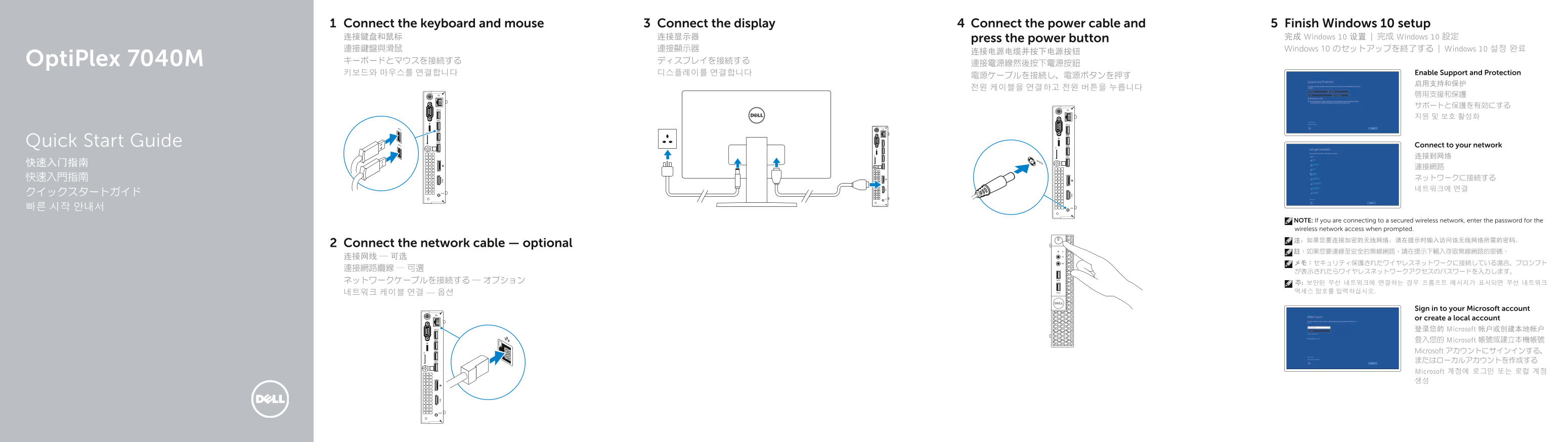
Page 1 Text Content
Connect the keyboard and mouse Connect the display Connect the power cable and Finish Windows 10 setup 连接键盘和鼠标 连接显示器 press the power button 完成 Windows 10 设置 | 完成 Windows 10 設定
連接鍵盤與滑鼠 連接顯示器 Windows 10 のセットアップを終了する | Windows 10 설정 완료
Opti Plex 7040M キーボードとマウスを接続する ディスプレイを接続する
키보드와 마우스를 연결합니다 디스플레이를 연결합니다 Enable Support and Protection
Quick Start Guide Connect to your network
NOTE: If you are connecting to a secured wireless network, enter the password for the wireless network access when prompted. 注:如果您要连接加密的无线网络,请在提示时输入访问该无线网络所需的密码。
Connect the network cable — optional
Sign in to your Microsoft account or create a local account 登录您的 Microsoft 帐户或创建本地帐户 登入您的 Microsoft 帳號或建立本機帳號 Microsoft アカウントにサインインする、 またはローカルアカウントを作成する Microsoft 계정에 로그인 또는 로컬 계정 생성
Page Summary Contents For Dell OptiPlex 7040 Micro Form Factor Quick User Guide (Windows 10)
Manual Details
| Brand | Dell |
|---|---|
| Pages | 2 |
| File Size | 515.86 KB |
| Published | July 01, 2026 |
Enter the captcha to get the download link:

Frequently Asked Questions
How do I connect the main components?
Connect the keyboard, mouse, display, and power cable before finishing Windows 10 setup.
What is required for a secured wireless network connection?
When prompted, you must enter the specific password for the wireless network access.
Which ports are available for connecting accessories?
Available options include multiple USB 3.0 connectors (some with PowerShare), an HDMI connector, a DisplayPort connector, and dedicated microphone/network connectors.