Dell OptiPlex 7050 Small Form Factor Quick User Guide - Windows 10
Summary
This quick start guide provides setup instructions for the Dell OptiPlex 7050 Small Form Factor desktop computer. It covers initial setup steps including connecting the keyboard, mouse, display, network cable, and power cable, then finishing the Windows operating system setup. The guide describes the desktop's features such as optical drive, USB 3.0 ports, audio jacks, expansion card slots, and diagnostic indicators. It also includes information about Dell applications like SupportAssist, registering the computer, and accessing product support resources. Designed for business users and IT administrators who need to quickly deploy and configure OptiPlex desktops in office environments.
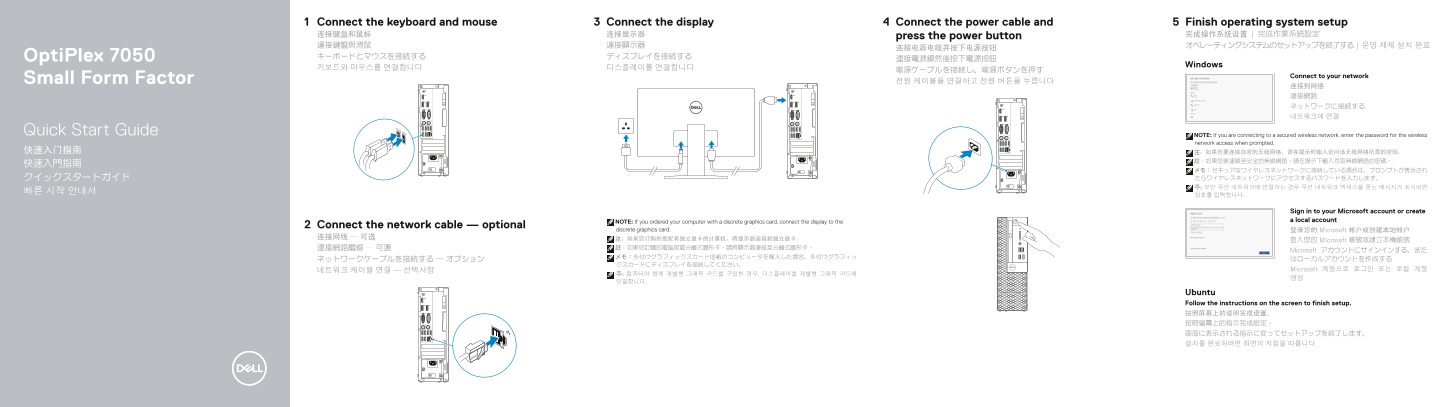
Page 1 Text Content
Connect the keyboard and mouse Connect the display Connect the power cable and Finish operating system setup 连接键盘和鼠标 连接显示器 press the power button 完成操作系统设置 | 完成作業系統設定 連接鍵盤與滑鼠 連接顯示器 オペレーティングシステムのセットアップを終了する | 운영 체제 설치 완료
Opti Plex 7050 キーボードとマウスを接続する ディスプレイを接続する
Windows
Connect to your network
Small Form Factor 전원 케이블을 연결하고 전원 버튼을 누릅니다
Quick Start Guide NOTE: If you are connecting to a secured wireless network, enter the password for the wireless
network access when prompted.
Sign in to your Microsoft account or create NOTE: If you ordered your computer with a discrete graphics card, connect the display to the a local account
Connect the network cable — optional
discrete graphics card. 登录您的 Microsoft 帐户或创建本地帐户
登入您的 Microsoft 帳號或建立本機帳號
Microsoft アカウントにサインインする、また
네트워크 케이블 연결 — 선택사항 Microsoft 계정으로 로그인 또는 로컬 계정
Ubuntu Follow the instructions on the screen to finish setup. 按照屏幕上的说明完成设置。 按照螢幕上的指示完成設定。 画面に表示される指示に従ってセットアップを終了します。 설치를 완료하려면 화면의 지침을 따릅니다.
Page Summary Contents For Dell OptiPlex 7050 Small Form Factor Quick User Guide - Windows 10
Manual Details
| Brand | Dell |
|---|---|
| Pages | 2 |
| File Size | 718.18 KB |
| Published | June 18, 2026 |
Enter the captcha to get the download link:

Frequently Asked Questions
How do I set up the device?
Connect the keyboard and mouse, then connect the display. Finally, connect the power cable, press the power button, and complete the operating system setup.
Where should I connect the display if the computer has a discrete graphics card?
Connect the display to the discrete graphics card.
Do I need to enter a password for wireless networks?
Yes, if connecting to a secured wireless network, you must enter the password when prompted.
Does the device support PowerShare on USB ports?
Yes, the USB 2.0 ports support PowerShare.