Dell Latitude 3330 Setup Guide and Feature Overview
Summary
Setup and features information for the Dell Latitude 3330 laptop, an education-focused notebook designed for school environments. The guide illustrates front and back views showing USB 3.0 ports, HDMI, VGA, network connector, memory card reader, and USB PowerShare. It provides quick setup instructions for AC adapter connection, battery installation, and power-on procedures. The document emphasizes safety warnings about cooling vents and AC adapter usage. Targeted at students, educators, and school IT administrators needing durable, affordable computing solutions for classroom use.
Page 1 Text Content
Dell Latitude 3330 Setup And Features Information About Warnings WARNING: A WARNING indicates a potential for property damage, personal injury, or death.
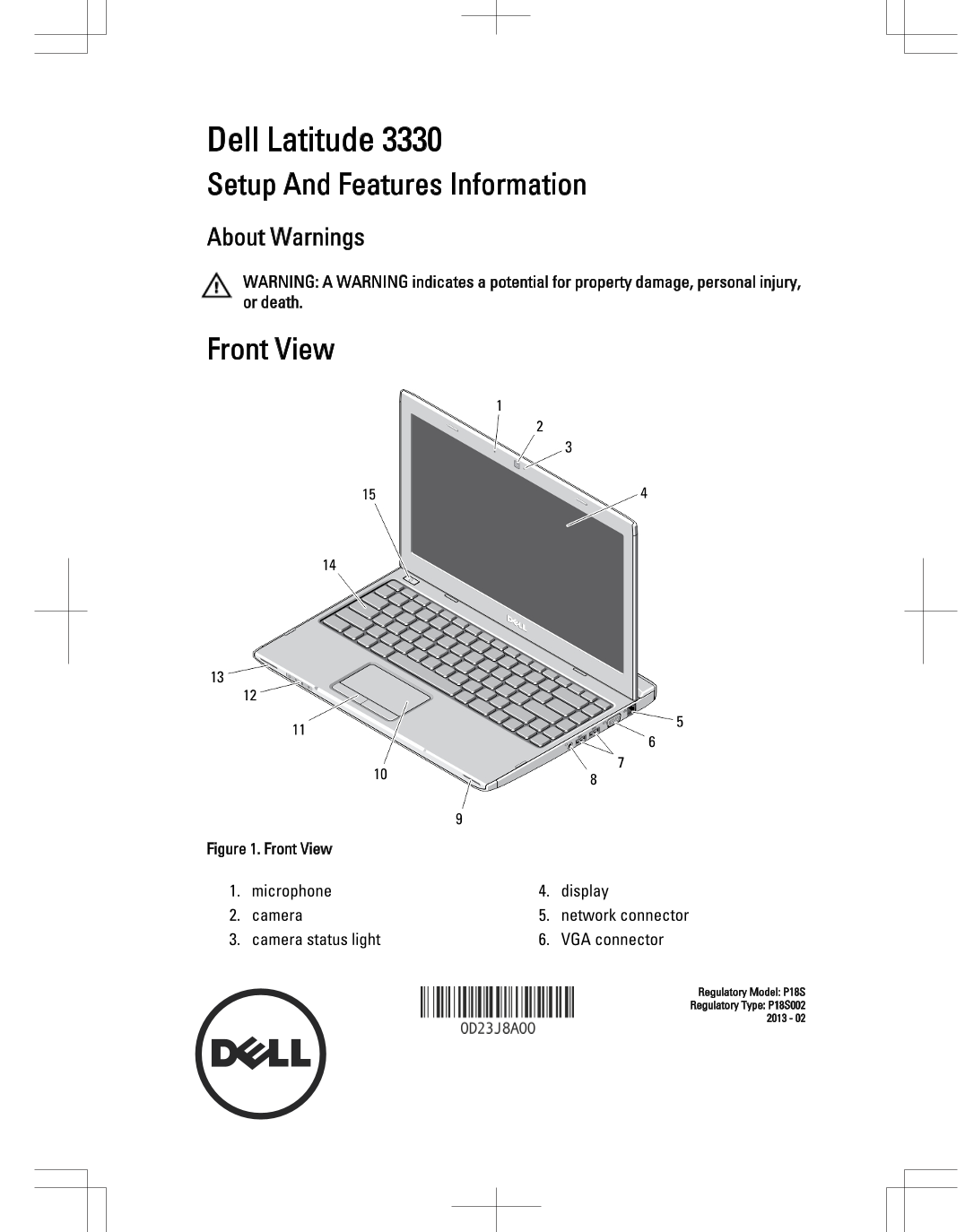
Front View
Figure 1. Front View
1. microphone 4. display 2. camera 5. network connector 3. camera status light 6. VGA connector
Regulatory Model: P18S Regulatory Type: P18S002
Page Summary Contents For Dell Latitude 3330 Setup Guide and Feature Overview
Manual Details
| Brand | Dell |
|---|---|
| Pages | 6 |
| File Size | 562.97 KB |
| Published | June 27, 2026 |
Enter the captcha to get the download link:

Frequently Asked Questions
Should I worry about fan noise when operating the device?
No, fan noise is normal; it means the computer detects heat and adjusts the cooling.
What should I do if I need to disconnect the AC adapter cable?
You must grasp the connector, not the cable itself, while pulling firmly but gently.
Can this device be used in low-airflow environments?
No; storing it in a closed briefcase or restricting airflow can damage the unit or cause a fire.
What voltage range does the AC adapter support for worldwide use?
The AC adapter works with electrical outlets worldwide, accepting voltages from 100 VAC to 240 VAC.