Dell Instant 6.3.1.1-4.0 Quick Start Guide
Summary
This is the Dell Networking W-Series Instant Access Point Quick Start Guide. It provides step-by-step instructions for connecting and configuring Dell W-Series Instant Access Points (W-IAP) using the Dell W-Instant web-based UI. The guide covers WLAN settings, VLAN configuration, security settings, access control, and Ethernet port descriptions for various W-IAP models including W-IAP3WN/3WNP, W-IAP108/109, and W-IAP155/155P. It is intended for network administrators deploying wireless networking solutions.
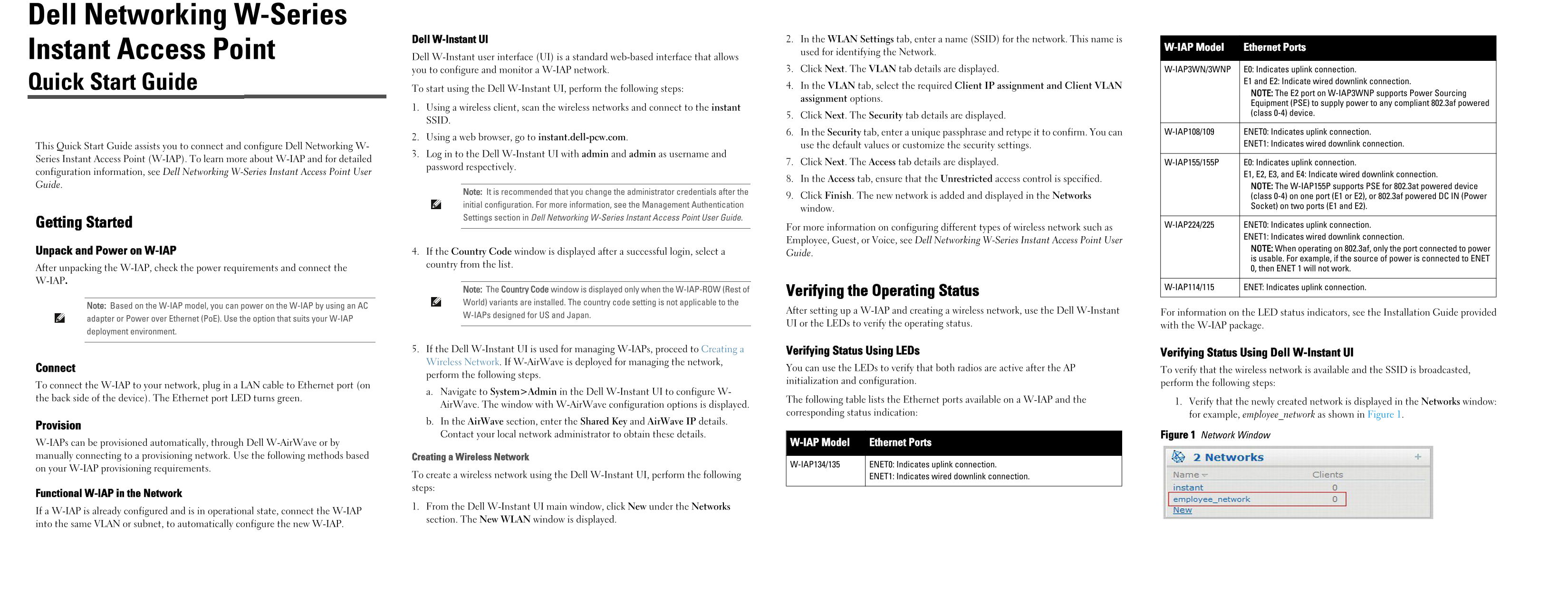
Page 1 Text Content
Dell Networking W-Series
Dell W-Instant UI 2. In the WLAN Settings tab, enter a name (SSID) for the network. This name is
W-IAP Model Ethernet Ports
Instant Access Point used for identifying the Network.
Dell W-Instant user interface (UI) is a standard web-based interface that allows
you to configure and monitor a W-IAP network. 3. Click Next. The VLAN tab details are displayed. W-IAP3WN/3WNP E0: Indicates uplink connection.
Quick Start Guide E1 and E2: Indicate wired downlink connection.
4. In the VLAN tab, select the required Client IP assignment and Client VLAN
To start using the Dell W-Instant UI, perform the following steps:
NOTE: The E2 port on W-IAP3WNP supports Power Sourcing
assignment options.
Equipment (PSE) to supply power to any compliant 802.3af powered
1. Using a wireless client, scan the wireless networks and connect to the instant
(class 0-4) device.
5. Click Next. The Security tab details are displayed.
SSID.
6. In the Security tab, enter a unique passphrase and retype it to confirm. You can W-IAP108/109 ENET0: Indicates uplink connection.
2. Using a web browser, go to instant.dell-pcw.com.
use the default values or customize the security settings. ENET1: Indicates wired downlink connection.
This Quick Start Guide assists you to connect and configure Dell Networking W-
3. Log in to the Dell W-Instant UI with admin and admin as username and
Series Instant Access Point (W-IAP). To learn more about W-IAP and for detailed
7. Click Next. The Access tab details are displayed. W-IAP155/155P E0: Indicates uplink connection.
password respectively.
configuration information, see Dell Networking W-Series Instant Access Point User
E1, E2, E3, and E4: Indicate wired downlink connection.
8. In the Access tab, ensure that the Unrestricted access control is specified.
Guide. NOTE: The W-IAP155P supports PSE for 802.3at powered device
Note: It is recommended that you change the administrator credentials after the
9. Click Finish. The new network is added and displayed in the Networks (class 0-4) on one port (E1 or E2), or 802.3af powered DC IN (Power
initial configuration. For more information, see the Management Authentication Socket) on two ports (E1 and E2).
window.
Settings section in Dell Networking W-Series Instant Access Point User Guide.
Getting Started W-IAP224/225 ENET0: Indicates uplink connection.
For more information on configuring different types of wireless network such as
ENET1: Indicates wired downlink connection.
Employee, Guest, or Voice, see Dell Networking W-Series Instant Access Point User
NOTE: When operating on 802.3af, only the port connected to power
Unpack and Power on W-IAP 4. If the Country Code window is displayed after a successful login, select a Guide.
is usable. For example, if the source of power is connected to ENET
country from the list.
After unpacking the W-IAP, check the power requirements and connect the 0, then ENET 1 will not work. W-IAP.
W-IAP114/115 ENET: Indicates uplink connection.
Note: The Country Code window is displayed only when the W-IAP-ROW (Rest of Verifying the Operating Status World) variants are installed. The country code setting is not applicable to the
Note: Based on the W-IAP model, you can power on the W-IAP by using an AC
After setting up a W-IAP and creating a wireless network, use the Dell W-Instant For information on the LED status indicators, see the Installation Guide provided
W-IAPs designed for US and Japan.
adapter or Power over Ethernet (Po E). Use the option that suits your W-IAP
UI or the LEDs to verify the operating status. with the W-IAP package.
deployment environment.
5. If the Dell W-Instant UI is used for managing W-IAPs, proceed to Creating a Verifying Status Using LEDs
Verifying Status Using Dell W-Instant UI
Wireless Network. If W-Air Wave is deployed for managing the network,
Connect You can use the LEDs to verify that both radios are active after the AP To verify that the wireless network is available and the SSID is broadcasted,
perform the following steps.
initialization and configuration. perform the following steps:
To connect the W-IAP to your network, plug in a LAN cable to Ethernet port (on
a. Navigate to System>Admin in the Dell W-Instant UI to configure W-
the back side of the device). The Ethernet port LED turns green. The following table lists the Ethernet ports available on a W-IAP and the
1. Verify that the newly created network is displayed in the Networks window:
Air Wave. The window with W-Air Wave configuration options is displayed.
corresponding status indication: for example, employee_network as shown in Figure 1.
b. In the Air Wave section, enter the Shared Key and Air Wave IP details.
Provision
Contact your local network administrator to obtain these details. Figure 1 Network Window
W-IAPs can be provisioned automatically, through Dell W-Air Wave or by W-IAP Model Ethernet Ports manually connecting to a provisioning network. Use the following methods based Creating a Wireless Network
W-IAP134/135 ENET0: Indicates uplink connection.
on your W-IAP provisioning requirements.
To create a wireless network using the Dell W-Instant UI, perform the following ENET1: Indicates wired downlink connection. steps:
Functional W-IAP in the Network
1. From the Dell W-Instant UI main window, click New under the Networks
If a W-IAP is already configured and is in operational state, connect the W-IAP
section. The New WLAN window is displayed.
into the same VLAN or subnet, to automatically configure the new W-IAP.
Page Summary Contents For Dell Instant 6.3.1.1-4.0 Quick Start Guide
Manual Details
| Brand | Dell |
|---|---|
| Pages | 2 |
| File Size | 254.69 KB |
| Published | June 29, 2026 |
Enter the captcha to get the download link:

Frequently Asked Questions
How do I start using the Dell W-Instant UI?
Use a web browser to go to instant.dell-pcw.com and log in with admin/admin.
Which Ethernet ports are used for uplink and downlink connections?
ENET0 indicates the uplink connection, while ENET1 (or E1/E2) indicates the wired downlink connection.
How do I secure a wireless network using the UI?
In the Security tab, enter and retype a unique passphrase to establish the network's password.
How can I verify if the W-IAP is functioning correctly after setup?
Use the LEDs or the Dell W-Instant UI to verify that both radios are active and available for connection.