Dell Instant 6.2.0.0-3.2.0.0 Quick Start Guide
Summary
This quick start guide for the Dell PowerConnect W-Series Instant Access Point provides rapid deployment documentation. It covers connecting to the provisioning network, accessing the Instant UI, default login credentials, country code selection, cluster configuration, LED status verification, and uplink/downlink port connections. The document is intended for network administrators who need to quickly deploy and verify Dell W-Series Instant Access Points in wireless networks.
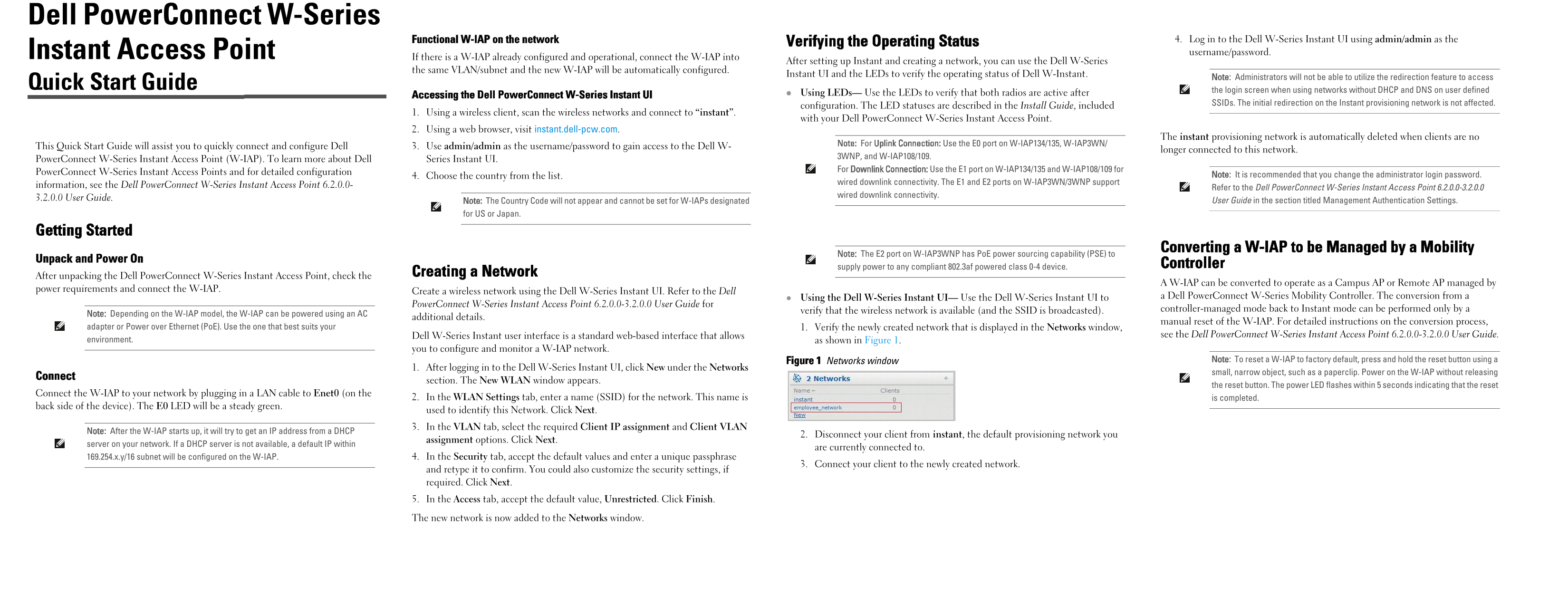
Page 1 Text Content
Dell Power Connect W-Series
Functional W-IAP on the network 4. Log in to the Dell W-Series Instant UI using admin/admin as the
Verifying the Operating Status
Instant Access Point username/password.
If there is a W-IAP already configured and operational, connect the W-IAP into
After setting up Instant and creating a network, you can use the Dell W-Series
the same VLAN/subnet and the new W-IAP will be automatically configured.
Instant UI and the LEDs to verify the operating status of Dell W-Instant.
Note: Administrators will not be able to utilize the redirection feature to access
Quick Start Guide
the login screen when using networks without DHCP and DNS on user defined
Using LEDs— Use the LEDs to verify that both radios are active after
Accessing the Dell Power Connect W-Series Instant UI
SSIDs. The initial redirection on the Instant provisioning network is not affected.
configuration. The LED statuses are described in the Install Guide, included
1. Using a wireless client, scan the wireless networks and connect to “instant”.
with your Dell Power Connect W-Series Instant Access Point.
2. Using a web browser, visit instant.dell-pcw.com.
The instant provisioning network is automatically deleted when clients are no
Note: For Uplink Connection: Use the E0 port on W-IAP134/135, W-IAP3WN/
This Quick Start Guide will assist you to quickly connect and configure Dell 3. Use admin/admin as the username/password to gain access to the Dell W-
longer connected to this network.
3WNP, and W-IAP108/109.
Power Connect W-Series Instant Access Point (W-IAP). To learn more about Dell Series Instant UI.
For Downlink Connection: Use the E1 port on W-IAP134/135 and W-IAP108/109 for
Power Connect W-Series Instant Access Points and for detailed configuration
4. Choose the country from the list. Note: It is recommended that you change the administrator login password.
wired downlink connectivity. The E1 and E2 ports on W-IAP3WN/3WNP support
information, see the Dell Power Connect W-Series Instant Access Point 6.2.0.0-
Refer to the Dell Power Connect W-Series Instant Access Point 6.2.0.0-3.2.0.0
wired downlink connectivity.
3.2.0.0 User Guide.
Note: The Country Code will not appear and cannot be set for W-IAPs designated User Guide in the section titled Management Authentication Settings.
for US or Japan.
Getting Started
Converting a W-IAP to be Managed by a Mobility
Note: The E2 port on W-IAP3WNP has Po E power sourcing capability (PSE) to
Unpack and Power On
supply power to any compliant 802.3af powered class 0-4 device. Controller
Creating a Network
After unpacking the Dell Power Connect W-Series Instant Access Point, check the
A W-IAP can be converted to operate as a Campus AP or Remote AP managed by
power requirements and connect the W-IAP.
Create a wireless network using the Dell W-Series Instant UI. Refer to the Dell
Using the Dell W-Series Instant UI— Use the Dell W-Series Instant UI to a Dell Power Connect W-Series Mobility Controller. The conversion from a
Power Connect W-Series Instant Access Point 6.2.0.0-3.2.0.0 User Guide for
verify that the wireless network is available (and the SSID is broadcasted). controller-managed mode back to Instant mode can be performed only by a
Note: Depending on the W-IAP model, the W-IAP can be powered using an AC
additional details.
manual reset of the W-IAP. For detailed instructions on the conversion process,
adapter or Power over Ethernet (Po E). Use the one that best suits your 1. Verify the newly created network that is displayed in the Networks window,
Dell W-Series Instant user interface is a standard web-based interface that allows see the Dell Power Connect W-Series Instant Access Point 6.2.0.0-3.2.0.0 User Guide.
environment. as shown in Figure 1.
you to configure and monitor a W-IAP network.
Figure 1 Networks window Note: To reset a W-IAP to factory default, press and hold the reset button using a
1. After logging in to the Dell W-Series Instant UI, click New under the Networks
small, narrow object, such as a paperclip. Power on the W-IAP without releasing
Connect
section. The New WLAN window appears.
the reset button. The power LED flashes within 5 seconds indicating that the reset
Connect the W-IAP to your network by plugging in a LAN cable to Enet0 (on the
2. In the WLAN Settings tab, enter a name (SSID) for the network. This name is is completed.
back side of the device). The E0 LED will be a steady green.
used to identify this Network. Click Next. 3. In the VLAN tab, select the required Client IP assignment and Client VLAN
Note: After the W-IAP starts up, it will try to get an IP address from a DHCP
2. Disconnect your client from instant, the default provisioning network you
assignment options. Click Next.
server on your network. If a DHCP server is not available, a default IP within
are currently connected to.
169.254.x.y/16 subnet will be configured on the W-IAP. 4. In the Security tab, accept the default values and enter a unique passphrase
3. Connect your client to the newly created network.
and retype it to confirm. You could also customize the security settings, if required. Click Next. 5. In the Access tab, accept the default value, Unrestricted. Click Finish.
The new network is now added to the Networks window.
Page Summary Contents For Dell Instant 6.2.0.0-3.2.0.0 Quick Start Guide
Manual Details
| Brand | Dell |
|---|---|
| Pages | 2 |
| File Size | 250.84 KB |
| Published | June 29, 2026 |
Enter the captcha to get the download link:

Frequently Asked Questions
How do I initially access the management interface?
Connect a client via LAN cable to Enet0, then use a web browser to visit instant.dell-pcw.com and log in using admin/admin.
What power sources can be used for this W-IAP?
The device can be powered using an AC adapter or Power over Ethernet (PoE) compliant with 802.3af standards.
What steps are needed to reset the unit to factory default?
Press and hold the physical reset button until the power LED flashes within five seconds, then release it.
Which port should I connect for an ideal uplink connection?
Use the E0 port on W-IAP134/135, W-IAP3WN/3WNP, and W-IAP108/109.