Dell Instant 6.1.3.4-3.1.0.0 Quick Start Guide
Summary
Quick start guide for Dell PowerConnect W-Series Instant Access Points. Covers DHCP setup, web UI login, wireless network creation, SSID and VLAN configuration, and security settings for Windows 7 and Mac OS. Target users are small business owners and IT generalists needing rapid wireless deployment.
Page 1 Text Content
Dell Power Connect W-Series
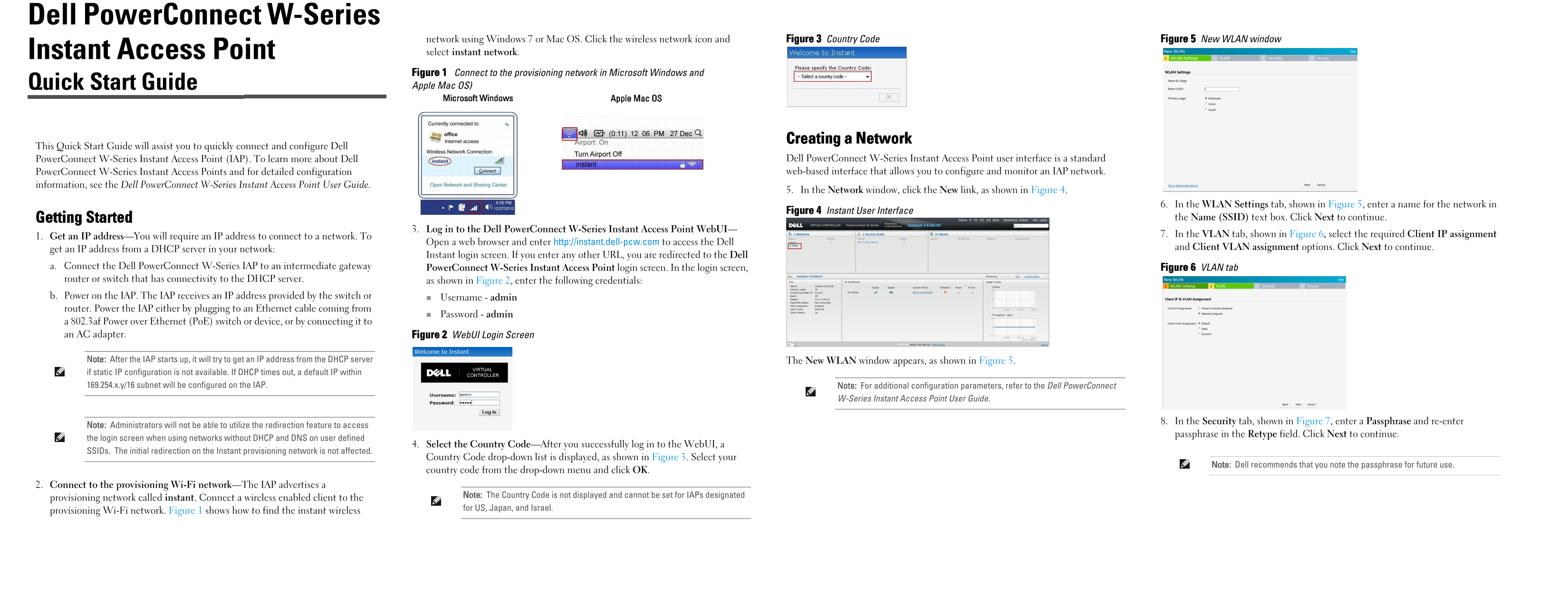
network using Windows 7 or Mac OS. Click the wireless network icon and Figure 3 Country Code Figure 5 New WLAN window Instant Access Point select instant network. Figure 1 Connect to the provisioning network in Microsoft Windows and Quick Start Guide Apple Mac OS)
Apple Mac OSMicrosoft Windows
Creating a Network
This Quick Start Guide will assist you to quickly connect and configure Dell
Power Connect W-Series Instant Access Point (IAP). To learn more about Dell Dell Power Connect W-Series Instant Access Point user interface is a standard Power Connect W-Series Instant Access Points and for detailed configuration web-based interface that allows you to configure and monitor an IAP network.
information, see the Dell Power Connect W-Series Instant Access Point User Guide.
5. In the Network window, click the New link, as shown in Figure 4.
6. In the WLAN Settings tab, shown in Figure 5, enter a name for the network in
Figure 4 Instant User Interface
Getting Started the Name (SSID) text box. Click Next to continue.
3. Log in to the Dell Power Connect W-Series Instant Access Point Web UI—
7. In the VLAN tab, shown in Figure 6, select the required Client IP assignment
1. Get an IP address—You will require an IP address to connect to a network. To
Open a web browser and enter http://instant.dell-pcw.com to access the Dell
get an IP address from a DHCP server in your network: and Client VLAN assignment options. Click Next to continue.
Instant login screen. If you enter any other URL, you are redirected to the Dell
a. Connect the Dell Power Connect W-Series IAP to an intermediate gateway Power Connect W-Series Instant Access Point login screen. In the login screen, Figure 6 VLAN tab router or switch that has connectivity to the DHCP server. as shown in Figure 2, enter the following credentials: b. Power on the IAP. The IAP receives an IP address provided by the switch or Username - admin router. Power the IAP either by plugging to an Ethernet cable coming from
Password - admin
a 802.3af Power over Ethernet (Po E) switch or device, or by connecting it to an AC adapter. Figure 2 Web UI Login Screen
Note: After the IAP starts up, it will try to get an IP address from the DHCP server The New WLAN window appears, as shown in Figure 5. if static IP configuration is not available. If DHCP times out, a default IP within 169.254.x.y/16 subnet will be configured on the IAP. Note: For additional configuration parameters, refer to the Dell Power Connect
W-Series Instant Access Point User Guide.
8. In the Security tab, shown in Figure 7, enter a Passphrase and re-enter
Note: Administrators will not be able to utilize the redirection feature to access
passphrase in the Retype field. Click Next to continue.
the login screen when using networks without DHCP and DNS on user defined
4. Select the Country Code—After you successfully log in to the Web UI, a
SSIDs. The initial redirection on the Instant provisioning network is not affected.
Country Code drop-down list is displayed, as shown in Figure 3. Select your
Note: Dell recommends that you note the passphrase for future use.
country code from the drop-down menu and click OK.
2. Connect to the provisioning Wi-Fi network—The IAP advertises a
Note: The Country Code is not displayed and cannot be set for IAPs designated
provisioning network called instant. Connect a wireless enabled client to the
for US, Japan, and Israel.
provisioning Wi-Fi network. Figure 1 shows how to find the instant wireless
Page Summary Contents For Dell Instant 6.1.3.4-3.1.0.0 Quick Start Guide
Manual Details
| Brand | Dell |
|---|---|
| Pages | 2 |
| File Size | 771.87 KB |
| Published | June 26, 2026 |
Enter the captcha to get the download link:

Frequently Asked Questions
How do I connect the Dell PowerConnect W-Series IAP to a network?
Connect the E0 port (for uplinks) to an intermediate gateway router or switch that has connectivity to the DHCP server.
What credentials are needed for initial login to the WebUI?
Use Username: admin and Password: admin. Remember to change this default password later.
Where can I find detailed configuration instructions for this device?
Refer to the Dell PowerConnect W-Series Instant Access Point User Guide, or check the provided web resources for in-depth information.
How do I verify if my network was set up correctly after adding it?
You can use both the WebUI (Networks window) and physical LEDs on the unit to confirm the operating status.