Dell Inspiron 3646 Quick User Guide - Windows 8
Summary
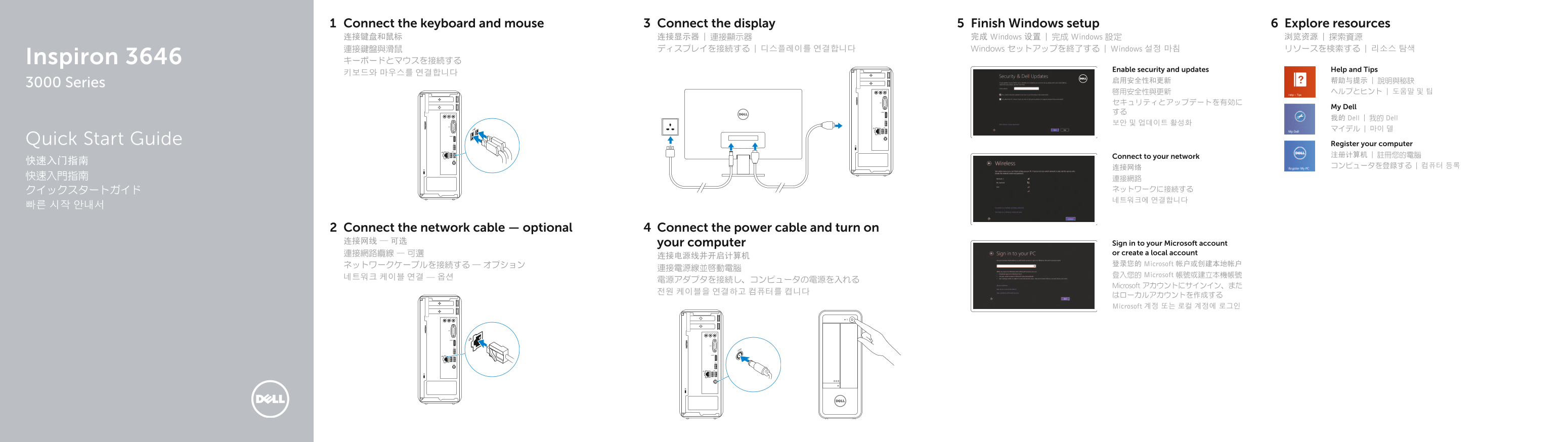
Quick Start Guide for the Dell Inspiron 3646 3000 Series desktop computer with Windows 8. Covers keyboard/mouse connection, optional network cable setup, display connection, power cable connection, and Windows setup. Features details include front I/O panel door, media card reader, headphone and microphone ports, USB 2.0/3.0 ports, HDMI-out, optical drive bay, padlock ring, network port, and security cable slot.
Page 1 Text Content
Connect the keyboard and mouse Connect the display 6Finish Windows setup Explore resources 连接键盘和鼠标 连接显示器 | 連接顯示器 完成 Windows 设置 | 完成 Windows 設定 浏览资源 | 探索資源 連接鍵盤與滑鼠 ディスプレイを接続する | 디스플레이를 연결합니다 Windows セットアップを終了する | Windows 설정 마침 リソースを検索する | 리소스 탐색 Inspiron 3646 キーボードとマウスを接続する
Enable security and updates Help and Tips
3000 Series
My Dell
我的 Dell | 我的 Dell
Quick Start Guide Register your computer
Connect to your network 注册计算机 | 註冊您的電腦
Connect the network cable — optional Connect the power cable and turn on 连接网线 — 可选 your computer Sign in to your Microsoft account
連接網路纜線 — 可選 or create a local account
ネットワークケーブルを接続する ― オプション 登录您的 Microsoft 帐户或创建本地帐户
登入您的 Microsoft 帳號或建立本機帳號
Microsoft アカウントにサインイン、また
はローカルアカウントを作成する Microsoft 계정 또는 로컬 계정에 로그인
Page Summary Contents For Dell Inspiron 3646 Quick User Guide - Windows 8
Manual Details
| Brand | Dell |
|---|---|
| Pages | 2 |
| File Size | 267.26 KB |
| Published | July 03, 2026 |
Enter the captcha to get the download link:

Frequently Asked Questions
What ports are available on the computer?
The ports include USB 3.0 (17), HDMI output (18), VGA (19), USB 2.0 (2), headphone, microphone, and three audio ports (20).
How do I connect peripheral devices?
You can use the various ports such as the USB 2.0 or USB 3.0 ports to connect keyboards, mice, and other necessary peripherals.
Where is the service tag located on the device?
The Service Tag label (3) is one of the numbered components listed in the manual.