Dell Inspiron 3050 Quick User Guide - Windows 8
Summary
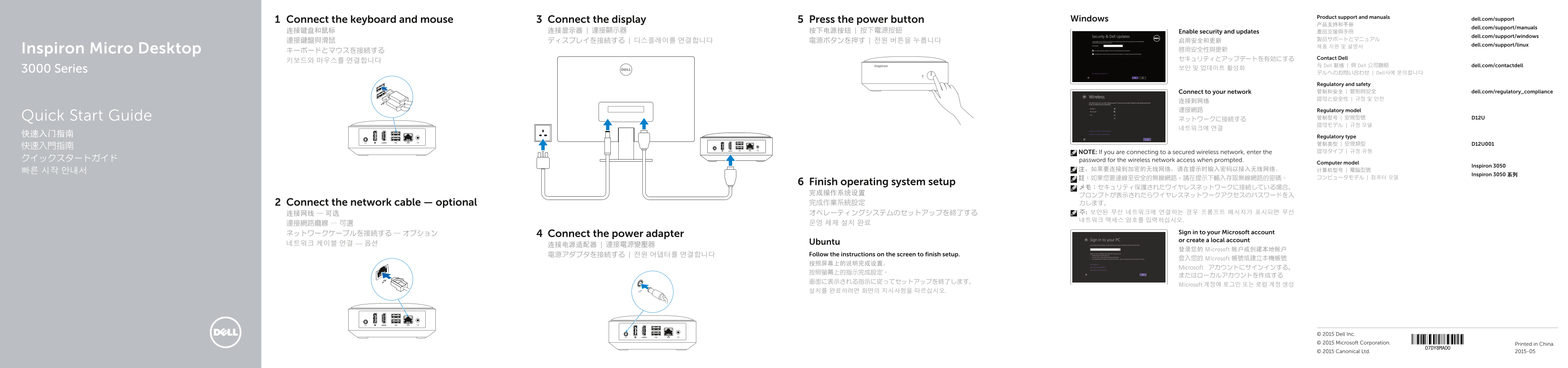
Dell Inspiron 3050 Micro Desktop quick start guide providing step-by-step setup instructions including connecting keyboard, mouse, display, network, and power adapter, followed by operating system setup (Windows/Ubuntu), security configuration, and Dell support resources. Written for first-time users setting up their Inspiron 3050 Micro desktop computer.
Page 1 Text Content
Product support and manuals
Connect the keyboard and mouse Connect the display Press the power button Windows dell.com/support
dell.com/support/manuals
连接键盘和鼠标 连接显示器 | 連接顯示器 按下电源按钮 | 按下電源按鈕 Enable security and updates 產品支援與手冊
dell.com/support/windows
dell.com/support/linux
Inspiron Micro Desktop キーボードとマウスを接続する 啟用安全性與更新
セキュリティとアップデートを有効にする Contact Dell
与 Dell 联络 | 與 Dell 公司聯絡 dell.com/contactdell
3000 Series 보안 및 업데이트 활성화
デルへのお問い合わせ | Dell사에 문의합니다
Regulatory and safety Connect to your network 管制和安全 | 管制與安全 dell.com/regulatory_compliance 認可と安全性 | 규정 및 안전
连接到网络 連接網路 Regulatory model
Quick Start Guide ネットワークに接続する 管制型号 | 安規型號 D12U 認可モデル | 규정 모델
快速入门指南 Regulatory type
NOTE: If you are connecting to a secured wireless network, enter the 認可タイプ | 규정 유형
クイックスタートガイド password for the wireless network access when prompted.
Computer model
Inspiron 3050
Inspiron 3050 系列
Finish operating system setup
プロンプトが表示されたらワイヤレスネットワークアクセスのパスワードを入 Connect the network cable — optional 完成作業系統設定 力します。 连接网线 — 可选 オペレーティングシステムのセットアップを終了する 주: 보안된 무선 네트워크에 연결하는 경우 프롬프트 메시지가 표시되면 무선 네트워크 액세스 암호를 입력하십시오.
ネットワークケーブルを接続する ― オプション Sign in to your Microsoft account
Connect the power adapter
or create a local account
네트워크 케이블 연결 — 옵션 Ubuntu
登录您的 Microsoft 帐户或创建本地帐户
電源アダプタを接続する | 전원 어댑터를 연결합니다 Follow the instructions on the screen to finish setup.
登入您的 Microsoft 帳號或建立本機帳號
Microsoft アカウントにサインインする、
Microsoft 계정에 로그인 또는 로컬 계정 생성
© 2015 Dell Inc. © 2015 Microsoft Corporation. Printed in China. © 2015 Canonical Ltd. 2015-05
Page Summary Contents For Dell Inspiron 3050 Quick User Guide - Windows 8
Manual Details
| Brand | Dell |
|---|---|
| Pages | 2 |
| File Size | 802.98 KB |
| Published | June 24, 2026 |
Enter the captcha to get the download link:

Frequently Asked Questions
How do I connect to a secured wireless network?
Enter the password for the wireless network access when prompted.
Where can I find the service tag and regulatory labels?
They are located on the top of the computer next to the USB 2.0 ports.
What ports are available for connecting displays?
The computer has a DisplayPort and an HDMI-out port.
How do I register my computer?
You can register your computer in the Windows Help and Tips section.