Dell Inspiron 14R 5421 Quick User Guide - Windows 8
Summary
Quick start guide for Dell Inspiron 14-3421/14R-5421/M431R series laptops covering initial setup including power connection, Windows setup, Microsoft account creation, network connectivity, and security configuration. The guide documents keyboard shortcut keys for display switching, wireless control, touchpad toggle, volume and brightness adjustment, and media playback. Physical features include USB 3.0 ports, HDMI output, optical drive, media card reader, and webcam. Written for consumers setting up their Inspiron 14 laptop.
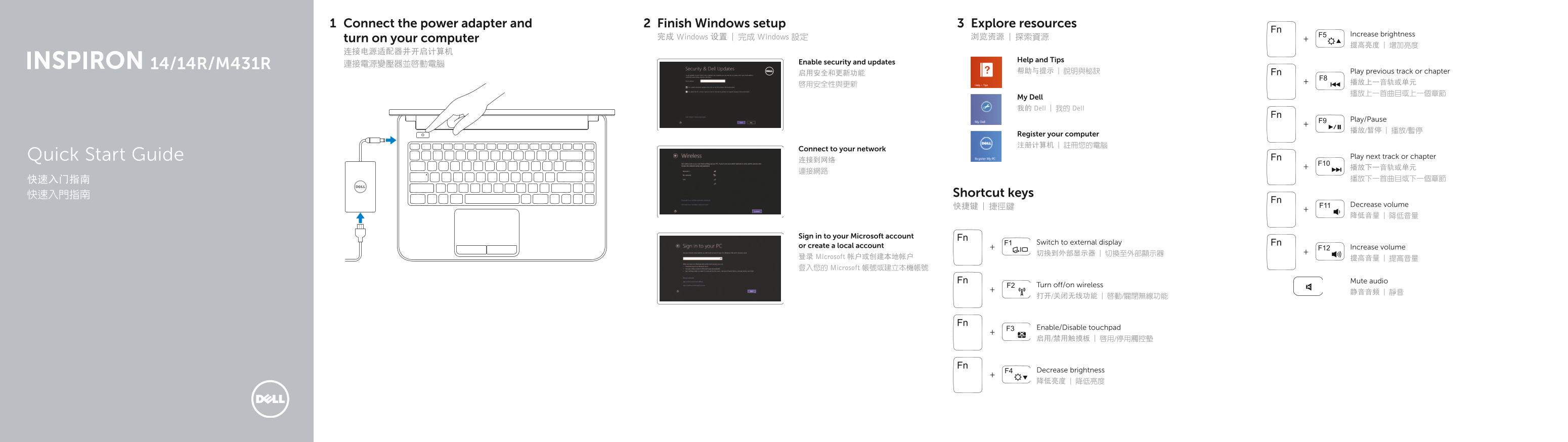
Page 1 Text Content
Connect the power adapter and Finish Windows setup Explore resources
Increase brightness
turn on your computer 完成 Windows 设置 | 完成 Windows 設定 浏览资源 | 探索資源
Help and Tips
連接電源變壓器並啟動電腦 Enable security and updates
帮助与提示 | 說明與秘訣 Play previous track or chapter
My Dell 我的 Dell | 我的 Dell
Play/Pause 播放/暂停 | 播放/暫停
Register your computer 注册计算机 | 註冊您的電腦
Connect to your network
Quick Start Guide Play next track or chapter
快速入門指南 Shortcut keys
快捷键 | 捷徑鍵 Decrease volume 降低音量 | 降低音量
Sign in to your Microsoft account
Switch to external display
or create a local account Increase volume
登录 Microsoft 帐户或创建本地帐户 提高音量 | 提高音量 登入您的 Microsoft 帳號或建立本機帳號
Mute audio
Turn off/on wireless
Enable/Disable touchpad 启用/禁用触摸板 | 啟用/停用觸控墊
Decrease brightness 降低亮度 | 降低亮度
Page Summary Contents For Dell Inspiron 14R 5421 Quick User Guide - Windows 8
Manual Details
| Brand | Dell |
|---|---|
| Pages | 2 |
| File Size | 242.73 KB |
| Published | June 26, 2026 |
Enter the captcha to get the download link:

Frequently Asked Questions
How do I connect a local account or create one?
You can switch to an external display or create a local account by selecting 'Switch to external display' or proceeding through the setup options.
Where are the major connection ports located on this device?
The machine includes USB 3.0 ports (2), USB 2.0 port, HDMI port, network port, and an optical drive slot.
What are the quick steps for troubleshooting power issues or updates?
To manage power and system status, check the 'Power-status light,' remember to connect using the 'Power-adapter port,' and keep devices updated via Dell support sites.
How do I know if wireless connectivity is working correctly?
Check the dedicated 'Wireless-status light' indicator; turning it off/on also controls the machine’s wireless function.