Dell 5230dn Mono Laser Printer Reference Guide
Summary
A comprehensive guide designed for professional users operating a high-capacity multifunction printer. This manual covers essential operational procedures, including precise methods for loading various paper sizes and specialty media using adjustable length and width guides. Furthermore, it provides detailed, step-by-step troubleshooting instructions for clearing all types of paper jams safely and efficiently, ensuring minimal downtime and optimal print performance every time.
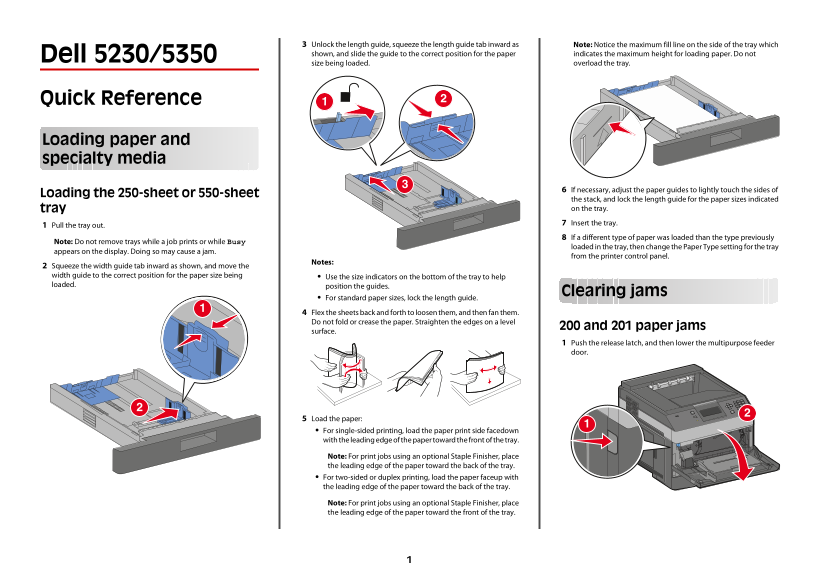
Page 1 Text Content
Unlock the length guide, squeeze the length guide tab inward as Note: Notice the maximum fill line on the side of the tray which shown, and slide the guide to the correct position for the paper indicates the maximum height for loading paper. Do not
Dell 5230/5350
size being loaded. overload the tray.
Quick Reference
Loading paper and specialty media
If necessary, adjust the paper guides to lightly touch the sides of
Loading the 250-sheet or 550-sheet
the stack, and lock the length guide for the paper sizes indicated tray on the tray. Insert the tray.
Pull the tray out.
If a different type of paper was loaded than the type previously
Note: Do not remove trays while a job prints or while Busy
loaded in the tray, then change the Paper Type setting for the tray
appears on the display. Doing so may cause a jam.
from the printer control panel.
Notes:
Squeeze the width guide tab inward as shown, and move the width guide to the correct position for the paper size being Use the size indicators on the bottom of the tray to help loaded. position the guides.
Clearing jams
For standard paper sizes, lock the length guide.
Flex the sheets back and forth to loosen them, and then fan them. Do not fold or crease the paper. Straighten the edges on a level
200 and 201 paper jams
surface.
Push the release latch, and then lower the multipurpose feeder door.
Load the paper: For single-sided printing, load the paper print side facedown with the leading edge of the paper toward the front of the tray.
Note: For print jobs using an optional Staple Finisher, place the leading edge of the paper toward the back of the tray. For two-sided or duplex printing, load the paper faceup with the leading edge of the paper toward the back of the tray.
Note: For print jobs using an optional Staple Finisher, place the leading edge of the paper toward the front of the tray.
Page Summary Contents For Dell 5230dn Mono Laser Printer Reference Guide
Manual Details
| Brand | Laser |
|---|---|
| Pages | 2 |
| File Size | 192.67 KB |
| Published | May 25, 2026 |
Enter the captcha to get the download link:

Frequently Asked Questions
How do I load paper correctly for single-sided printing?
For single-sided printing, load the paper print side facedown with the leading edge of the paper toward the front of the tray.
What should I check when setting up paper guides?
Adjust the paper guides to lightly touch the sides of the loaded stack and lock the length guide for the correct size.
How do I clear a paper jam from inside the machine?
Pull out the indicated tray, then pull any jammed paper slowly. If it's difficult to remove, open the rear door and remove the tray.
What is important to remember before changing print settings involving paper type?
Do not remove trays or change Paper Type setting while a job is printing or while paper is loaded in the tray, as this may cause a jam.