# A B C D E F G H I J K L M N O P Q R S T U V W X Y Z

ASROCK AMD RAID Installation Guide

Summary

This comprehensive guide is essential for optimizing your storage infrastructure using AMD hardware. It provides step-by-step instructions for configuring Redundant Array of Independent Disks (RAID), covering everything from BIOS-level setup via the FastBuild utility to advanced software management with RAIDXpert. Learn how to establish various complex RAID levels, including mirroring and striping, ensuring optimal data performance and fault tolerance. Designed for system builders and IT professionals needing reliable, high-speed data storage solutions.
📄 Preview PAGE OF 17

Page 1 Text Content

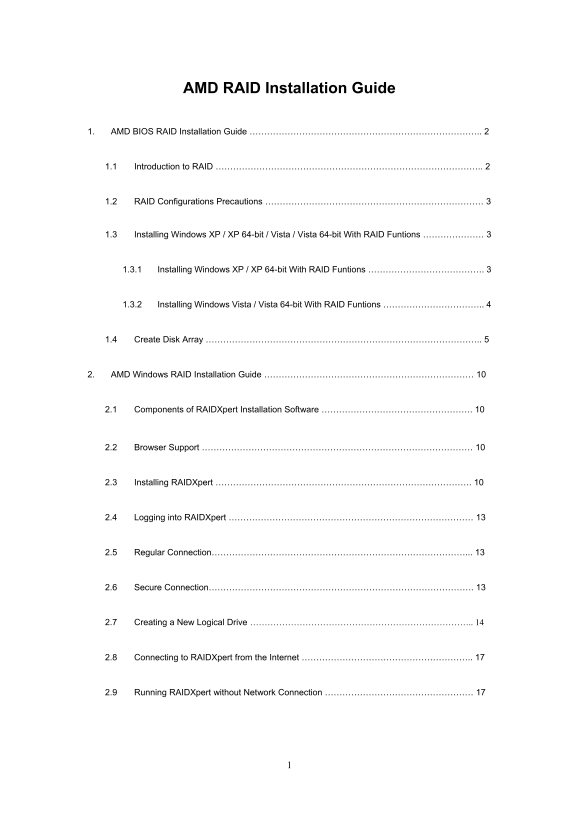
AMD RAID Installation Guide

1. AMD BIOS RAID Installation Guide …………………………………………………………………….. 2

1.1 Introduction to RAID ……………………………………………………………………………….. 2

1.2 RAID Configurations Precautions ………………………………………………………………… 3

1.3 Installing Windows XP / XP 64-bit / Vista / Vista 64-bit With RAID Funtions ………………… 3

1.3.1 Installing Windows XP / XP 64-bit With RAID Funtions …………………………………. 3

1.3.2 Installing Windows Vista / Vista 64-bit With RAID Funtions …………………………….. 4

1.4 Create Disk Array ………………………………………………………………………………….. 5

2. AMD Windows RAID Installation Guide ……………………………………………………………… 10

2.1 Components of RAIDXpert Installation Software ……………………………………………. 10

2.2 Browser Support ………………………………………………………………………………… 10

2.3 Installing RAIDXpert ……………………………………………………………………………. 10

2.4 Logging into RAIDXpert ………………………………………………………………………… 13

2.5 Regular Connection……………………………………………………………………………... 13

2.6 Secure Connection………………………………………………………………………………. 13

2.7 Creating a New Logical Drive ………………………………………………………………….. 14

2.8 Connecting to RAIDXpert from the Internet ………………………………………………….. 17

2.9 Running RAIDXpert without Network Connection …………………………………………… 17

Page Summary Contents For ASROCK AMD RAID Installation Guide

Page 1 AMD RAID Installation Guide 1. AMD BIOS RAID Installation Guide …………………………………………………………………….. 2 1.1 Introduction to RAID ……………………………………………………………………………….. 2 1.2 RAID Configurations Precautions ………………………...
Page 2 1. AMD BIOS RAID Installation Guide AMD BIOS RAID Installation Guide is an instruction for you to configure RAID functions by using the onboard Fast Build BIOS utility under BIOS environment. After yo...
Page 3 you create, manage, and delete a JBOD the same as a logical drive. You can designate from two to four physical drives with online capacity expansion. If you attach a single physical drive that was pre...
Page 4 1.3.1 Installing Windows XP / XP 64-bit With RAID Functions If you want to install Windows XP or Windows XP 64-bit on a RAID disk composed of 2 or more SATA / SATAII HDDs with RAID functions, please f...
Page 5 1.3.2 Installing Windows Vista / Vista 64-bit With RAID Functions If you want to install Windows Vista or Windows Vista 64-bit on a RAID disk composed of 2 or more SATA / SATAII HDDs with RAID functio...
Page 6 Press <Ctrl+F> keys, then the Fast Build Utility Main Menu appears. Press 2 on the Main Menu screen to display the Define LD Menu. Press the arrow keys to highlight a logical drive number you wa...
Page 7 Choose the RAID level you want. In the Define LD Menu section, press the spacebar to cycle through logical drive types, including RAID 0, RAID 1, RAID Ready, JBOD and RAID 10. WARNING!! While you are ...
Page 8 following the detailed instruction of the “User Manual” in our support CD or “Quick Installation Guide”. Two Logical Drives After selecting the logical drive in Disk Assignments as the above-mentioned...
Page 9 3. Choose the RAID level and options for the second logical drive. Note that the disk drives in Channels 1 and 2 reflect smaller capacities because a portion of their capacity belongs to the first log...
Page 10 2. AMD Windows RAID Installation Guide AMD Windows RAID Installation Guide is an instruction for you to configure RAID functions by using RAIDXpert RAID management software under Windows environment. ...
Page 11 7. When the Welcome screen appears, click the Next button. 8. When the License Agreement screen appears, click the “I accept the terms of the license agreement” option to proceed with installation. Th...
Page 12 If you want a different folder, type its location or click the Choose... button and select a new location. Click the Next button when you are finished. 10. When the Check HTTP SSL screen appears, you ...
Page 13 12. When the Install Complete screen appears, click the Finish button. 2.4 Logging into RAIDXpert Choose RAIDXpert in the Windows Programs menu. Or, log on manually with your browser: 1. Launch the Br...
Page 14 • Enter the Host PC’s IP address . . . . . . . . . . . .127.0.0.1 or localhost • Enter the Port number . . . . . . . . . . . . . . . . . . . . . . . . . . . . . . . :8443 • Add to launch RAIDXpert. . ...
Page 15 4. In the Select Drive Type screen, click the following option: • Free Drives – Select all Free (unassigned) physical drives The Select Drives screen appears. 5. Click the Next button. 6. If you want ...
Page 16 8. Click the Next button. The Assign a Name screen appears. 9. Enter a name for the logical drive in the field provided. 10. Click the Next button. The Final Settings screen appears. 11. RAID 0, 5, an...
Page 17 Before you can use your new logical drive, you must partition and format the logical drive using your PC’s operating system. 2.8 Connecting to RAIDXpert from the Internet The above instructions cover ...

Manual Details

Brand ASRock
Pages 17
File Size 880.12 KB
Published May 14, 2026
323 views

Enter the captcha to get the download link:

captcha

Frequently Asked Questions

What type of drives should I use when setting up a RAID set?

For optimal performance, you must install identical hard drives of the same model and capacity.

How do I configure my system to enter RAID mode in the BIOS?

After creating a SATA / SATAII driver diskette, press <F2> to enter BIOS setup and set the option to RAID mode.

What warning applies if I build an array using RAID 0 (Data Striping)?

RAID 0 does not provide any fault tolerance. Hot-plugging any HDD can cause data damage or data loss.

Does a JBOD configuration offer superior performance compared to true RAID arrays?

No, as independent physical drives, JBOD does not offer the performance or security advantages of dedicated RAID logical drives.