# A B C D E F G H I J K L M N O P Q R S T U V W X Y Z

AOC Monitor M4002VWH User Guide

Summary

Master your display setup with this comprehensive user manual. Designed for clarity, this guide covers everything from initial hardware connection and OSD menu navigation to optimizing performance across Windows 7, 8, and 10. It provides detailed technical specifications, troubleshooting tips, and crucial information regarding industry compliance standards (e.g., RoHS). Whether you are a first-time user or need advanced configuration knowledge, this manual serves as your complete reference for maximizing your monitor's potential.
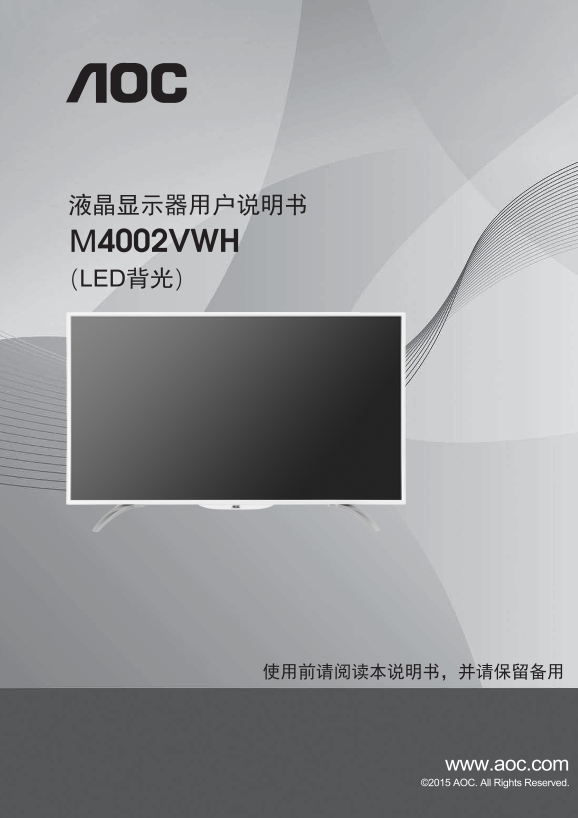
📄 Preview 📖 Table of Contents Contents PAGE OF 58

Page 1 Text Content

M4002VWH (LED

www.aoc.com ©2015 AOC. All Rights Reserved.

Page Summary Contents For AOC Monitor M4002VWH User Guide

Page 1 M4002VWH (LED www.aoc.com ©2015 AOC. All Rights Reserved.
Page 2 Windows10.. .......................................................................................................................................... 12 .... Windows 8 ..................................
Page 3 FCC ................................................................................................................................................. 55 WEEE Declaration .................................
Page 5 100 - 240V , Min. 5A
Page 9 DVI 、HDMI信号线、音频线 AOC
Page 10 M6X12mm 200mm 200mm
Page 11 1. 耳机输出 5. HDMI1 2 . 音频输入 6 . HDMI2 3 . D-SUB 7 . 电源 4 . DVI 3 将 针插头的 D-SUB 信号线一端连接 PC 显卡 D-SUB 信号输出口,另一端连接液晶显示 D-SUB 信号输入口。 4 将 针插头的 DVI 信号线一端接 PC 显卡 DVI 信号输出口,另一端接液晶显示器 DVI 5/6 将 HDMI 信号线一端接液晶显示器 HD...
Page 12 调节显示器 设定最佳分辨率 Windows 10 启动 Windows 10 系统: 1. 右击开始。 2. 单击控制面板。
Page 14 Windows 8 针对 Windows 8: 1. 点击鼠标右键并点击全部应用程序在屏幕的右下方。
Page 16 Windows 7 启动 Windows 7 系统: 1. 单击开始。 2. 单击控制面板。
Page 18 1. 信号源切换/自动调整/退出 2. 菜单/选择 3. 音量/增加 4. Clear Vision/减少 5. 电源开关 音量/增加 当OSD菜单处于关闭状态时,按此键打开音量调节条,按3或4调节显示器喇叭或耳机输出音量。 2 , 将自动设置水平位置、垂直位置、OSD , OSD , 切换 Clear Vision 1.当OSD菜单处于关闭状态时,按4按钮激活Clear Vision。 2.使用...
Page 19 1) MENU OSD 2) 左 MENU 3) 左 右 AUTO 4) OSD 定OSD, MENU 。要 OSD, 1) , OSD " " 。 2) 4:3 , OSD " " 。 3) Clear vision DCR
Page 20 Eco mode
Page 22 s RGB s RGB
Page 24 2 (OSD ), . 0-100 OSD 0-100 OSD 5-120 OSD 0-100 OSD
Page 25 / D-SUB/ DVI/HDMI1/HDMI2 or 4:3 4:3 DDC-CI / DDC/CI
Page 28 Windows 7 Clear Type 设置 1.开始->控制台
Page 29 5.点选左方调整Clear Type文字 6.取消勾选开启Clear
Page 30 7.取消勾选Clear Type
Page 33 驱动 显示器驱动 Windows 10 1. 启动Windows® 10 2. 右击开始。 3. 单击控制面板。
Page 35 9. 打开“更新驱动器软件类Pn P显示器”窗口通过点击“更新驱动器……”然后点击“为驱动软件浏览计算机”按钮。
Page 36 11. 点击“从磁盘安装”按钮。点击“浏览”按钮并导航到后面的目录:X:\Driver\module name(其中X是CD-ROM驱 动盘的驱动盘符指示符)。 12. 选择“xxx.inf” 文件并且点击“打开”按钮。点击“OK”按钮。 13. 选择显示器模型并且点击“下一个”按钮。该文件会从CD复制到硬盘驱动器。 14. 关闭全部打开的窗口并且移去CD。 15. 重启系统。系统会自动选择最大的...
Page 37 Windows 8 1. 启动 Windows® 8 2. 点击鼠标右键并点击全部应用程序在屏幕的右下方。
Page 39 10. 打开“更新驱动器软件类 Pn P 显示器”窗口通过点击“更新驱动器……”然后点击“为驱动软件浏览计算机”按钮。
Page 40 12. 点击“从磁盘安装”按钮。点击“浏览”按钮并导航到后面的目录:X:\Driver\module name(其中 CD-ROM 动盘的驱动盘符指示符)。 13. 选择“xxx.inf”文件并且点击“打开”按钮。点击“OK”按钮。 14. 选择显示器模型并且点击“下一个”按钮。该文件会从 CD 复制到硬盘驱动器。 15. 关闭全部打开的窗口并且移去 CD。 16. 重启系统。系统会自动选择最大的...

Manual Details

Brand AOC
Pages 58
File Size 3.98 MB
Published May 14, 2026
233 views

Enter the captcha to get the download link:

captcha

Frequently Asked Questions

What Windows operating systems are supported by this model?

The model is compatible with Windows 10, Windows 8, and Windows 7.

How can I adjust color or picture settings?

You can access the picture adjustments using the OSD Menu (On Screen Display).

Does this product comply with Chinese environmental regulations?

Yes, it is listed as complying with China's RoHS requirements (SJ/T 11364).

What are the key signals required for proper physical connection?

Required connections include TMDS clock and data signals, DDC/CEC, and a +5V power source.