User's Guide for Dell G75f Color Monitor
Summary
User guide for the ViewSonic G75f 17-inch (16-inch viewable) CRT color monitor with Plug & Play. Covers setup, OSD menu configuration, image adjustment controls, main menu operations, maintenance and cleaning guidelines, troubleshooting, specifications, and warranty information. Includes ENERGY STAR compliance, VESA DPMS/DDC support, and regulatory certifications (FCC, CE). Multi-language manual with Chinese and English sections.
Page 1 Text Content
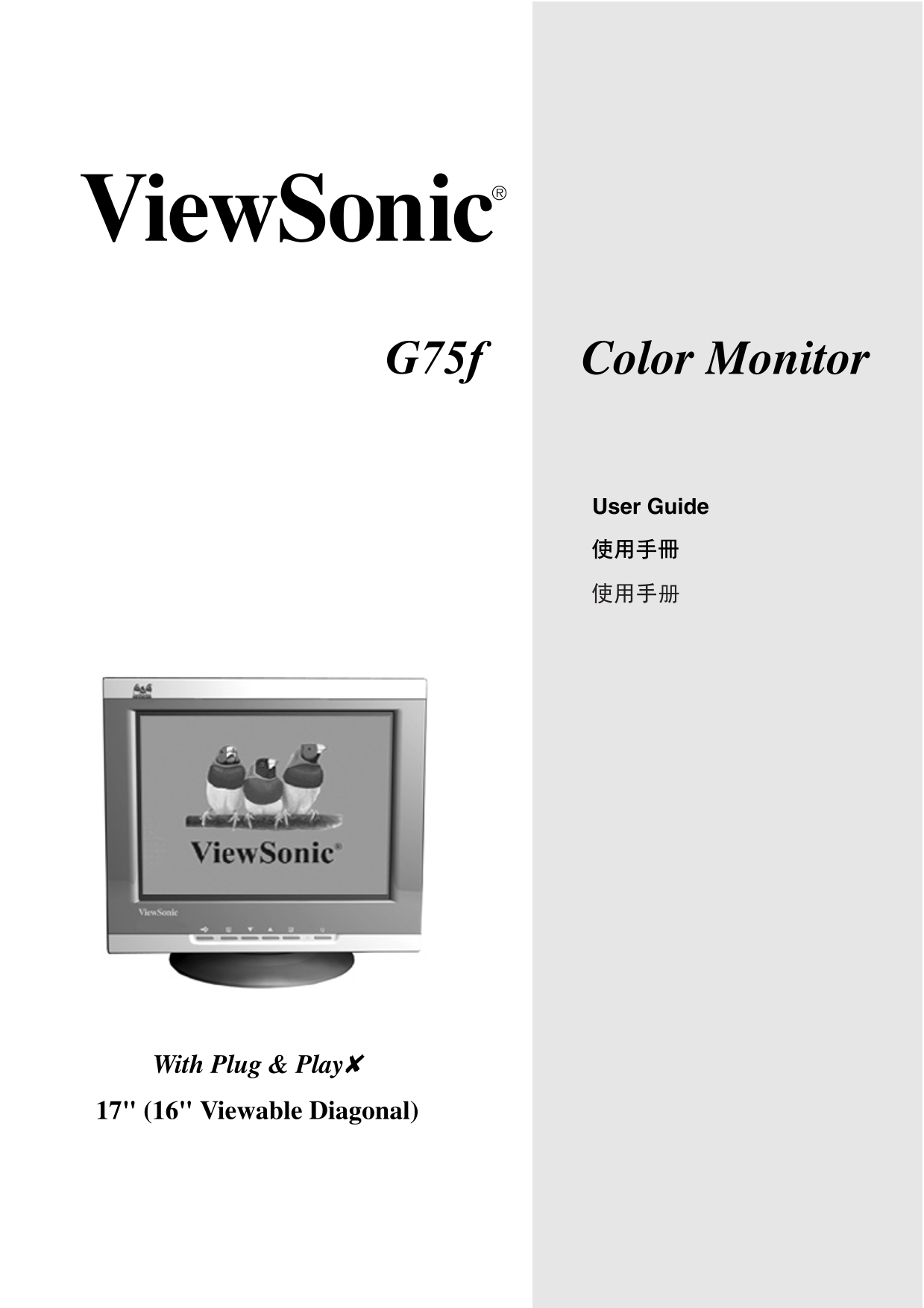
Color Monitor G75f
User Guide
With Plug & Play✘ 17" (16" Viewable Diagonal)
Page Summary Contents For User's Guide for Dell G75f Color Monitor
Page 1
Color Monitor G75f User Guide With Plug & Play✘ 17" (16" Viewable Diagonal)
Page 2
OSD ........................................................... Main Menu ...................................8 CE ............................................ 03/22/04 A View Sonic G75f 1
Page 3
Copyright © View Sonic Corporation Mactintosh Power Macintosh Apple Computer, Inc. Microsoft Windows Windows NT Windows Microsoft Corporation View Sonic On View View Match View Meter View Sonic Corpor...
Page 4
View Sonic® Windows Microsoft Windows 95 Windows NT Windows 98 Windows 2000 Windows Me (Millennium) Windows XP • DB-15 • View Sonic Wizard CD CD PDF INF/ICM INF Windows ICM View Sonic 45 cm View Sonic...
Page 5
Windows viewsonic.exe (3) 5 Windows Macintosh® G3 Macintosh 1024 X 768 @ 75 Hz View Sonic® Macintosh View Sonic View Sonic Windows INF www.viewsonic.com INF ICM View Sonic Wizard View Sonic (1) View S...
Page 6
75 Hz On View® VESA 1024 x 768 @ 85 Hz Windows (OSD) OSD LOCK OSD OSD [2] 5 OSD LOCK OSD OSD OSD OSD [2] 5 UNLOCK OSD OSD View Sonic G75f 5
Page 7
On View® On View 8 Main Menu Main Menu On View Memory Recall User Color Main Menu View Sonic G75f 6
Page 8
Main Menu [1] Main Menu Contrast/Brightness CONTRAST View Sonic G75f 7
Page 9
Main Menu Contrast Brightness Horizontal Position Horizontal Size Vertical Position Vertical Size Pincushion Pin Balance Trapezoid Parallelogram Rotation View Sonic G75f 8
Page 10
Degauss Degauss Degauss [2] View Match® Color User Color (R) (B) (G) 9300K User Color OSD Position OSD H. Moire V. Moire Language English French German Italian Spanish Traditional Chinese ( ) Simplifi...
Page 11
CRT 17" (16.0" ), 90° 0.25 mm RGB / TM~52.6%, AR , RGB (0.7/1.0 Vp-p, 75 Ohm) f H : 30-86 k Hz, f : 50-160 Hz (TTL), PC VGA 1600 x 1200 Macintosh1 640 x 480 Power Macintosh 1600 x 1200 Macin...
Page 12
View Meter 75 Hz Main Menu Degauss View Sonic® View Sonic G75f 11
Page 13
T: (800) 820-3870www.viewsonic.com.cn service.cn@ F: (021) 62375373 cn.viewsonic.com www.hk.viewsonic.com T: +886(2)2246-3456 service@hk. F: +886(2)8242-3668 viewsonic.com View Sonic G75f 12
Page 14
View Sonic View Sonic View Sonic G75f 13
Page 15
VIEWSONIC CRT View Sonic View Sonic View Sonic® CRT b. View Sonic f. View Sonic 1. View Sonic 3. View Sonic View Sonic 4. View Sonic View Sonic View Sonic View Sonic View Sonic View Sonic View Sonic V...
Page 16
UL SEV CSA BASE/BS VDE Electric Appliance Control Act IEC-60320 , A1 In the United States and Canada the male plug is NEMA5-15 style A2), UL Listed, and CSA Labeled. For units which are mounted on a d...
Page 17
This equipment has been tested and found to comply with the limits for a Class B digital device, pursuant to part 15 of the FCC Rules. These limits are designed to provide reasonable protection agains...
Page 18
View Sonic® Corporation
Manual Details
| Brand | Dell |
|---|---|
| Pages | 18 |
| File Size | 724.54 KB |
| Published | July 04, 2026 |
3 views
Enter the captcha to get the download link:

Frequently Asked Questions
What type of power cord is required for FCC compliance?
You must use a grounded power supply cord and the provided shielded video interface cable.
What maximum resolution does this monitor support?
The model supports a maximum displayed resolution of 1024 X 768 at 75 Hz.
How can I prevent accidental adjustments to the on-screen settings?
You must use the OSD LOCK feature available in the Monitor's Display Unit (OSD) menu.