Samsung DB22D-Т Quick User Guide
Summary
Manage your commercial digital applications and interactive signage solutions with our versatile display unit. This comprehensive guide provides step-by-step instructions for setup, utilizing diverse inputs (HDMI, USB, LAN, D-SUB), and activating advanced features like capacitive touch control via remote. Designed for professional installers and facility managers, the manual ensures seamless integration of source devices into your digital signage ecosystem, supporting reliable connectivity and user management in any commercial environment.
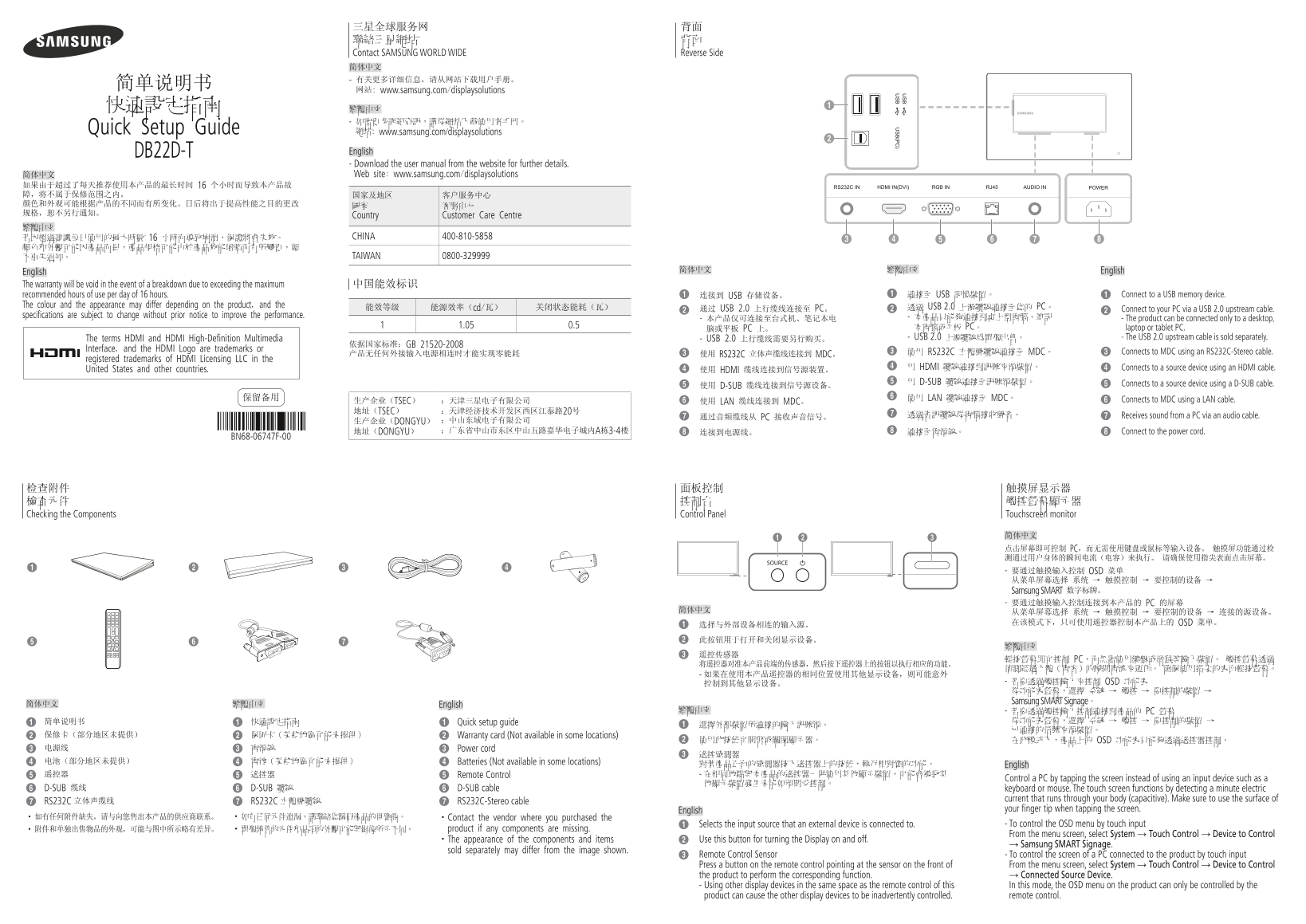
Page 1 Text Content
三星全球服务网 背面 聯絡三星網站 背面 Contact SAMSUNG WORLD WIDE Reverse Side 简体中文 - 有关更多详细信息,请从网站下载用户手册。
网站: www.samsung.com/displaysolutions
- 如需更多詳細資訊,請從網站下載使用者手冊。 Quick Setup Guide 網站: www.samsung.com/displaysolutions DB22D-T English - Download the user manual from the website for further details. 简体中文 Web site: www.samsung.com/displaysolutions
如果由于超过了每天推荐使用本产品的最长时间 16 个小时而导致本产品故 HDMI IN(DVI) AUDIO IN RGB IN RJ45RS232C IN 障,将不属于保修范围之内。 国家及地区 客户服务中心 颜色和外观可能根据产品的不同而有所变化。日后将出于提高性能之目的更改 國家 客服中心 规格,恕不另行通知。
Country Customer Care Centre
若因超過建議每日使用的最大時數 16 小時而導致崩潰,保證將會失效。 CHINA 400-810-5858
不事先通知。 TAIWAN 0800-329999
简体中文 繁體中文 English
English The warranty will be void in the event of a breakdown due to exceeding the maximum 中国能效标识
recommended hours of use per day of 16 hours. 连接到 USB 存储设备。 連接至 USB 記憶裝置。 Connect to a USB memory device.
The colour and the appearance may differ depending on the product, and the 透過 USB 2.0 上游纜線連接至您的 PC。
能效等级 能源效率(cd/瓦) 关闭状态能耗(瓦) 通过 USB 2.0 上行缆线连接至 PC。 Connect to your PC via a USB 2.0 upstream cable.
specifications are subject to change without prior notice to improve the performance. - 本產品只能夠連接到桌上型電腦、筆記
- 本产品仅可连接至台式机、笔记本电 - The product can be connected only to a desktop,
1.05 0.5 本電腦或平板 PC。
脑或平板 PC 上。 laptop or tablet PC. The terms HDMI and HDMI High-Definition Multimedia - USB 2.0 上行缆线需要另行购买。 - USB 2.0 上游纜線為單獨出售。 - The USB 2.0 upstream cable is sold separately.
依据国家标准:GB 21520-2008
Interface, and the HDMI Logo are trademarks or
使用 RS232C 立體聲纜線連接至 MDC。 Connects to MDC using an RS232C-Stereo cable.
产品无任何外接输入电源相连时才能实现零能耗 使用 RS232C 立体声缆线连接到 MDC。
registered trademarks of HDMI Licensing LLC in the
用 HDMI 纜線連接到訊號來源裝置。 Connects to a source device using an HDMI cable.
United States and other countries. 使用 HDMI 缆线连接到信号源装置。
用 D-SUB 纜線連接至訊號源裝置。
使用 D-SUB 缆线连接到信号源设备。 Connects to a source device using a D-SUB cable.
保留备用 使用 LAN 纜線連接至 MDC。 Connects to MDC using a LAN cable.
生产企业(TSEC) :天津三星电子有限公司 使用 LAN 缆线连接到 MDC。
地址(TSEC) :天津经济技术开发区西区江泰路20号
透過音訊纜線從電腦接收聲音。 Receives sound from a PC via an audio cable.
通过音频缆线从 PC 接收声音信号。
生产企业(DONGYU) :中山东域电子有限公司 地址(DONGYU) :广东省中山市东区中山五路嘉华电子城内A栋3-4楼 连接到电源线。 連接至電源線。 Connect to the power cord.
BN68-06747F-00
检查附件 面板控制 触摸屏显示器 檢查元件 控制台 觸控螢幕顯示器 Checking the Components Control Panel Touchscreen monitor
简体中文 点击屏幕即可控制 PC,而无需使用键盘或鼠标等输入设备。 触摸屏功能通过检 测通过用户身体的瞬间电流(电容)来执行。 请确保使用指尖表面点击屏幕。
SOURCE
- 要通过触摸输入控制 OSD 菜单 从菜单屏幕选择 系统 → 触摸控制 → 要控制的设备 → Samsung SMART 数字标牌。 - 要通过触摸输入控制连接到本产品的 PC 的屏幕
从菜单屏幕选择 系统 → 触摸控制 → 要控制的设备 → 连接的源设备。 在该模式下,只可使用遥控器控制本产品上的 OSD 菜单。
輕按螢幕即可控制 PC,而無需使用鍵盤或滑鼠等輸入裝置。 觸控螢幕透過
- 若要透過觸控輸入來控制 OSD 功能表
從功能表螢幕,選擇 系統 → 觸控 → 要控制的裝置 → Samsung SMART Signage。
简体中文 繁體中文 English
繁體中文 - 若要透過觸控輸入控制連接到產品的 PC 螢幕
简单说明书 快速設定指南 Quick setup guide 從功能表螢幕,選擇 系統 → 觸控 → 要控制的裝置 →
保修卡(部分地区未提供) 保固卡(某些地區可能未提供) Warranty card (Not available in some locations)
使用此按鈕可開啟或關閉顯示器。 在此模式下,產品上的 OSD 功能表只能夠透過遙控器控制。
电源线 電源線 Power cord
电池(部分地区未提供) 電池(某些地區可能未提供) Batteries (Not available in some locations)
對著產品正面的感測器按下遙控器上的按鈕,執行相對應的功能。 English
遥控器 遙控器 Remote Control - 在相同地點與本產品的遙控器一併使用其他顯示裝置,可能會導致其
Control a PC by tapping the screen instead of using an input device such as a
D-SUB 缆线 D-SUB 纜線 D-SUB cable keyboard or mouse. The touch screen functions by detecting a minute electric
current that runs through your body (capacitive). Make sure to use the surface of
RS232C 立体声缆线 RS232C 立體聲纜線 RS232C-Stereo cable
English your finger tip when tapping the screen.
·如有任何附件缺失,请与向您售出本产品的供应商联系。 ·如有任何元件遺漏,請聯絡您購買產品的供應商。 ·Contact the vendor where you purchased the
Selects the input source that an external device is connected to. - To control the OSD menu by touch input
·附件和单独出售物品的外观,可能与图中所示略有差异。 ·單獨銷售的元件和品項的外觀可能與影像所示不同。 product if any components are missing.
From the menu screen, select System → Touch Control → Device to Control
·The appearance of the components and items Use this button for turning the Display on and off.
→ Samsung SMART Signage.
sold separately may differ from the image shown.
Remote Control Sensor - To control the screen of a PC connected to the product by touch input
Press a button on the remote control pointing at the sensor on the front of From the menu screen, select System → Touch Control → Device to Control the product to perform the corresponding function. → Connected Source Device. - Using other display devices in the same space as the remote control of this In this mode, the OSD menu on the product can only be controlled by the product can cause the other display devices to be inadvertently controlled. remote control.
[DB22D-T-QSG-CHINA]BN68-06747F-00.indd 1 2015-04-29 5:24:38
Page Summary Contents For Samsung DB22D-Т Quick User Guide
Manual Details
| Brand | Samsung |
|---|---|
| Pages | 2 |
| File Size | 2.05 MB |
| Published | May 31, 2026 |
Enter the captcha to get the download link:

Frequently Asked Questions
如何通过触摸屏控制菜单或功能?
只需在屏幕上点击,即可无需使用键盘或鼠标等输入设备进行控制。
如果超过每日推荐使用时间会导致崩溃,保修是否失效?
是的,若因超出建议每日使用的最大时数而导致崩裂/崩溃,保修将无效。
连接产品到PC的网络或视频线需要单独购买吗?
USB 2.0 上行缆线是单独出售的;HDMI 和 D-SUB 等连接线也需另行购置。
该产品的电源功耗符合什么要求?
产品在关闭状态下的能耗为 0.5W,运行状态(例如 HDMI IN)的典型能耗为 30-44W。