Roland V-STUDIO 20 Audio Interface Control Surface with DAW Software Editor Manual
Summary
This comprehensive guide provides instructions for mastering your V-STUDIO 20 multi-effect unit using the dedicated software interface. Learn how to properly connect and configure MIDI settings to ensure optimal performance. The manual covers advanced usage, including efficient patch selection (user presets) and detailed editing of a vast array of effects. Users will gain expert knowledge on customizing everything from preamps and distortion models to stereo microphones, allowing you to perfectly tailor tones for any genre from clean jazz to heavy rock. Ideal for musicians seeking complete control over studio-quality sound processing.
Page 1 Text Content
Using VS-20 Editor
1. Introduction VS-20 Editor is an application that lets you control the V-STUDIO 20’s parameters from your computer. Unless otherwise specified, this document refers to this application as “VS-20 Editor,” and the controller included with the V-STUDIO 20 as “the VS-20.”
2. Connections and settings If you’re using the V-STUDIO 20 for the first time, you’ll need to install the VS-20 driver before connecting the VS-20 to your computer. Install the driver as described in the owner’s manual included with the V-STUDIO 20. Start up VS-20 Editor after you’ve connected the VS-20 to your computer. If you start up VS-20 Editor before connecting the VS-20, it will not operate correctly.
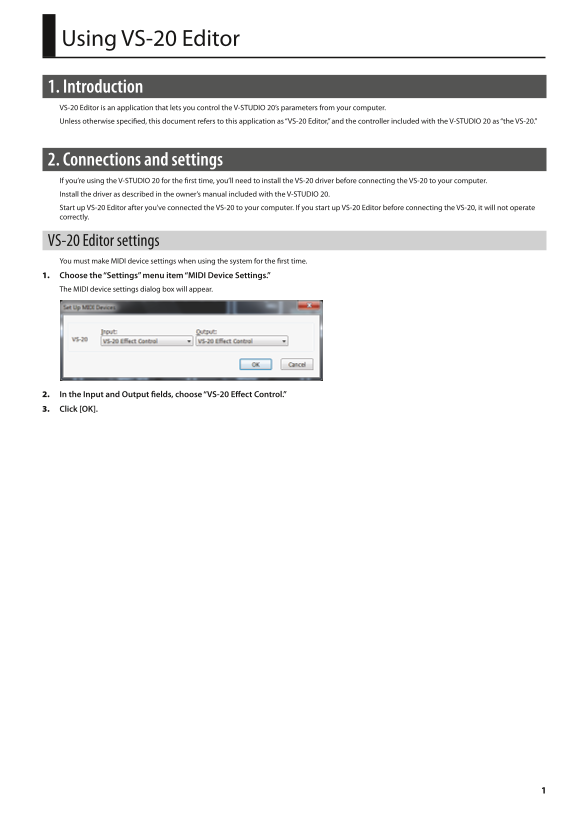
VS-20 Editor settings You must make MIDI device settings when using the system for the first time. 1. Choose the “Settings” menu item “MIDI Device Settings.” The MIDI device settings dialog box will appear.
2. In the Input and Output fields, choose “VS-20 Effect Control.” 3. Click [OK].
VS-20_editor_e01.indb 1 10/01/14 19:06
Page Summary Contents For Roland V-STUDIO 20 Audio Interface Control Surface with DAW Software Editor Manual
Manual Details
| Brand | Roland |
|---|---|
| Pages | 21 |
| File Size | 10.90 MB |
| Published | May 27, 2026 |
Enter the captcha to get the download link:

Frequently Asked Questions
What is the proper setup order for using the system?
You must first install the VS-20 driver, then connect the V-STUDIO 20 to your computer before starting up the Editor.
How do I change or edit the settings of an effect in detail?
Click [DETAIL] to view the Detail screen, which allows you to edit parameters by dragging the knobs and turn effects on/off.
What happens if I modify a patch but fail to save it?
If you exit VS-20 Editor or switch patches before writing any modifications, all your changes will be lost.
Are there conflict restrictions among the microphone/vocal effects?
The PREAMP, VOCAL HARMONY, and PITCH CORRECT effects cannot be used simultaneously because their on/off setting is shared.