Page 1
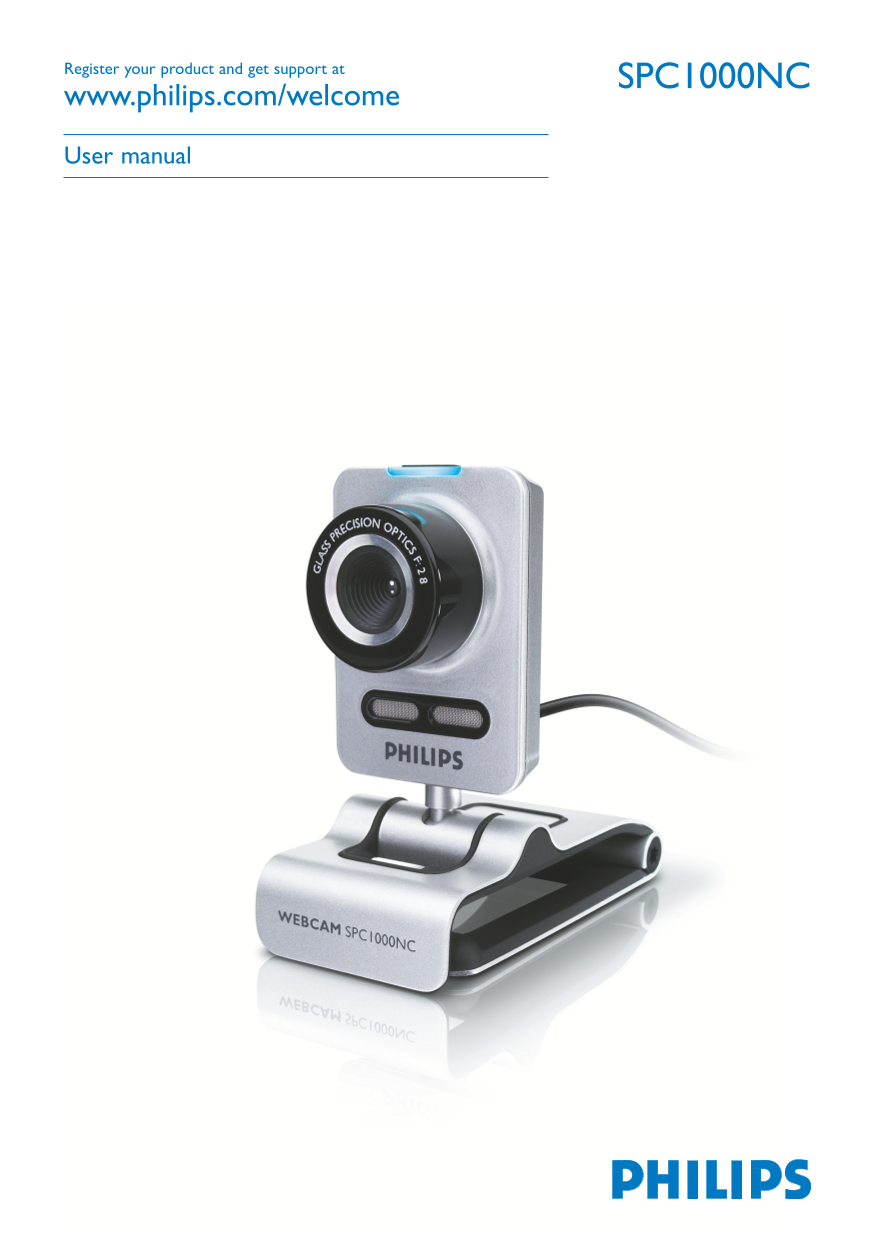
SPC1000NCRegister your product and get support at www.philips.com/welcome User manual
Page 2
Your Web Cam EN Congratulations on your purchase and welcome to Philips! To fully benefit from the support that Philips offers, register your product at www.philips.com/welcome
Page 3
What’s in the box?t’ EN Please check that the following items are packed in the Philips SPC1000NC box.They are provided to help you set up and use your Philips SPC1000NC. SPC 1000 NC Installation CD v...
Page 4
Chapter EN Legend of functions Snapshot button Enables you to take photos without using your mouse. Focus ring For manually adjusting the focus of the lens. Rotating foot For manually changing the ver...
Page 5
Chapter ontents EN Your Web Cam What’s in the box? Legend of functions Contents Welcome Things you should know Safety precautions Copyright Installation Installing the Web Cam software Connecting the ...
Page 6
Chapter EN Welcome The Philips SPC1000NC Web Cam you have just purchased is manufactured to the highest standards and will give you years of trouble-free use. Brilliant images and blazing colors, that...
Page 7
Chapter ings you should know EN Please read the following instructions carefully, and retain them for future reference. It may be helpful to have the instructions for use for the PC at hand for refere...
Page 8
Chapter EN Installation Installing the Web Cam software The software supplied only works on PCs with the operating systems Microsoft® Windows® XP and Vista. Notes! Unplug all your USB devices (except ...
Page 9
Chapter Installation EN Or: Select the second option if you wish to continue installation. Click ‘Next’ to continue. > The ‘Installation’ screen appears.The items that can be installed are shown on...
Page 10
Chapter EN Installation Connecting the Web Cam to your PC / laptop Be sure to run the installation CD first, before connecting the Web Cam to the PC / laptop. Turn on the PC / laptop. Connect the USB ...
Page 11
Chapter Web Cam settings EN The Philips SPC1000NC video properties can be changed: - from within an application; - by clicking the VProperty icon in the Windows taskbar, bottom right of your screen; -...
Page 12
Chapter EN Web Cam settings Video settings Full automatic control: on/off This full automatic control mode provides a very easy way to get the best out of your Philips SPC1000NC Web Cam. Or you can ch...
Page 13
Chapter Web Cam settings EN Auto Exposure The exposure is the amount of light received by the sensor and is determined by how long the sensor is exposed to capture a snapshot or video frame.The result...
Page 14
Chapter EN Web Cam settings Brightness Brightness enables you to adjust the brightness of the displayed image or video to suit your own preference. Use the slider to find your preferred setting. Contr...
Page 15
Chapter Web Cam settings EN Audio settings Microphone volume Volume slider This slider provides manual control over the microphone. Volume level wizard Helps you set up the microphone volume level. • ...
Page 16
Chapter EN Web Cam settings Features settings Face tracking If you enable the face tracking option, the Web Cam will track your face.This gives you more convenience while video chatting, because you d...
Page 17
Chapter Web Cam settings EN Change background This option enables you to replace the actual (real-time) background image by one from the Web Cam background list or by one of your own pictures. Note: W...
Page 18
Chapter EN Web Cam settings Add logo If you enable this option, a logo image will be placed in one of the corners of the Video stream. By default, the last used logo will be selected when the option i...
Page 19
Chapter Operating the Web Cam EN VLounge All applications can be accessed via the Philips V(ideo)-Lounge application.VLounge is the central application for easy access to your Philips Web Cam. Start V...
Page 20
Chapter EN Operating the Web Cam Capturing images / making video recordings In the ‘Capture’ menu you can capture images and make video recordings and transfer, preview, edit, e-mail, print and organi...
Page 21
Chapter Operating the Web Cam EN Deleting captured items Select the items you wish to delete in the content panel or under ‘Images’, ‘Videos’ and ‘Folders’. Click ‘ ’. > The following dialogue scre...
Page 22
Chapter EN Operating the Web Cam Motion detection In the ‘Monitor’ menu you can set up the Web Cam for motion detection and videolog recording. Click the ‘Monitor’ tab to open the ‘Monitor’ menu. >...
Page 23
Chapter Operating the Web Cam EN Monitor settings Click ‘ ’ to access the ‘Monitor settings’ menu. > The following dialogue screen appears. Enter the minimum memory capacity you wish to remain on y...
Page 24
Chapter EN Operating the Web Cam Broadcasting your videos over the Internet In the ‘Broadcast’ menu you can select a website where you can broadcast your videos live. Click the ‘Broadcast’ tab to open...
Page 25
Chapter Technical specifications EN Sensor .................................................................................1.3MP CMOS Real video resolution (Max.) .......................................
Page 26
Chapter EN Important information Disclaimer Philips makes no warranty of any kind with regard to this material, including, but not limited to, the implied warranties of merchantability and fitness for...
Page 27
Important information EN Environmental information Disposal of your old product Your product is designed and manufactured with high quality materials and components, which can be recycled and reused. ...
Page 28
Where to go for information and support? Please visit our website: www.philips.com for the latest product information. Specifications are subject to change without notice. Trademarks are the property ...