Page 1
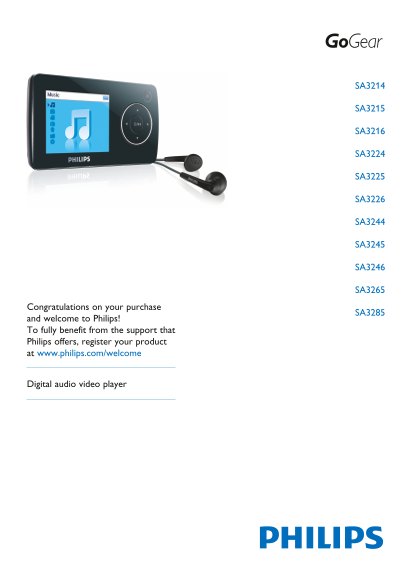
SA3214 SA3215 SA3216 SA3224 SA3225 SA3226 SA3244 SA3245 SA3246 SA3265 Congratulations on your purchase SA3285 and welcome to Philips! To fully benefit from the support that Philips offers, register yo...
Page 2
Need help? Please visit www.philips.com/welcome where you can access a full set of supporting materials such as user manual, the latest software updates and answers to frequently asked questions.
Page 3
Contents Important safety information Your new player 2.1 What’s in the box 2.2 Register your product Getting started 3.1 Overview of controls and connections 3.2 Main menu 3.3 Install 3.4 Connect and...
Page 4
Contents 4.7 Use your player to store and carry data files Update your player 5.1 Manually verify software status Technical data Frequently asked questions
Page 5
Important safety information General maintenance To avoid damage or malfunction: Do not expose the player to excessive heat caused by heating equipment or direct sunlight. Do not drop your player or a...
Page 6
Be sure to observe the following guidelines when using your headphones. Listen at reasonable volumes for reasonable periods of time. Be careful not to adjust the volume as your hearing adapts. Do not ...
Page 7
Disposal of your old product Your product is designed and manufactured with high quality materials and components, which can be recycled and reused. When this crossed-out wheeled bin symbol is attache...
Page 8
Notice for USA Note: This equipment has been tested and found to comply with the limits Philips for a Class B digital device, pursuant to part 15 of the FCC Rules. SA3214 SA3215 SA3216 SA3224 SA3225 S...
Page 9
Your new player With your newly purchased player, you can enjoy the following: Play videos Play MP3 and WMA audio files View pictures and album art Read texts Listen to FM radio Record voices / sounds...
Page 10
Getting started 3.1 Overview of controls and connections -VOLUME+ Increases/decreases volume (hold to increase/decrease fast) PLAYLIST Adds/deletes current selection to/from playlist Shows previous/la...
Page 11
3.2 Main menu Menu To Videos Watch your videos Pictures View pictures Music Play your digital music tracks Radio Listen to FM radio Recording Create or listen to recordings Folder view View your folde...
Page 12
3.4 Connect and charge When you connect the player to the PC, it automatically charges. 3.4.1 Use the supplied USB cable Before you use the player for the first time, charge it for at least 5 hours. T...
Page 13
3.5 Transfer music, pictures and text The player appears as a USB mass storage device in Windows Explorer. You can organize files and transfer music, picture and text files to your player during USB c...
Page 14
All the converted files are transferred to the player. In the option Convert to: at the bottom of the screen, select Current Device. Press the Add Media button and locate the files on the PC. Click OP...
Page 15
3.7 Disconnect your player safely Exit any active application working with your player. Remove your player safely by clicking in the task tray shown in your PC. 3.8 Enjoy 3.8.1 Turn on and off To turn...
Page 16
Detail operation 4.1 Music mode (also play mode for recordings) Your player supports MP3 and WMA formats. 4.1.1 Control The player offers the following music mode options: Goal Action Play / Pause mus...
Page 17
4.1.2 Find your music From the main menu, select to enter music mode. The player offers the following menu options: All songs Alphabetically listed tracks Artists Alphabetically listed Alphabetically ...
Page 18
4.1.3 Limit the volume Listening to loud sounds for longer than a moment can be harmful to the listener. You can set the volume level of the player to suit your preferences: From the main menu, select...
Page 19
4.2 Picture library 4.2.1 Transfer pictures from your computer to your player Connect the player to the computer. Drag and drop your pictures to the PICTURE folder of your player. Tip the Media Conver...
Page 20
4.3 Video 4.3.1 Video play You can play video clips that are stored on the player. From the main menu, select to enter Video mode. A list of video files stored on the player is displayed. Press 3 or 4...
Page 21
4.4 Radio From the main menu, select to enter radio mode. Connect the headphones The supplied headphones serve as a radio antenna. Ensure you connect the headphones properly for an optimal reception. ...
Page 22
4.4.3 Manual tune a radio station: From the Radio menu , select Manual tune. The play screen is displayed. To fine tune frequency, quick press 3/4. To search for the next stronger signal, long press 3...
Page 23
4.5 Recordings You can record audio with the player. The section Overview of controls and connections shows you the location of the microphone. From the main menu, select . Select Start voice recordin...
Page 24
4.5.3 Upload recordings to the computer Connect the player to your computer. Select the player in Windows Explorer. Select Recordings > Voice or FM radio. Copy and paste the recordings to any desir...
Page 25
4.6 Settings You can set preferences in your player to suit your needs. Press and select . Press 3 or 4 to select an option. Press 2; to go to next level or to return to previous level. Press 2; to co...
Page 26
4.6.1 Equalizer custom settings You can customize the equalizer settings: Long press and select . Press 3 or 4, then 2; to select Sound settings. Press 3 or 4, then 2; to select Equalizer. Press 3 or ...
Page 27
Update your player Your player is controlled by an internal program called the firmware. Newer versions of the firmware may have been released after you have purchased your player. A software program ...
Page 28
Technical data Power Storage media Power supply Built-in memory capacity: 310m Ah Li-ion internal rechargeable SA321x 1GB NAND Flash2 battery1 SA322x 2GB NAND Flash2 SA324x 4GB NAND Flash2 Display SA3...
Page 29
Rechargeable batteries have a limited number of charge cycles. Battery life and number of charge cycles vary by use and settings. 1MB = 1 million bytes; available storage capacity will be less. 1GB = ...
Page 30
Frequently asked questions If you encounter problems with your player, go through the following points listed in the next section. Please also check out FAQs at www.philips.com/support for further hel...
Page 31
My player hangs. In the unlikely event that your player hangs, do not panic. Insert a small pin or other sharp object into the reset hole located at the bottom of the player. Hold until the player shu...
Page 32
PHILIPS reserves the right to make design and specification changes for product improvement without prior notice.
Page 33
Disposal of your old product and the integrated battery All our products are designed and manufactured with high quality materials and components, which can be recycled and reused. The crossed-out whe...
Page 34
Specifications are subject to change without notice. Trademarks are the property of Koninklijke Philips Electronics N.V. or their respective owners © 2008 Koninklijke Philips Electronics N.V. All righ...