# A B C D E F G H I J K L M N O P Q R S T U V W X Y Z

Nikon D780 Technical Guide (N-Log Recording Edition) - English

Summary

Harness the creative power of N-Log recording format, designed for advanced filmmakers and videographers aiming for maximum dynamic range in their projects. This guide provides comprehensive instruction on utilizing Nikon’s specialty log curve capture method, which preserves crucial detail in challenging highlights and shadows. Learn how to correctly set up 10-bit external recorders, optimize camera settings (including view assist and exposure), and achieve cinematic footage ready for professional color grading and post-production editing.
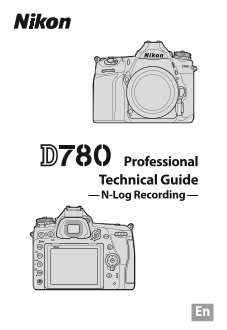
📄 Preview 📖 Table of Contents Contents PAGE OF 14

Page 1 Text Content

Professional Technical Guide — N-Log Recording —

Page Summary Contents For Nikon D780 Technical Guide (N-Log Recording Edition) - English

Page 1 Professional Technical Guide — N-Log Recording —
Page 2 Table of Contents N ‑Log: A Primer ................................................................... • Why Use N‑Log? ...............................................................................4...
Page 3 N ‑Log: A Primer The term “N‑Log” is an amalgam of “N”, for “Nikon”, and “log”, short for “logarithmic function”. The logarithmic function in question is that used in digitizing light levels based on ...
Page 4 Why Use N-Log? Shooting in N‑Log format preserves details in highlights and shadows and expands the range of effects available through color grading. Preserving Details in Highlights and Shadows N‑Log...
Page 5 Improved Color Grading Third‑party movie‑editing software that supports color grading can be used to process the same footage in a va‑ riety of different ways, as is shown in the examples below. No co...
Page 6 Filming N‑Log Footage To record N‑Log footage, connect the camera to a digital recorder that supports 10‑bit video. Use a Type  C HDMI cable (available from third‑party suppliers) and be sure the came...
Page 7 2 Enable N‑Log recording. Return to HDMI  > Ad‑ vanced in the setup menu and select N‑Log for N‑Log/ HDR output options. Note that N‑Log footage is re‑ corded only to the external device, not to th...
Page 8 N‑Log Recording While N‑Log recording is in effect, Picture Controls cannot be used, ISO sensitivity cannot be set lower than ISO 800 or to values of from Hi 0.3 to Hi 2, Active D‑Lighting and high IS...
Page 9 Filming N-Log Footage Frame Size/Frame Rate Note the following when choosing a frame size and frame rate for N‑Log recording: Frame size/frame rate Notes 3840 × 2160 30p • Icons and characters in the ...
Page 10 Using Camera Controls If On is selected for HDMI > Ad‑ vanced  > External recording control in the camera setup menu, you can start and stop recording using the camera movie‑record button (for f...
Page 11 Filming N-Log Footage View Assist Although it increases the range of tones recorded, at default settings N‑Log reduces the ap‑ parent contrast between colors when the footage is viewed in the camera m...
Page 12 Filming N-Log Footage Ensuring Consistent Exposure If your recorder features a waveform display, you can film an 18% gray color chart and adjust exposure for a video signal level (IRE) of 35%, equival...
Page 13 N‑Log Specifications N‑Log specifications are available from the following web‑ site: https://downloadcenter.nikonimglib.com/en/products/539/D780.html
Page 14 © 2020 Nikon Corporation

Manual Details

Brand Nikon
Pages 14
File Size 672.48 KB
Published May 27, 2026
57 views

Enter the captcha to get the download link:

captcha

Frequently Asked Questions

How do I begin recording in N-Log format?

Connect the camera to a digital recorder using a Type C HDMI cable. Set the Output data depth to 10 bit, and then select N-Log under the advanced setup menu.

What restrictions apply when filming in N-Log mode?

Picture Controls cannot be used, ISO sensitivity cannot be lower than 800, and certain applications (like SnapBridge) are unavailable because HDMI output is not active.

Why is using N-Log beneficial over standard footage?

It preserves critical details in highlights and shadows, offering a wide dynamic range suitable for advanced color grading during post-production to improve the final quality of the video.

Can I signal the start or stop of the recording process?

Yes, if external recording control is enabled in the setup menu, you can use the camera's movie-record button to initiate or halt the recording on the external device.