Inspur SA5212S Server OS Installation Supplementary Manual
Summary
This technical guide serves as a comprehensive resource for system administrators deploying new server infrastructure. It provides detailed, step-by-step instructions for installing robust operating systems, specifically covering both CentOS 4.5 and FreeBSD 7.1. Users will learn how to perform complex server builds, including initial OS setup, advanced manual disk partitioning techniques, configuring LSI SAS hardware controllers, and successfully installing specific Network Interface Card (NIC) drivers. Essential reading for professionals setting up specialized, mission-critical embedded systems.
Page 1 Text Content
SA5212S 服务器操作系统安装说明
本说明主要是对于SA5212S随机用户手册的补充,简单描述Cent OS 4.5 64位和Free BSD
本说明描述主要适用于本服务器在配置LSI SAS卡或主板集成SATA控制器所连接硬盘
上安装操作系统的方法,如果您的服务器配置有外插RAID卡,请您参照外插RAID卡配套光盘
1 安装 Cent OS 4.5 64
1. Cent OS 64 位安装光盘(CD 光盘或 DVD 光盘) 2. 浪潮驱动程序光盘
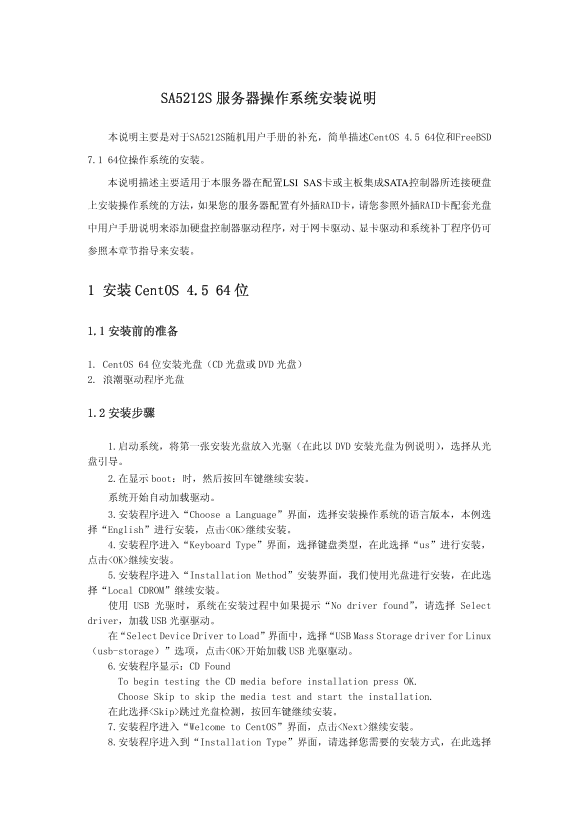
1.启动系统,将第一张安装光盘放入光驱(在此以 DVD 安装光盘为例说明),选择从光 盘引导。 2.在显示 boot:时,然后按回车键继续安装。 系统开始自动加载驱动。 3.安装程序进入“Choose a Language”界面,选择安装操作系统的语言版本,本例选 择“English”进行安装,点击<OK>继续安装。 4.安装程序进入“Keyboard Type”界面,选择键盘类型,在此选择“us”进行安装, 点击<OK>继续安装。 5.安装程序进入“Installation Method”安装界面,我们使用光盘进行安装,在此选 择“Local CDROM”继续安装。 使用 USB 光驱时,系统在安装过程中如果提示“No driver found”,请选择 Select driver,加载 USB 光驱驱动。 在“Select Device Driver to Load”界面中,选择“USB Mass Storage driver for Linux (usb-storage)”选项,点击<OK>开始加载 USB 光驱驱动。 6.安装程序显示:CD Found To begin testing the CD media before installation press OK. Choose Skip to skip the media test and start the installation. 在此选择<Skip>跳过光盘检测,按回车键继续安装。 7.安装程序进入“Welcome to Cent OS”界面,点击<Next>继续安装。 8.安装程序进入到“Installation Type”界面,请选择您需要的安装方式,在此选择
Page Summary Contents For Inspur SA5212S Server OS Installation Supplementary Manual
Manual Details
| Brand | Server |
|---|---|
| Pages | 6 |
| File Size | 112.00 KB |
| Published | June 05, 2026 |
Enter the captcha to get the download link:

Frequently Asked Questions
When partitioning during CentOS setup, what are the guidelines for creating the swap partition?
If internal memory is 512MB or less, set swap to twice the memory size; if memory exceeds 512MB, setting it to 1GB is recommended.
How should I proceed with installing a network card (NIC) driver after OS installation?
From root access, mount the driver CD and run the `kudzu` command. Then, use "Network Device Control" to activate the newly configured NIC.
What distribution set should be selected for FreeBSD 7.1 setup?
Choose “Minimal The smallest configuration possible,” and when defining a custom set, make sure to include the "sys," "tools," and "include" sub-options.