HP Officejet Pro 3610 Series Quick User Guide - Black & White Digital Multifunction Printer
Summary
Effortlessly print documents and photos from any device, including smartphones and tablets, using HP ePrint technology. This comprehensive user manual walks new and existing owners through every aspect of operating the printer, providing detailed setup instructions for all major operating systems (Windows/Mac). Inside you'll find full usage guides, troubleshooting tips, safety guidelines, ink cartridge information, and compliance details, ensuring a reliable and seamless printing experience for the modern home or small office.
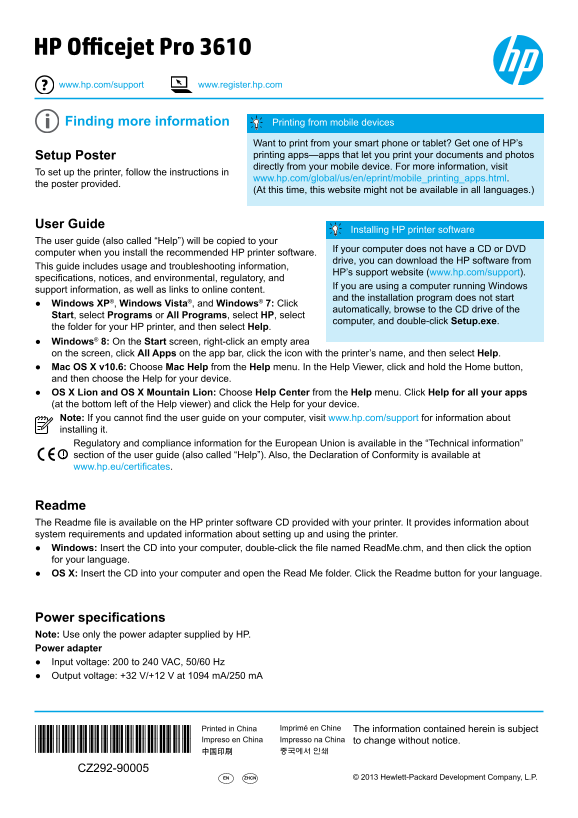
Page 1 Text Content
HP Officejet Pro 3610 www.hp.com/support www.register.hp.com
Finding more information Printing from mobile devices Want to print from your smart phone or tablet? Get one of HP’s Setup Poster printing apps—apps that let you print your documents and photos directly from your mobile device. For more information, visit
To set up the printer, follow the instructions in
www.hp.com/global/us/en/eprint/mobile_printing_apps.html.
the poster provided.
(At this time, this website might not be available in all languages.)
User Guide
Installing HP printer software
The user guide (also called “Help”) will be copied to your
If your computer does not have a CD or DVD
computer when you install the recommended HP printer software.
drive, you can download the HP software from
This guide includes usage and troubleshooting information,
HP’s support website (www.hp.com/support).
specifications, notices, and environmental, regulatory, and
If you are using a computer running Windows
support information, as well as links to online content.
and the installation program does not start
Windows XP®, Windows Vista®, and Windows® 7: Click
automatically, browse to the CD drive of the
Start, select Programs or All Programs, select HP, select
computer, and double-click Setup.exe.
the folder for your HP printer, and then select Help. Windows® 8: On the Start screen, right-click an empty area on the screen, click All Apps on the app bar, click the icon with the printer’s name, and then select Help. Mac OS X v10.6: Choose Mac Help from the Help menu. In the Help Viewer, click and hold the Home button, and then choose the Help for your device. OS X Lion and OS X Mountain Lion: Choose Help Center from the Help menu. Click Help for all your apps (at the bottom left of the Help viewer) and click the Help for your device. Note: If you cannot find the user guide on your computer, visit www.hp.com/support for information about installing it. Regulatory and compliance information for the European Union is available in the “Technical information” section of the user guide (also called “Help”). Also, the Declaration of Conformity is available at www.hp.eu/certificates.
Readme The Readme file is available on the HP printer software CD provided with your printer. It provides information about system requirements and updated information about setting up and using the printer. Windows: Insert the CD into your computer, double-click the file named Read Me.chm, and then click the option for your language. OS X: Insert the CD into your computer and open the Read Me folder. Click the Readme button for your language.
Power specifications Note: Use only the power adapter supplied by HP. Power adapter Input voltage: 200 to 240 VAC, 50/60 Hz Output voltage: +32 V/+12 V at 1094 m A/250 m A
Printed in China Imprimé en Chine The information contained herein is subject
*CZ292-90005*
Impreso en China Impresso na China to change without notice.
*CZ292-90005*
CZ292-90005
EN ZHCN © 2013 Hewlett-Packard Development Company, L.P.
Page Summary Contents For HP Officejet Pro 3610 Series Quick User Guide - Black & White Digital Multifunction Printer
Manual Details
| Brand | HP |
|---|---|
| Pages | 6 |
| File Size | 2.47 MB |
| Published | May 22, 2026 |
Enter the captcha to get the download link:

Frequently Asked Questions
How can I print documents from my smart phone or tablet?
You can use HP ePrint by attaching the document or photos to an email message and sending it to your assigned hpconnected.com address.
What type of cartridge should be installed during setup?
During setup, you must use the ink cartridge provided with the printer that is labeled 'SETUP CARTRIDGE'.
What power adapter should I use for this device?
You must only use the power adapter supplied by HP. The input voltage range is 200 to 240 VAC, 50/60 Hz.
What should I do if the software installation fails?
If the program does not start, you can download the recommended HP software from a provided CD or visit www.hp.com/support.